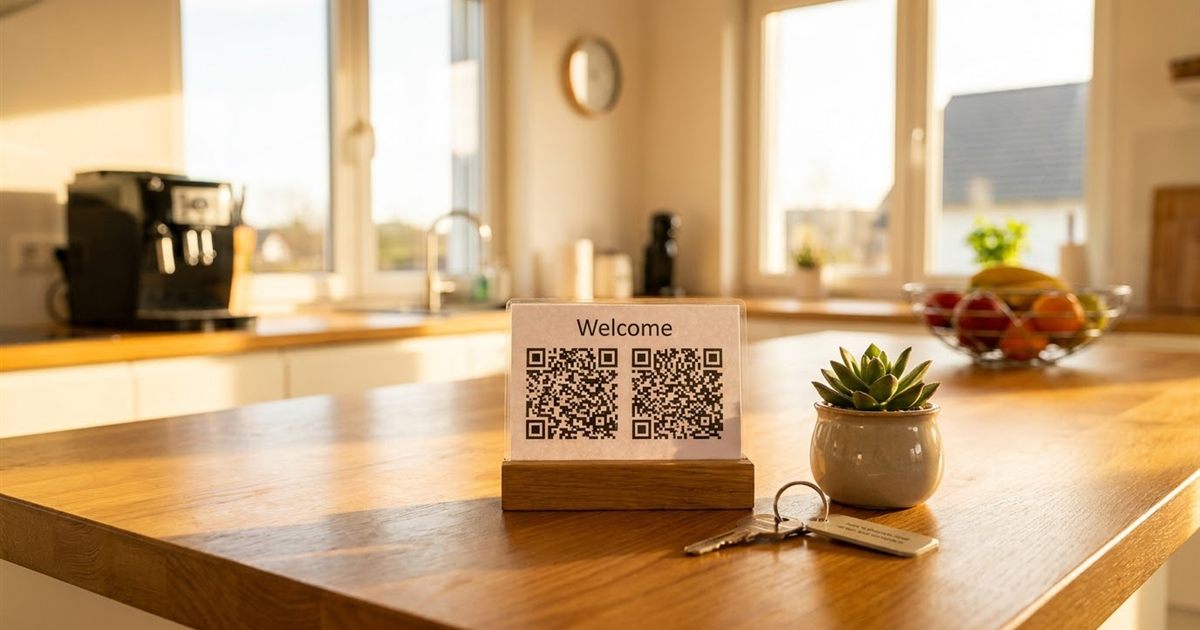
Guests arrive tired, hungry and full of questions. What is the Wi-Fi password? How does the heater work? Where is the nearest grocery store? Every answer you can place within one scan saves you a message at midnight and gives the guest a better first hour. A few QR codes on a welcome card can open your guest guide, connect the phone to Wi-Fi and show the way to the best coffee shop. The free Custom QR Code Generator creates all of them. This guide shows which codes a host needs, what each should open and how to print them so they last.
Make QR codes for your guest guide
Open the Custom QR Code Generator, FreeWhy Hosts Use QR Codes
A binder of house rules works, but nobody reads it and it goes out of date. A QR code leads to a page you can update at any time. It also saves the guest from typing long passwords and web addresses on a phone while carrying luggage. And it makes your property feel organized and modern without adding any cost.
Most hosts need only three or four codes. More than that makes the card confusing.
The Four Codes Most Guests Use
- Wi-Fi. Connects the phone to your network with one scan.
- Digital guest guide. A web page or document with check-in and check-out instructions, appliance help, house rules and local tips.
- Map or address. Opens a location, useful when guests share the address with a taxi or a friend.
- Host contact. Opens a call or message so the guest can reach you.
Add a fifth code for reviews if you like. A link to your listing or review page, shared at checkout, makes it easier for happy guests to leave feedback. See QR codes for Google Business reviews for the idea.
Create the Wi-Fi QR Code
The Custom QR Code Generator has a WiFi preset. Replace the sample network name and password with yours, and the code lets guests join the network by scanning. The full steps are in how to generate a QR code for a Wi-Fi password.
One important safety note. Anyone who sees or photographs a Wi-Fi code can read the password inside it. Use a separate guest network if your router supports one, and change the password between stays or regularly. Never print the password for your main private network.
Create the Guest Guide QR Code
The guide is the most useful code. Put your information on a simple web page, a shared document or a PDF, make sure anyone with the link can open it, and paste that link into the generator using the URL preset.
- Start with the essentials: how to enter, where to park and the check-out time.
- Add short sections for the heater, the air conditioning, the washer and the kitchen.
- Include local tips such as groceries, pharmacies, restaurants and emergency numbers.
- Keep the page mobile friendly. Guests will read it on a phone.
Because the code points to a page you control, you can change the content later without reprinting the card. For the difference between fixed and changeable codes, read static vs dynamic QR codes.
Do not put door codes, lockbox numbers or other security details on a page that anyone could find. Send those privately to the guest before arrival.
Create the Map and Contact Codes
For the location, use the Geo preset with the coordinates of your property or the nearest landmark, or link to a maps page. The differences are explained in QR codes for map locations.
For contact, use the Phone preset for a call or the SMS or WhatsApp presets for a message. Choose the channel you actually answer quickly, and include the country code. QR codes for email and phone links covers the options.
Design the Welcome Card
- Give each code a clear label, such as Wi-Fi, Guest guide or Map, using the label option in the generator. See adding scan me text to a QR code.
- Use dark modules on a light background for reliable scanning.
- Keep each code large enough to scan from a table. About 3 centimeters or 1.2 inches per side is a common minimum for close range, and larger is better. See QR code size for printing.
- Print the Wi-Fi name in plain text as well, so a guest whose phone cannot scan can still connect.
- Download the SVG for a sharp print at any size, as explained in PNG, SVG or PDF for QR codes.
Where to Place the Codes
- The welcome card on the kitchen counter or entry table.
- A small frame near the router for the Wi-Fi code.
- The refrigerator or a nightstand for the guest guide.
- Inside the entry door for the contact and check-out information.
Laminate paper cards or use a small acrylic stand so spills and fingers do not damage them. Check that glare from windows or lamps does not make the code hard to scan.
Test Before the Next Guest Arrives
Scan each code with your own phone, and ask a friend to try an iPhone and an Android. Confirm that the Wi-Fi connects, the guide loads quickly and the map opens the right place. A QR code does not expire by itself, as explained in do QR codes expire, but the page it points to can change. Check your links every few months, and after any change to your router or your guide.
Frequently Asked Questions
Which QR codes should I put in a vacation rental?
Most hosts need a Wi-Fi code, a guest guide link, a map and a contact code. Add a review link if you want to make feedback easy.
Is it safe to print a Wi-Fi QR code?
Anyone who can see the code can read the password. Use a guest network, avoid sharing your private network and change the password regularly.
Can I update the guest guide without reprinting?
Yes, if the QR code points to a web page or document you control. Edit that page and the same printed code will show the new content.
Should I put door codes in a QR code?
No. Send door codes and lockbox numbers privately to the guest before arrival, not in a code or page that others could find.
Ready to make your rental QR codes?
Open the Custom QR Code Generator, Free