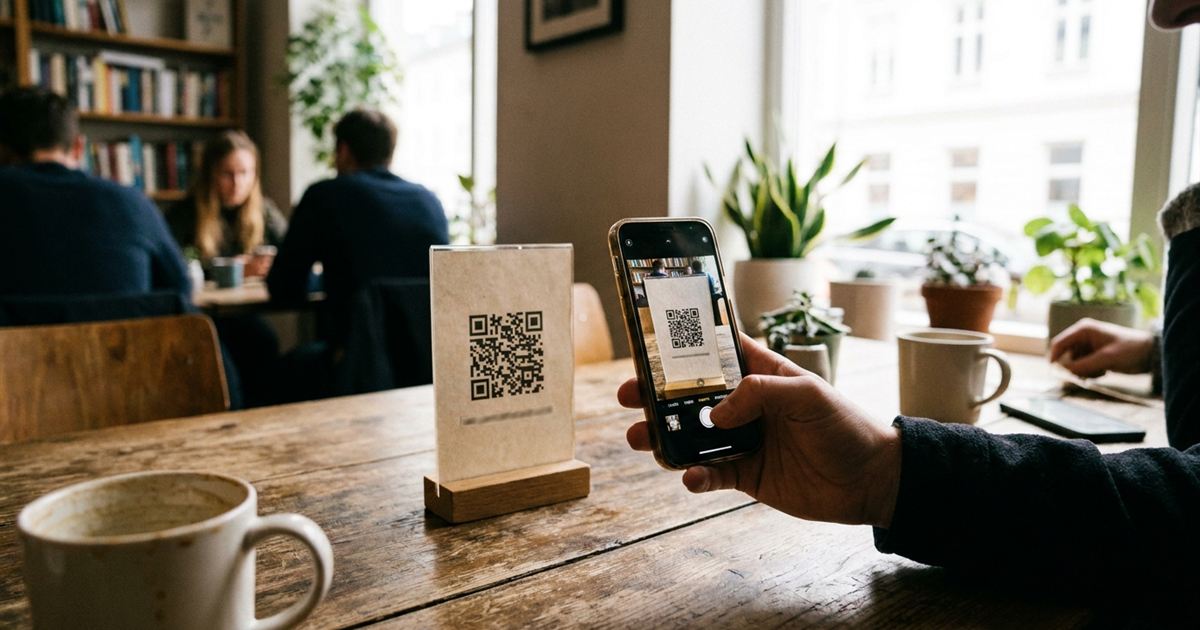
A bare QR code asks people to guess. They see a square of dots and wonder what happens if they scan it. A short line of text underneath, such as Scan me or Scan for the menu, removes that doubt and gets more people to point their camera. The EzyIMG Custom QR Code Generator has a built-in label option that adds your text below the code and lets you pick its color, so you do not need a design program to do it.
Add a Scan me label to your QR code
Open the Custom QR Code Generator, FreeWhy a Label Makes a QR Code Work Better
People scan a code when they know what they get. A label answers three quick questions: should I scan this, what will happen, and is it worth the effort. Clear text turns a mystery into a small offer, for example a menu, a discount, a location or a contact card.
It also helps people who are not used to QR codes. A line like Scan with your phone camera tells them the first step, which is surprisingly useful on posters and flyers aimed at a wide audience.
How the Label Option Works in EzyIMG
In the Custom QR Code Generator, scroll to the optional Label section, type your text and choose a label color. The preview updates and shows your text centered in a strip directly below the code. The label sits outside the QR pattern itself, so it does not interfere with scanning.
- The label is one line of centered text in a bold sans-serif font.
- The strip behind it uses your background color, so it blends in with the code.
- If you use a transparent background, the strip is drawn in a soft white so the text stays readable.
- You can change the label color separately from the QR color.
Download the PNG to Keep the Label
This detail matters. The PNG download is the full picture, including the label, the center logo and your chosen module and eye styles. The SVG download is a clean vector version of the QR code with your colors, but it does not include the label. If you want the label in the file, use the PNG, or add the text yourself in your design software when you work with the SVG.
For files going to print at a large size, you may prefer the SVG for sharp edges and add your own text in a layout tool, using a font that matches your brand. For tabletop signs, stickers, receipts and screens, the PNG with the label is usually all you need.
What to Write on the Label
Keep it short and specific, because the label is a single line at a fixed size. Aim for two to five words. Good labels name the benefit or the destination, not just the action.
- Scan for the menu
- Scan to book
- Scan to join Wi-Fi
- Scan for 10 percent off
- Scan to leave a review
- Scan to save my contact
- Scan for directions
Avoid vague labels like Click here, which makes no sense on paper, and avoid long sentences that will not fit under the code.
Size, Contrast and Where to Place It
The label text is drawn at a fixed size, so it looks relatively smaller on a very large code. For a code at the default size, it reads well. If you generate a big code for a poster, keep the text very short or place a larger headline above or beside the code in your layout. For help with dimensions, see what size a printed QR code should be.
Choose a label color with strong contrast against the background. Dark text on a light strip is the most readable. If you are not sure about your colors, read QR code color contrast before you print.
Make It Scan Reliably Too
- Keep the code itself dark on a light background, with the margin around it intact.
- Choose an error correction level that suits your use. Higher levels help if you add a logo.
- Print a sample and scan it with at least two different phones.
- Check it from the real distance people will scan from.
- Follow the checklist in why a QR code will not scan if anything goes wrong.
Ideas for Using a Labeled QR Code
- Table tents with Scan for the menu. See QR codes for restaurant menus.
- Business cards with Scan to save my contact, as in a digital business card QR code.
- Receipts with Scan to leave a review. See QR codes for Google reviews.
- Wi-Fi cards for guests, with a Wi-Fi QR code.
- Event signs with Scan to check in. See QR codes for events.
Frequently Asked Questions
How do I add text under a QR code?
In the Custom QR Code Generator, use the optional Label section. Type your text, choose a color and the preview shows it centered below the code.
Does a label affect whether the QR code scans?
No. The label sits in a separate strip below the QR pattern, so it does not interfere with the code itself.
Why is my label missing from the SVG file?
The SVG download is a clean vector version of the QR code with your colors. The label, the logo and the module styles are included in the PNG download instead.
How long can the label be?
It is one line at a fixed size, so keep it to roughly two to five words. Very long text will not fit under the code.
What is a good label for a QR code?
Short and specific: Scan for the menu, Scan to book or Scan to leave a review tell people exactly what they get.
Know what your code does? Open the generator, type a short label and download the PNG.
Ready to label your QR code?
Open the Custom QR Code Generator, Free