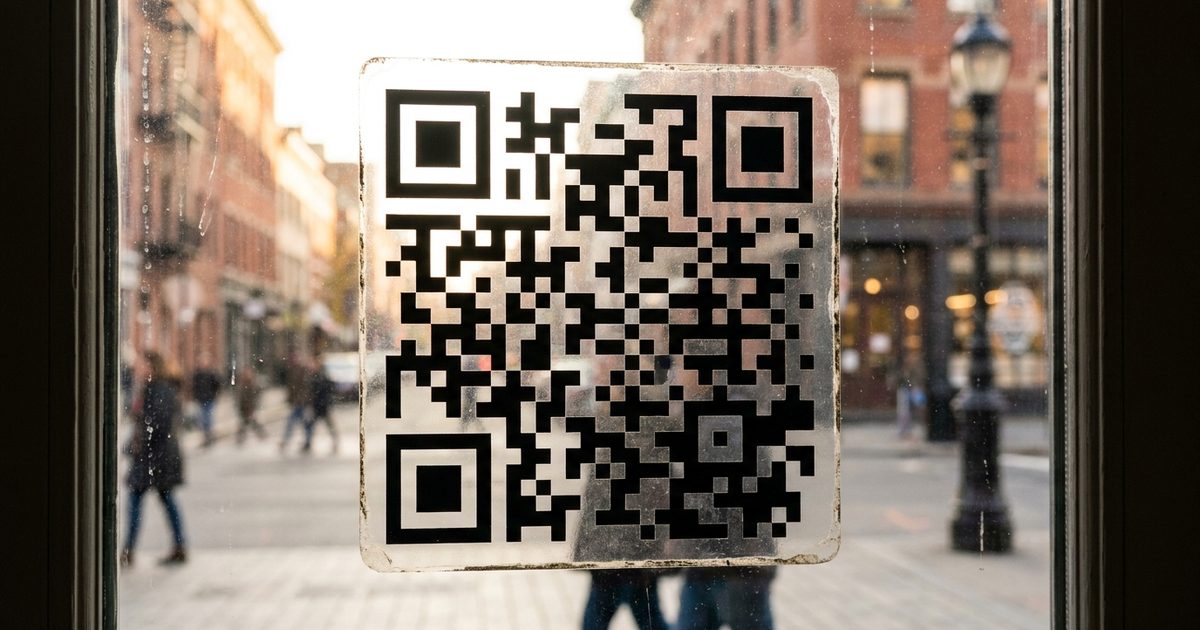
A QR code with a solid white box around it can look pasted onto a design. A transparent background lets the code sit directly on your poster, photo or packaging instead. The EzyIMG Custom QR Code Generator has a Transparent option that exports a PNG with no background fill. It is a small switch, but scanners are picky about contrast, so the details below matter.
Generate a transparent QR code
Open Custom QR Code Generator, Free, No SignupWhat a Transparent QR Code Really Is
A QR code is made of dark modules on a lighter field. With a transparent background, the lighter field is simply missing, so whatever sits behind the code shows through the gaps. The code is still the same pattern and holds the same data. It just borrows its background from your design.
Only formats that support transparency can carry this. PNG does. JPG does not, and a JPG export will fill the empty area with a solid color.
Make One in Five Steps
- Open the Custom QR Code Generator and enter your link or text.
- Pick a dark QR color. Black or a deep navy gives the best chance of scanning reliably.
- Tick the Transparent checkbox under Background. The background color pickers are disabled once it is on.
- Check the margin. The default is 2 and the field accepts 0 to 10. A larger margin leaves more breathing room around the code.
- Download the PNG and place it in your design tool, document or slide.
When It Works and When It Fails
Scanners look for a clear difference between dark modules and their surroundings. A transparent code keeps that difference only if what sits behind it is light and plain. A white poster, a pale photo area, a light wall or the back of a clear sticker on a bright surface all work well.
It fails on dark, busy or patterned backgrounds. Dark modules on a dark photo, or a code placed across a detailed image, leave the scanner unable to tell pattern from background. If the only available spot is dark, make the modules light and test carefully, because many scanners struggle with inverted codes. The article on inverted and dark mode codes explains the trade-offs.
Keep Enough Quiet Space
Every QR code needs a clear margin around it so scanners can find its edges. With a transparent background it is easy to forget the margin exists, because nothing visible marks it. Keep the area around the code free of text, lines and image detail, and do not let a photo edge or a border touch the pattern. The contrast guide shows which color combinations hold up.
Good Uses for a Transparent Code
- Posters, flyers and menus where the code sits on a plain light area of the layout.
- Slides and documents with a colored panel behind the code.
- Product packaging and labels with a pale printed background.
- Window and door stickers, where the glass shows through the gaps.
- Social graphics and photos with a clean, light corner.
- Layered designs in Canva, Figma or Photoshop where the code needs to be moved freely.
Test It on the Real Background
Never judge a transparent code by how it looks on your screen against white. Place it on the actual design or surface, print a proof at the final size if you can and scan it from the distance people will use. Try more than one phone and check both bright and dim light. The steps in testing a QR code before printing make a good checklist.
Combine It With Style and a Logo
The Custom QR Code Generator also lets you change the module style, the eye shape and the eye color, and add a logo or label. These can all be combined with a transparent background. Keep one rule in mind: every extra stylistic choice reduces the margin for error, so raise the error correction level when you add a logo and always scan the final result. The logo guide covers this in depth.
Frequently Asked Questions
How do I make a QR code with a transparent background?
In the Custom QR Code Generator, enter your data and tick the Transparent checkbox under Background, then download the PNG. The exported file has no background fill.
Will a transparent QR code still scan?
Yes, as long as the surface behind it is light and plain enough that the dark modules stand out clearly. On dark or busy backgrounds it can fail, so test it in place.
Why is my transparent QR code showing a white or black box?
You probably saved it as JPG, which does not support transparency. Use the PNG download, and check that your design tool has not added its own fill behind the image.
Can I use a light QR code on a dark background?
It is possible, but many scanners expect dark modules on a light field and can fail on inverted codes. If you must, test with several phones before printing.
Does transparency change the data in the code?
No. The pattern and the encoded link or text are identical. Only the background fill is removed.
Want a code that blends into your design? Open the Custom QR Code Generator and tick Transparent.
Want a code that blends into your design?
Open Custom QR Code Generator, Free, No Signup