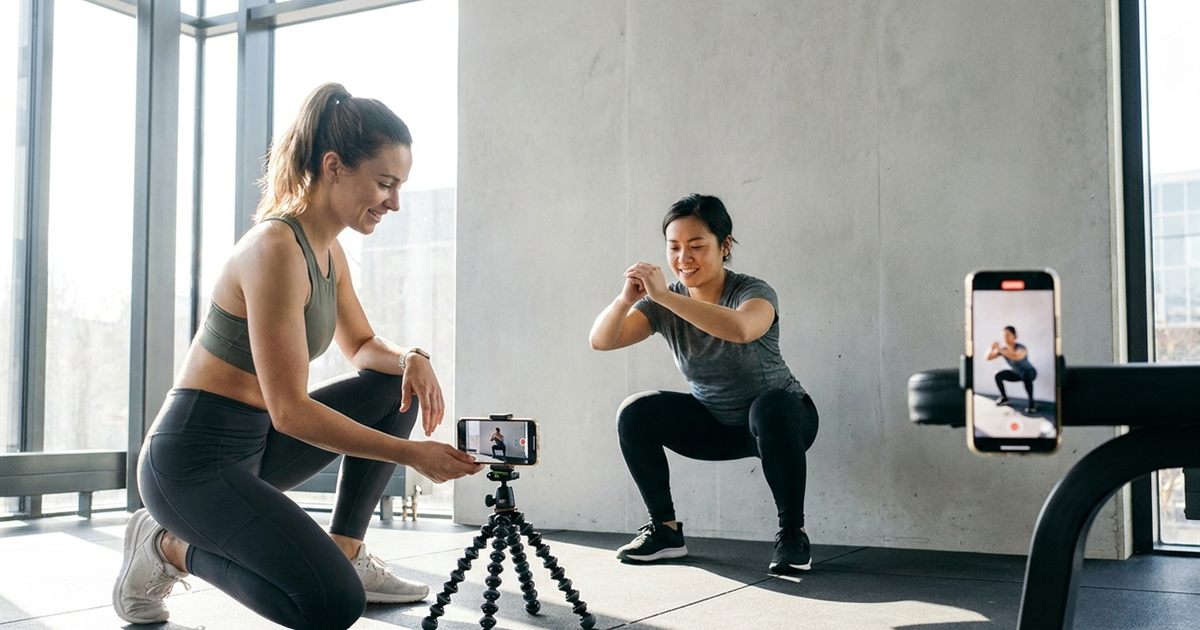
A photo cannot show how a squat should feel, and a full video is more than most clients want to watch just to remember one move. A short looping GIF sits right in the middle: a few seconds of a single repetition that plays on its own, shows the form and fits in a workout plan, a message or a PDF. If you are a trainer, a physical therapist, a yoga teacher or someone who builds your own routines, an exercise GIF is one of the most useful small assets you can make. This guide shows how to record a clean clip, cut it to one rep, set a smooth loop and keep the file small enough to share.
Trim one clean rep and turn it into a looping GIF in your browser
Make an Exercise GIF FreeWhy GIFs Work So Well For Exercise Demos
Exercise instruction is about movement, timing and position, and a loop repeats all three without any effort from the viewer. It autoplays without sound, which is exactly what you want in a plan or a message that someone opens in a quiet place. It also removes the friction of opening a video app, finding the right moment and replaying it.
- One move, one loop: the viewer sees the same rep again and again until it sticks.
- No sound needed: captions or text in the plan can carry the cues.
- Works in documents and chats: easy to place in a PDF plan, a message or a notes app.
Record A Clip That Converts Cleanly
The quality of the GIF depends on the quality of the original clip. A few simple choices make a big difference:
- Steady camera: use a tripod or lean the phone on something solid so only the person moves.
- Full body in frame: leave space above the head and below the feet so nothing is cut off.
- Plain background: a clean wall keeps the file smaller and the focus on the movement.
- Good light: even light from the front avoids dark shadows that look noisy in a GIF.
- Side or front angle: choose the view that shows the key joint positions of that exercise.
Record two or three reps rather than a long set. You only need a clean cycle to loop.
Cut The Clip To Exactly One Rep
A GIF repeats forever, so the start and end points decide how natural it feels. Find a moment where the person is in the same position at the beginning and the end, such as standing tall at the top of a squat, and cut precisely there. If the end position differs from the start, the loop will jump.
- Open the video to GIF tool and add your clip.
- Set the start time to the moment just before the movement begins.
- Set the duration so it ends at the same position where it started.
- Preview the loop. If you see a jump, nudge the start or the duration a fraction of a second.
For more on avoiding that visible jump, read how to loop a GIF seamlessly.
Choose Frame Rate And Size For Readability
Exercise form needs a smooth frame rate, but not a huge one. Around 12 to 15 frames per second keeps movement clear while keeping the file small. Slow, controlled movements such as stretches can use even less, while fast movements such as jumps benefit from the upper end of that range.
For width, choose a size that fits where the GIF will live. A width of 480 to 600 pixels is usually clear on a phone and keeps the file light. If your plan sits in a PDF or a message, smaller is better. The tradeoffs are explained in what size to export a GIF and in the GIF frame rate guide.
Slow Motion For Technique
Sometimes the detail matters more than the speed: how the hips move on a deadlift, where the elbow sits in a press. You can lower the frame rate or slow the playback so the loop shows the movement in more detail. If you already have a GIF and want to adjust speed, see how to edit an existing GIF's speed. For a longer look at a single movement, read making a slow motion GIF of a sports move.
Keep File Size Under Control
A workout plan with twenty exercises can become heavy if every GIF is large. Keep each one short, lower the frame rate a little and avoid extra width. A good target is a file small enough to load quickly on mobile data. If a GIF comes out heavier than expected, follow how to reduce GIF file size.
Where To Use Your Exercise GIFs
- Workout plans and PDFs: place a GIF next to each exercise name and set count.
- Client messages: send the loop as a quick reminder about form.
- Websites and blogs: embed GIFs in exercise libraries. For site performance, consider the tips in GIF vs MP4.
- Social posts: share short tips. Check platform sizes with the Instagram and WhatsApp guide.
Organize A Small Library Of Moves
Once you make a few, it pays to keep them organized. Name each file after the exercise and the variation, such as goblet-squat-front-view, and keep them in one folder so you can drop them into any new plan. Over a few weeks you build a library you can reuse for every client, saving the time of explaining the same movement again and again.
A Few Courtesy And Safety Notes
Only publish footage of people who have agreed to be filmed, and avoid showing a face if the person prefers not to. Present GIFs as demonstrations of form, not as medical advice, and encourage people to adjust movements to their ability and consult a professional when needed.
Frequently Asked Questions
How long should an exercise GIF be?
Usually one clean repetition, often two to five seconds. A short loop is easier to follow and keeps the file small.
What frame rate works for exercise GIFs?
Around 12 to 15 frames per second is a good balance between smooth movement and file size.
How do I make the loop look smooth?
Cut the clip so the first and last frames show the same body position, so the repeat does not jump.
Do I need to install software?
No. The video to GIF tool works in your browser, with no watermark and no signup.
Can I add text to an exercise GIF?
You can add the exercise name and cues in your plan around the GIF, or edit the GIF afterwards with a text overlay tool.
Ready to turn your next demo into a GIF?
Make an Exercise GIF Free