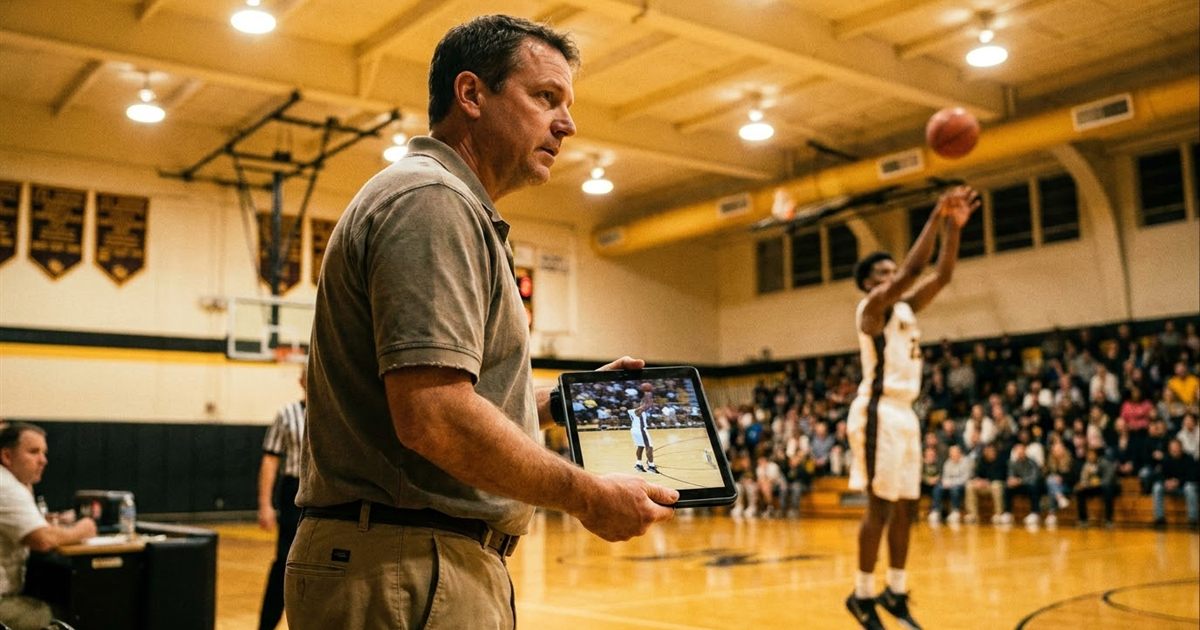
A golf swing, a free throw, a squat or a dance step is over in a blink, which makes it hard to see what went right or wrong. A short looping GIF solves that. It repeats the same second of movement over and over, and when you slow it down you can see the position of every part of the body. You can make one from any phone video with the free Video to GIF tool and the GIF Speed tool, all in your browser. This guide shows how to record a useful clip, pick the right moment and slow it down without making it jerky.
Turn your video clip into a slow motion GIF
Open Video to GIF, FreeWhy a Looping GIF Helps You Study a Movement
Watching a full video forces you to hunt for the part that matters. A GIF of two or three seconds shows only that part, and it loops without any clicking. A coach can send it in a chat, an athlete can compare this week with last week, and a friend can see exactly what you are asking about.
A GIF has no sound and a limited frame rate, so it is not a replacement for a video player when you need very fine detail. Think of it as a quick, shareable loop for spotting posture, timing and position.
Record a Clip That Works
The quality of the GIF depends on the clip. A few simple habits make a big difference.
- Keep the phone still on a tripod, a bag or a stack of books. A steady camera makes the body easier to read.
- Film from the side for a swing, a jump or a lift, or from the front for a stance or a squat.
- Keep the whole body in the frame, with a little space around the person.
- Use good light and a plain background so the outline of the body is clear.
- If your phone offers a higher frame rate or slow motion video mode, use it for fast actions.
Record a few repetitions in one video. You will pick the best one in the next step.
Cut the Moment With Video to GIF
- Open Video to GIF and drop in your clip. MP4, WebM, MOV and other common video files are supported.
- Use the start and duration controls to choose the exact segment. Aim for two to four seconds that cover the full movement, from just before it begins to just after it ends.
- Set the FPS. For sports movement, 15 or 20 frames per second gives a smoother result than the default 10. Higher values make a heavier file.
- Set the width. Around 480 pixels is enough for a phone screen. Go larger only if you need to see fine details.
- Convert, preview the loop and download the GIF.
If your first attempt cuts off the start of the move, adjust the start time by a fraction and try again. A good loop starts a moment before the action, so the athlete is visible in the ready position. For more detail on this tool, read how to convert MP4 to GIF online free.
Slow It Down With GIF Speed
Once you have the GIF, open GIF Speed and drop it in. You can pick a preset or drag the slider to any speed between 0.1 and 5 times. A value of 0.5 plays the move at half speed, and 0.25 plays it at a quarter. For most sports clips, half speed is the sweet spot.
There is a trade-off to understand. Slowing a GIF stretches the time between frames, so a GIF with few frames per second looks choppy at slow speeds. That is why it helps to choose a higher FPS when you first make the GIF. If the slow version looks jumpy, go back, recreate the GIF at 20 FPS and slow that one instead.
If the movement is too long, shorten it first with the GIF Trimmer, as described in how to shorten an existing GIF.
Crop and Label the Important Part
If the athlete takes up only a part of the frame, crop in so the movement fills the picture. Crop GIF lets you drag the area you want to keep, and how to crop a GIF online free explains the controls.
To point things out, add short captions with Add Text. Labels such as Setup, Contact or Finish help the viewer follow the stages. How to add text to a GIF walks through it.
Study the Move Frame by Frame
Sometimes you need to stop on one exact position, such as the moment of release. The Split GIF tool extracts every frame of an animated GIF as a separate image, so you can compare two positions side by side or send a single frame to a coach. See how to split a GIF into frames for the steps.
Keep the File Easy to Share
Chat apps and email handle small files best. If your slow motion GIF is heavy, reduce the width, shorten the clip or lower the FPS a little. The Optimize GIF tool can shrink it further, and how to reduce GIF file size explains the options. Some platforms also convert GIFs to short video when you upload them, which is normal.
Ideas for Using Move GIFs
- Compare your form this month with last month, using the same camera position.
- Send a coach a two second loop instead of a long video.
- Teach a dance step to a group by posting one GIF for each section.
- Share a before and after of a technique change in a team chat.
- Show a physical therapist how a movement feels or looks, with the camera at the same angle each time.
Always get permission before filming or sharing a GIF of another person, especially children.
Frequently Asked Questions
How do I make a slow motion GIF from a video?
First convert the clip with Video to GIF, choosing the start, duration, FPS and width. Then open the GIF in GIF Speed and choose a speed below 1, such as 0.5 for half speed.
Why does my slow motion GIF look choppy?
Slowing a GIF stretches the gaps between frames. Make the original GIF at a higher FPS, such as 15 or 20, so the slow version has more frames to show.
How long should a sports GIF be?
Two to four seconds is usually enough for one repetition of a swing, jump or lift. Shorter clips load faster and loop more clearly.
Can I compare two frames from my GIF?
Yes. Use the Split GIF tool to extract each frame as an image, then place two positions side by side in any photo or slide tool.
Ready to make your slow motion GIF?
Open Video to GIF, Free