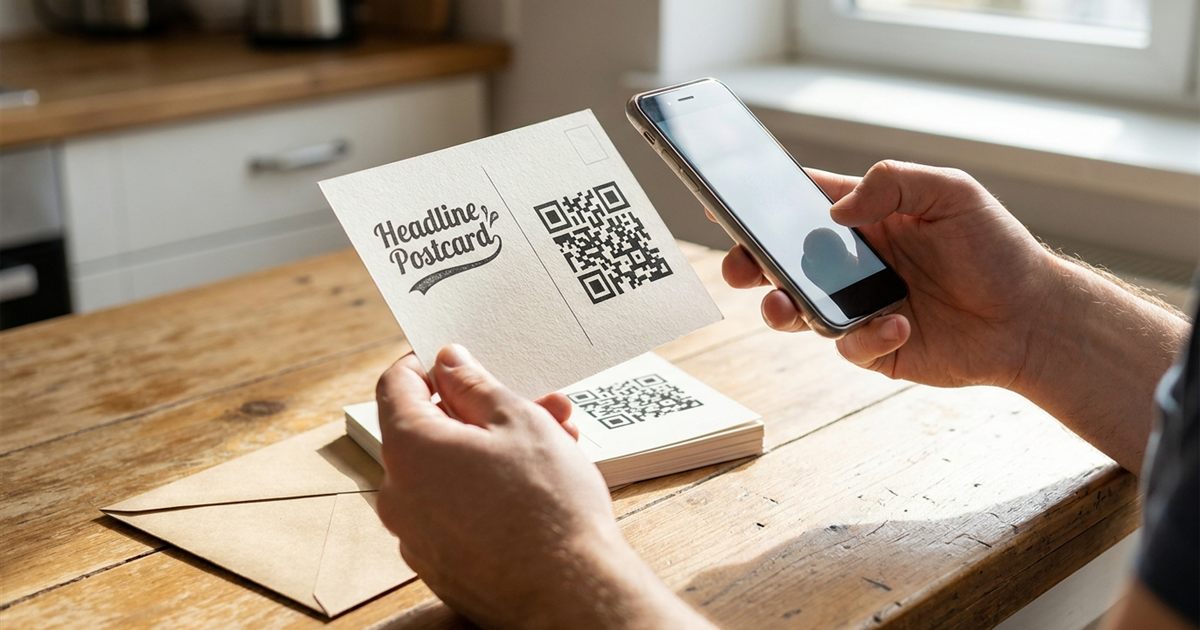
Direct mail still works, and a QR code is the easiest bridge between a piece of paper in someone's hand and the page where they can act. The trouble is that a mailer is also a hostile place for a QR code: folded edges, glossy coatings, busy photos, small print and a recipient who gives you three seconds. A code that scans perfectly on your screen can fail in a mailbox. This guide covers the decisions that decide whether a postcard QR code gets scanned: size, placement, contrast, the link behind it and the way you track results.
Create a print-ready QR code for your mailer in seconds
Create Your Postcard QR CodeStart With a Reason to Scan
People scan a code when they know what they will get. A bare square on a postcard gets ignored, while a square next to a clear promise gets scanned. Put a short line beside it, such as the offer, the benefit or the action: "Scan for your 15% coupon" or "Scan to book your free estimate".
Keep the destination simple too. Send people to one page that matches the postcard, not to your general home page.
The Right Size on a Postcard
A mailer is held at arm's length, so the code does not need to be large, but it must not be tiny. As a practical guide, aim for a printed code of at least about 2 cm (0.8 inch) on each side, and larger when you can. Give it a clear white border, known as the quiet zone, on all sides. See why the quiet zone matters.
For more on size, what size a printed QR code should be gives a full table.
Where to Place It
- Away from folds and perforations. A crease through a code can break it.
- Out of the address block. Keep it away from the mailing address and the postal barcode area.
- On a plain background. Do not place it over a photo or a gradient.
- Where the eye lands. Near the offer or call to action, not hidden in a corner.
Contrast and Print Settings
Dark code on a light background is the safest combination. Avoid light codes on dark backgrounds and low contrast brand colors unless you have tested them. Our guide to QR code color contrast explains what works.
For printing, download the vector file. The QR Code Generator lets you export SVG as well as PNG, so your printer can scale the code without blur. The difference is covered in PNG vs SVG vs PDF for QR codes.
Glossy coatings can create glare under bright light, so if possible choose a matte finish for the area around the code.
Keep the Link Short
The shorter the web address, the simpler the code, and a simpler code scans faster at a small size. Avoid long addresses stuffed with tracking text if you can, or use a short redirect page on your own site. For how length changes the pattern, see how much data fits in a QR code.
Measure Which Mailer Worked
A QR code is also a measurement tool. Use a different destination for each campaign or each audience, even a different page address, so you can see which mailers brought visitors. The guide to tracking QR code scans for free shows how to do it without paid software.
If you need a different code for each recipient, see how to generate multiple QR codes at once. Keep in mind that a static code cannot be edited after printing, so double check the address before sending files to the printer. See static vs dynamic QR codes.
A Simple Layout That Works
If you are designing a postcard from scratch, this simple layout keeps the code scannable and the message clear:
- Headline on top: one clear promise, in large text.
- Short supporting line: the benefit, in one sentence.
- QR code on a plain panel: with a white border and a short instruction beside it.
- A fallback web address: a short, readable address in small print for people who prefer typing.
- Your brand at the bottom: logo and contact information.
The fallback address is worth including. Some recipients will not scan, and a short address that is easy to remember captures them as well. Keep it short enough to type on a phone without errors.
Common Direct Mail QR Code Mistakes
- A code printed too small to scan. Designers often shrink it to make room. Resist that.
- A destination that is not mobile friendly. Most scans come from phones, so the page must work on a small screen.
- A slow page. If it takes more than a few seconds to load, scanners leave.
- No offer or action. A page that only says who you are gives no reason to act.
- Never testing the printed piece. The proof on screen is not the object in the mailbox.
Test Before You Print 5,000 Copies
- Print a sample on the actual paper stock.
- Scan it with at least two different phones, one older.
- Scan it indoors and in daylight, and at arm's length.
- Open the destination page on mobile and make sure it loads quickly.
For a full checklist, see how to test a QR code before printing.
Frequently Asked Questions
How big should a QR code be on a postcard?
At least about 2 cm (0.8 inch) per side with a clear white border, and larger when space allows. Always test a printed sample before the full run.
Where should I put the QR code on a mailer?
On a plain background near the call to action, away from folds, perforations and the address area.
Can I track responses from a direct mail QR code?
Yes. Send each campaign to its own page or tagged link and compare visits. A static code does not count scans itself, so tracking happens on the destination.
Should I use PNG or SVG for printing?
SVG is the safer choice for print because it stays sharp at any size. PNG works if you export it at a high resolution.
Can I change the link after the postcards are printed?
Not in a static QR code. If you may need to change the destination, point the code to a short redirect page you control.
Ready to add a scannable QR code to your next mailer?
Create Your Postcard QR Code