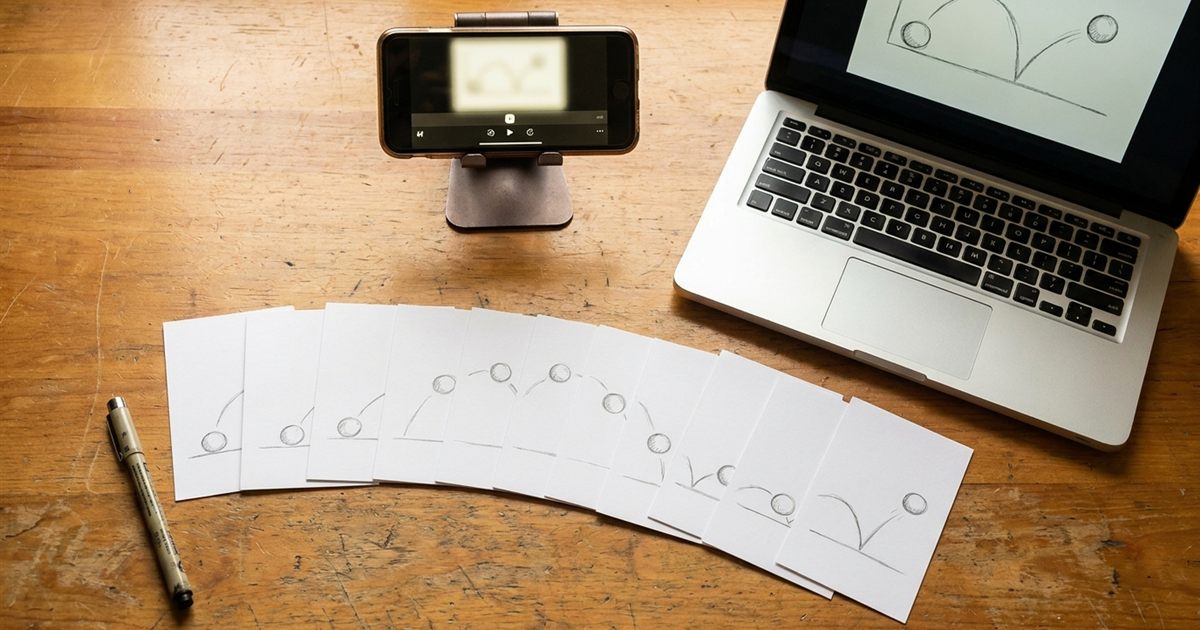
A flipbook is the simplest animation machine ever made: a stack of drawings, each slightly different, flicked in order. The digital version is just as simple. Draw your frames on paper or sticky notes, photograph each one and let a GIF maker play them back at a steady speed. You do not need a tablet, a drawing app or any animation experience. This guide shows how to plan a short flipbook, photograph the frames so they line up, add them to the GIF Maker in the right order and choose a frame rate that makes your drawing move naturally.
Photograph your drawings and turn them into a looping GIF in minutes
Turn Your Drawings Into a GIFStart Small: Plan 12 to 24 Frames
Beginners often start with a big idea and quit by frame ten. Aim for a short loop of 12 to 24 drawings. At 8 to 12 frames per second that gives you a clip of about one to three seconds, enough for a bouncing ball, a blinking eye, a waving hand or a growing flower.
Pick one simple motion and imagine its beginning, middle and end. If it should loop, make the last drawing flow naturally into the first.
What You Need
- Paper: index cards, sticky notes or a small notebook. Same size for every frame.
- A dark pen or marker: strong lines are easier to photograph and keep clear in a GIF.
- A phone or camera: a steady position matters more than quality.
- A way to hold the camera still: a stack of books, a small tripod or tape.
How to Draw Frames That Line Up
The biggest problem in hand-drawn animation is the picture wobbling from frame to frame. Two habits fix most of it:
- Keep the fixed parts identical. If there is a ground line or a border, draw it exactly the same each time, or use a ruler and the same starting point.
- Move things a small amount. Large jumps look like flashes. Small changes of a few millimeters read as motion.
Number the corners of your cards lightly in pencil so you can restore the order if they get shuffled.
How to Photograph the Frames
- Fix the camera above the table so it looks straight down, and do not move it.
- Use the same light every time. Near a window in daylight works well, and a lamp should stay in the same place.
- Place each drawing in the same spot under the camera. Tape two corner marks on the table to align the paper.
- Take one photo per frame, in order.
- Check that none are blurry or cut off before you move on.
If your photos include a lot of table around the paper, crop them. The crop tool and the guide to cropping a GIF make that quick.
Build the GIF in the Right Order
Open the GIF Maker and add your photos. The tool places each image in the order you add it and shows a numbered thumbnail, so you can confirm the sequence at a glance. If one frame is in the wrong position, remove it with the small X and add it again, or clear all and add the images in the correct order.
Naming your files 01, 02, 03 and so on before you add them makes selecting them in order easy on most devices.
Choose the Right Frame Rate
The GIF Maker uses one frame rate for the whole animation, so every drawing stays on screen for the same time. For hand-drawn work, these are good starting points:
- 6 to 8 FPS: a charming, choppy, classic flipbook feel.
- 10 to 12 FPS: smoother motion with the same drawings playing faster.
- Above 15 FPS: usually too fast unless you have many frames.
If a drawing should pause, add a duplicate photo of it. The guide to making a GIF pause on its last frame explains the idea.
Set the Width and Loop
A width of 480 pixels is a good default for sharing. Use a bigger width only if the drawing has fine detail. Keep the loop on infinite for a flipbook, so it keeps playing. Then create the GIF, preview it and download it.
For more on the whole process, see how to make a stop motion GIF from photos, which covers real objects instead of drawings.
Three Starter Animations to Try
If you are not sure what to draw first, these three ideas teach the basics of motion with very few frames:
- The bouncing ball (10 to 12 frames): the ball drops, squashes slightly at the bottom, and rises again. It teaches spacing: the ball moves faster near the ground and slower at the top.
- The blinking eye (6 to 8 frames): an open eye, a half closed eye, a closed line, and back. It teaches how little change is needed to suggest life.
- The growing plant (16 to 20 frames): a seed, a sprout, then leaves unfolding. It teaches patience, because each drawing adds only a small change.
Each of these loops naturally, which makes the finished GIF feel finished, even when the drawing is simple.
Making Your Flipbook GIF Look Better
- Use fewer details. Simple shapes survive a GIF's limited colors and small size much better than fine shading.
- Exaggerate the motion. What looks big on paper often looks modest after it shrinks to a small GIF.
- Keep a consistent drawing size. If a character grows or shrinks by accident, the animation will feel like it is breathing.
- Review at the final size. View the GIF at the width you plan to share it, not only on a large monitor.
If the result is larger than you want to share, the guide on how to reduce GIF file size shows how to shrink it without losing the charm of the drawings.
Troubleshooting a Wobbly Flipbook
- The picture jumps around: the camera or paper moved. Re-shoot using fixed marks.
- Brightness flickers: the light changed. Shoot all frames in one session with fixed lighting.
- Motion is too fast: lower the FPS or add more in-between drawings.
- Lines look faint: use a darker pen and keep the photos sharp.
Frequently Asked Questions
How many frames do I need for a flipbook GIF?
A short loop of 12 to 24 drawings is a good start. At 8 to 12 frames per second that gives about one to three seconds of animation.
What FPS is best for hand-drawn animation?
Most flipbook style animation looks good between 6 and 12 FPS. Lower values feel more handmade, higher values feel smoother.
Can I reorder frames in the GIF Maker?
Frames follow the order in which you add them, shown with numbered thumbnails. You can remove a frame with the X and add it again, or clear all and re-add the images in order.
Do I need a tripod?
Not necessarily. Anything that keeps the camera still works, such as a stack of books or tape. A steady camera matters more than expensive equipment.
Can I make a flipbook GIF from digital drawings?
Yes. Export each drawing as an image and add them in order the same way you would add photos.
Ready to bring your drawings to life?
Turn Your Drawings Into a GIF