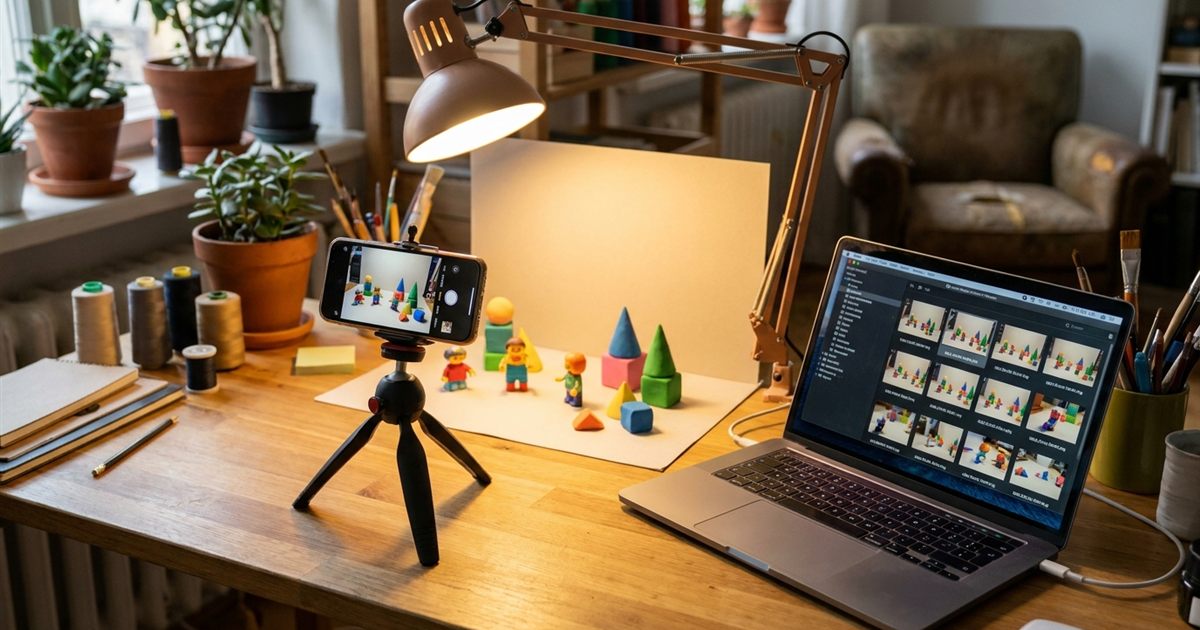
Stop motion is one of the oldest animation tricks and one of the easiest to try today. You move an object a tiny amount, take a photo, move it again, and repeat. Played back in order, the photos make the object come to life. All you need is a phone, a steady spot and a tool that joins the photos into an animation. The free GIF Maker does exactly that in your browser: add the photos, choose the speed and download a looping GIF with no watermark.
Turn your photo series into a stop motion GIF
Open the GIF Maker, FreeWhat You Need to Get Started
- A phone or camera with a steady place to rest.
- Something to animate: toys, clay, paper cutouts, food, craft items or even your own hands.
- Constant lighting. A lamp you control beats a window, because sunlight changes during the shoot.
- A plain background so the movement is easy to see.
- A free GIF maker to join the photos.
Plan a Simple Action First
Beginners often try a long story and give up halfway. Start with a single action that loops well: a ball bouncing, a flower opening, a paper plane flying across the frame or a character walking a few steps. A loop that returns to its starting position feels satisfying and repeats without a visible jump. If you want to explore this, read how to loop a GIF seamlessly.
Sketch the idea in four or five poses on paper. Knowing the first and last positions before you begin saves many wasted photos.
Shoot Steady, Consistent Frames
- Fix your camera in place and do not touch it between shots. Use a self timer or a remote button so pressing the shutter does not shake the phone.
- Lock the focus and exposure if your phone allows it, so brightness does not flicker from photo to photo.
- Move the subject only a little each time. Small steps look smooth; large jumps look jerky.
- Take one photo per movement and keep your hands out of the frame.
- Check the last few photos now and then to confirm the camera has not shifted.
Shoot a few extra photos at the start and the end. You can leave them out later, but you cannot add a missing frame once you have packed up your set.
Make the GIF Step by Step
- Copy the photos to your computer, or open the GIF Maker on your phone.
- Open the GIF Maker and add your photos in the order you took them. HEIC, WebP, AVIF, JPG and PNG files all work, and you can mix them.
- Check the thumbnail numbers. That sequence is the order of playback, so re-add any photo that landed in the wrong place.
- Set the frame rate. Start with 8 to 10 frames per second and adjust after a test.
- Choose a width. Phone photos are large, so reduce the width to around 500 to 700 pixels to keep the file small.
- Select a loop count and create the GIF.
Choose the Right Speed
Stop motion has a recognizable look because of its lower frame rate. At 6 to 8 frames per second the movement feels hand made and a little playful. At 12 frames per second it looks smoother and more polished, but you need more photos for the same length of animation. Do a quick test export at 8, then try 12, and keep the one that suits your subject.
To make one moment last longer, such as a pause before a surprise, add the same photo twice. The frame rate applies to every frame equally, so repeated photos are the simplest way to control timing. If you want to change the speed afterward without rebuilding the GIF, see how to edit an existing GIF.
Fixing Common Stop Motion Problems
- Flicker: lighting changed between shots. Use a fixed lamp and avoid sunlight.
- Jitter: the camera moved. Use a tripod, a timer and a stable surface.
- Jerky motion: the steps were too big. Move the subject less between photos.
- A large file: too many frames or a width that is too large. Lower both, or use the GIF Optimizer to compress the result.
- Blurry or banded colors: see why GIFs look blurry or banded.
A Quick Checklist Before You Shoot
- The camera is fixed and the timer or remote shutter is ready.
- The lamp is on and the room has no changing daylight.
- The first and last positions of the subject are planned.
- You have taken a few spare photos at the start and the end.
- You know the final width and loop count you want.
Taking two minutes for this list saves the most common stop motion headache: finding out after an hour of shooting that the lighting shifted halfway through and every photo needs to be redone.
Ideas to Try
- Food and recipe steps: ingredients assembling into a dish.
- Craft time lapse: a drawing or a model appearing piece by piece.
- Product reveals: items arranging themselves for a shop listing; see GIFs for Etsy and Shopify listings.
- Greeting animations: a message that builds up letter by letter.
- Learning projects: a science experiment shown in stages.
If your photos are a natural sequence taken over hours or days rather than moved by hand, try a time lapse instead: time lapse GIF maker from a photo series covers that style.
Frequently Asked Questions
How many photos do I need for a stop motion GIF?
Ten to thirty photos make a short, clear animation. Short loops of a single action, such as a plant growing or a toy walking, work best.
What frame rate should a stop motion GIF use?
Between 6 and 12 frames per second is typical. Lower speeds feel charming and hand made; higher speeds look smoother but need more photos.
Do I need a tripod for stop motion?
A tripod or a stable stack of books helps a lot. If the camera moves between photos, the whole picture will jitter in the final GIF.
Can I use photos from my phone gallery?
Yes. The GIF Maker accepts common image formats, including HEIC and WebP, and you can mix formats in one batch.
Ready to bring your photos to life?
Open the GIF Maker, Free