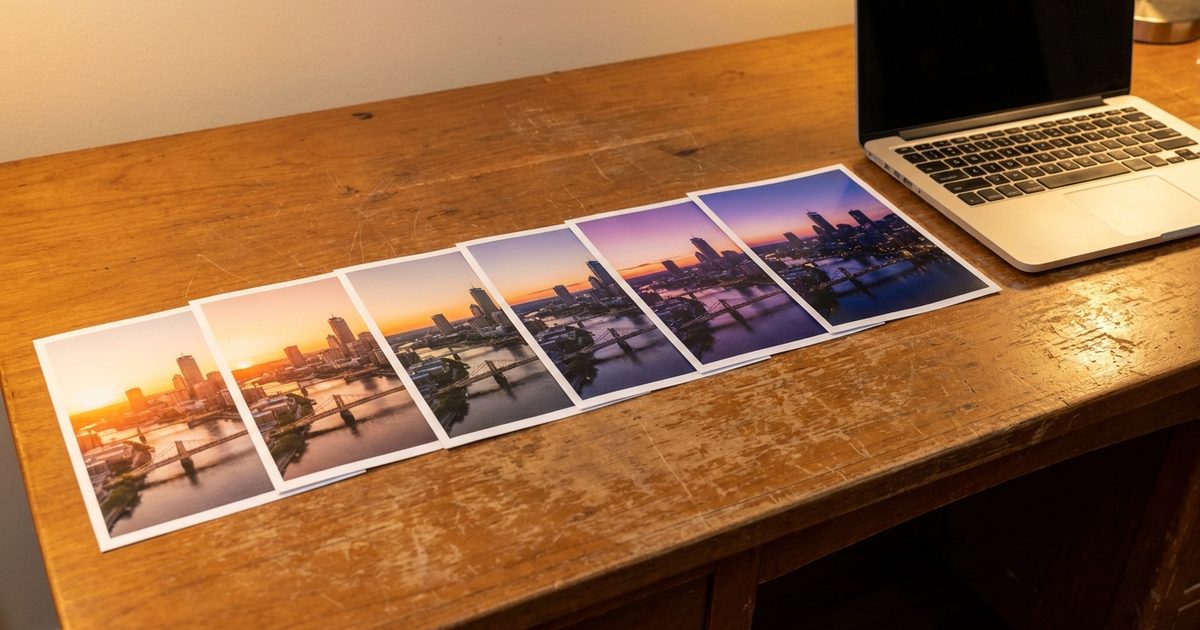
A time-lapse compresses hours into seconds, and you do not need video footage to make one. A steady series of photos is enough. Line them up in the EzyIMG GIF Maker, choose a frame rate and you get a looping time-lapse GIF that plays anywhere, from a website to a chat. Here is how to shoot the photos, how many you need and how to keep the result smooth.
Turn your photo series into a time-lapse GIF
Open GIF Maker, Free, No SignupWhy Photos Make a Good Time-Lapse
Every time-lapse is really a photo sequence played quickly. Building yours from stills gives you control that video does not. You choose the interval, you can drop a bad shot without cutting footage and you can use your phone camera at full quality. The trade-off is that you need to plan the shoot, because the smoothness of the result depends on how consistent your photos are.
Plan the Shoot
- Keep the camera in exactly the same spot. A tripod, a phone stand or a ledge you can return to all work.
- Choose an interval that suits the subject: seconds for clouds or cooking, minutes for a sunset, hours or days for plants and construction.
- Lock exposure, focus and white balance if your camera allows it. Automatic changes are the main cause of flicker.
- Shoot more frames than you think you need. Twenty to sixty photos is a comfortable range for a short loop.
- Keep the orientation the same throughout.
How Many Photos and Which FPS
Loop length is the number of photos divided by FPS. Forty photos at 10 FPS gives a four-second loop. Thirty photos at 12 FPS gives two and a half seconds. For a time-lapse, 8 to 12 FPS usually reads as smooth without feeling rushed. Slower rates such as 4 to 6 FPS give a more deliberate, stop-motion look that suits things like a plant growing or a drawing taking shape.
If your loop feels too short, add more photos rather than slowing the rate too far, because too low a rate turns a time-lapse into a slideshow. The frame rate guide explains the timing math in more detail.
Build the Time-Lapse GIF
- Rename your photos so they sort in shooting order, for example with numbers at the start of each file name. Camera files are usually already in order.
- Open the GIF Maker and add your photos. Select the whole set at once or add them in batches, since new images are appended to the end of the sequence.
- Check the numbered thumbnails to confirm the order. Hover a thumbnail and press the X to remove an outlier, such as a frame where someone walked in front of the camera.
- Set FPS to between 8 and 12, then choose a width. 480 to 640 pixels keeps a long sequence at a sensible size.
- Leave Loop on Infinite and press Create GIF. Preview it, and download when it looks right.
Phone Photos and HEIC
If you shoot on an iPhone, your photos may be saved as HEIC. The GIF Maker accepts HEIC alongside JPG, PNG, WebP, GIF, BMP and AVIF, so you can drop the originals in without converting them first. Large phone photos are scaled down to the width you set, which is why a 12-megapixel series still produces a compact GIF.
Keeping the Loop Smooth
- Flicker: caused by exposure or white balance shifting between shots. Lock them manually next time, or remove the worst frames.
- Wobble: the camera moved slightly. A stable mount solves it, and cropping every photo to the same framing helps if you cannot re-shoot.
- Banding in skies: the 256-color limit of GIF can show stripes in smooth gradients. The guide on blurry and banded GIFs explains why and what helps.
- A jarring loop point: if the first and last photos differ a lot, the GIF snaps back at the end. That is natural for a time-lapse, and a slightly longer sequence makes it less noticeable.
Ideas Worth Trying
- A sunrise, sunset or storm rolling across a skyline.
- A plant or seedling growing over days.
- A room being painted or a build going up.
- A recipe coming together, or a drink being poured.
- A drawing or painting developing stroke by stroke.
- A street or market changing through the day.
Sharing It
Time-lapse GIFs autoplay in most places people already scroll, which makes them ideal for posts, product pages and email. If you plan to post to a specific platform, check its size limits first. The Pinterest size guide and the other platform guides on this blog list the ceilings to keep in mind.
Frequently Asked Questions
How many photos do I need for a time-lapse GIF?
Twenty to sixty photos is a comfortable range. At 10 FPS, forty photos give a four-second loop. More photos make a longer or smoother result.
What FPS is best for a time-lapse GIF?
Between 8 and 12 FPS usually feels smooth without looking rushed. Lower rates around 4 to 6 FPS give a deliberate stop-motion feel.
Can I use iPhone HEIC photos directly?
Yes. The GIF Maker accepts HEIC as well as JPG, PNG, WebP, GIF, BMP and AVIF, so you can add your phone originals without converting them.
How do I remove a bad frame?
Hover the thumbnail in the image list and click the X to delete it, then create the GIF again. The remaining photos keep their order.
Why does my time-lapse flicker?
Flicker almost always comes from exposure or white balance changing between shots. Locking those settings on your camera before you start prevents it, and removing the worst frames helps if the shoot is already done.
Got a folder of sequential photos? Drop them into the GIF Maker and watch the time-lapse play back.
Got a folder of sequential photos?
Open GIF Maker, Free, No Signup