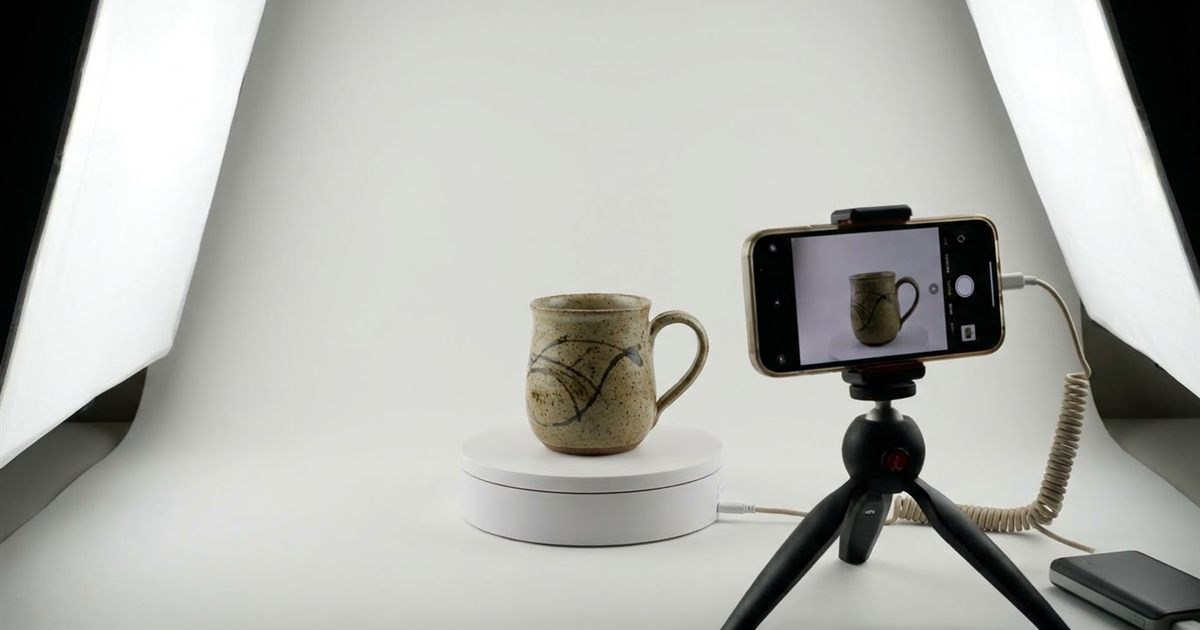
A single product photo shows one side. A spinning product shows all of them, and people stop scrolling to watch it turn. You do not need a studio or special software to make a 360 spin. A turntable, a phone and a series of photos are enough, and the free GIF Maker turns those photos into a looping animation in your browser with no watermark. This guide explains how to shoot the photos, how to build the GIF and how to keep the file light enough for a product page.
Turn your product photos into a spinning GIF
Open the GIF Maker, FreeWhat a 360 Spin GIF Really Is
A product spin GIF is a flipbook. You photograph the item from many angles around a full circle, then play the photos in order so the product appears to rotate. It is not an interactive viewer. The visitor cannot drag it to a chosen angle, and it plays the same loop every time. In exchange, it works anywhere an image works, with no plugin, script or special hosting.
That makes it a good fit for marketplace listings, social posts and simple store pages. For product pages that need a draggable viewer, you would use a dedicated tool, but for a quick, attractive demonstration a GIF is hard to beat.
What You Need to Shoot It
- A turntable. A lazy Susan, a cake stand or any flat disk that rotates smoothly will work.
- A phone or camera on a tripod or a stack of books, so it does not move between shots.
- A plain, even background such as a white sheet or a sheet of paper curved behind the item.
- Soft, even light from a window or two lamps, with no strong shadows that jump from frame to frame.
- A small mark on the turntable edge so you can turn it by the same amount each time.
The key rule is consistency. The camera, the distance, the light and the zoom must stay the same for every photo. Only the product should move.
How Many Photos Do You Need?
More photos mean a smoother spin, but also a larger file. A practical range is between 12 and 36.
- 12 photos, one every 30 degrees, gives a quick, slightly jumpy spin. Fine for small thumbnails.
- 24 photos, one every 15 degrees, is a good balance for most products.
- 36 photos, one every 10 degrees, looks very smooth but produces a heavier file.
Turn the turntable by the same angle each time and take the photo. Use manual focus, exposure and white balance if your camera allows it, so the colors do not shift from one frame to the next.
Prepare the Photos
Before you build the GIF, make all frames the same size and keep the product centered. You can crop with Image Crop and resize with Image Resize. A width of 600 to 800 pixels is plenty for a product page. Larger frames make a much bigger GIF.
Name the files with numbers that sort correctly, such as 01, 02, 03 and so on up to 24. Using two digits keeps the order correct, because 10 will not jump in front of 2.
Build the Spin Step by Step
- Open the GIF Maker and add your photos in order. The thumbnails are numbered by the order you added them, and that is the playback order.
- Check the sequence by scanning the numbered thumbnails. If one is out of place, remove it and add it again.
- Set the FPS. Between 8 and 12 frames per second gives a calm, natural rotation for 24 photos. A lower number slows the spin, a higher one speeds it up.
- Set the width to match your page, for example 600 or 800 pixels. The height adjusts automatically.
- Leave the loop on Infinite so the product keeps turning.
- Create the GIF, preview it and download it.
If the spin looks too fast or too slow, you do not have to start again. Change the speed with the GIF Speed tool, as described in the GIF editor guide.
Handle Color and File Size
A GIF can only hold 256 colors per frame, so product photos with smooth gradients can show banding. The GIF Maker builds a custom color palette from your frames to keep as much detail as possible, but simple, evenly lit photos always convert best. If you see blotchy colors, read why a GIF looks blurry or pixelated.
If the file is too heavy for your page, reduce the width, use fewer photos or compress it with how to reduce GIF file size. Many sellers aim for a spin that loads quickly on mobile data rather than the highest possible quality.
Where to Use the Spin
- Shop and marketplace listings, as described in GIF maker for Etsy and Shopify listings. Check each platform for its own size and format limits.
- Social posts that show off a new item.
- A product comparison page, where two spinning items sit side by side.
- Newsletters, keeping in mind that some email programs show only the first frame. Make the first photo a good front view.
For a related technique that builds a GIF from a long series of photos, see how to make a time lapse GIF from a photo series.
Common Mistakes
- Moving the camera between shots. The background then wobbles and ruins the illusion.
- Uneven turns. If one step is bigger than the others, the spin stutters.
- Changing light. Clouds passing by a window can change the brightness from frame to frame.
- Too many large photos. The file becomes slow to load, which defeats the purpose.
- Shiny products without diffused light. Reflections jump around and distract from the product.
A short test run with 12 quick photos can save time. Build a rough GIF first, see what looks off, then shoot the final set.
Frequently Asked Questions
How many photos do I need for a 360 spin GIF?
Between 12 and 36 photos is a practical range. Twenty four photos, one every 15 degrees, is a good balance between smoothness and file size.
What FPS should I use for a product spin?
Between 8 and 12 frames per second looks natural for about 24 photos. Lower numbers slow the rotation and higher numbers make it faster.
Can customers rotate the GIF themselves?
No. A GIF plays the same loop for everyone and is not interactive. It works anywhere an image works, but it is not a draggable viewer.
Why does my spin GIF look blotchy?
GIFs are limited to 256 colors per frame. Evenly lit photos on a simple background convert best, and a smaller width or fewer colors in the scene reduce banding.
Ready to make your product spin?
Open the GIF Maker, Free