Searching for a GIF editor usually means you already have a GIF and need to change one thing: make it faster, cut it shorter, crop out the edges, add a caption. The tricky part is knowing which tool does which job, and in what order to use them. This guide matches each common edit to the right free tool on EzyIMG, so you can fix a GIF in a few minutes. If you are starting from images rather than a finished GIF, begin with the GIF Maker.
Start from photos or screenshots
Open the GIF Maker, FreeMatch the Edit to the Tool
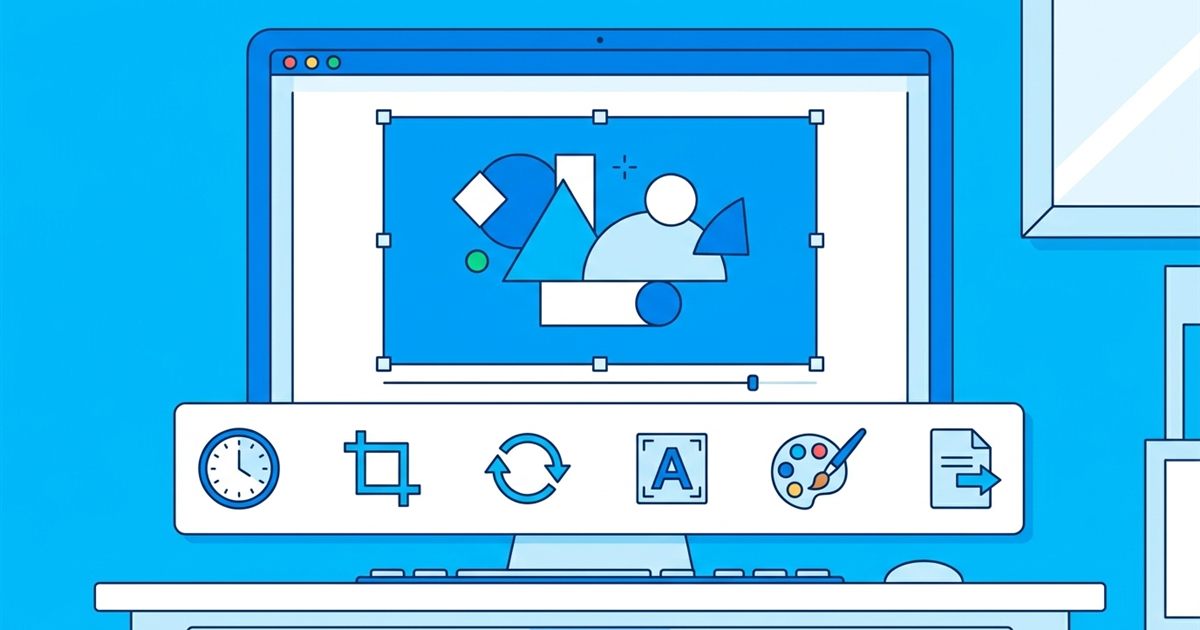
Each tool does one job well. Use this list as a quick map, then read the sections below for tips on each.
- Too fast or too slow: GIF Speed Changer.
- Too long or has extra frames at the start or end: Trim GIF.
- Black bars or unwanted edges: GIF Crop.
- Wrong dimensions or too large to share: GIF Resizer.
- Sideways or mirrored: GIF Rotate and Flip.
- Needs a caption or words: Add Text to GIF.
- Colors look dull, dark or too bright: GIF Effects.
- Want black and white, sepia or negative: GIF Color Inverter.
- Plays forward but should play backward: GIF Reverser.
- File is too heavy: GIF Optimizer.
- Need every frame as an image: GIF Splitter.
Change the Speed
Speed is the edit people ask for most. A GIF that feels sluggish or frantic can usually be fixed by changing the frame delay. The Speed Changer lets you make the animation faster or slower without redrawing anything. If a loop looks jerky afterward, the cause is often a low frame rate; see how many FPS to use in a GIF.
Cut the Length
Many GIFs carry a second of nothing at the start or a dead stretch at the end. The Trim tool lets you set a start and end point so only the part you want remains. Shorter GIFs also weigh less, which helps them load quickly. For loops that jump at the seam, see how to loop a GIF seamlessly.
Fix the Frame: Crop, Resize, Rotate
Do framing edits early because they change the pixels everything else works on. Crop removes edges you do not want, Resize changes the overall dimensions and Rotate and Flip correct orientation or mirror the image. A sideways GIF from a phone recording, for example, needs rotating before anything else. For more on rotating, read how to rotate or flip a GIF, and for sizes, what GIF dimensions to export.
Style It: Text and Effects
Add text after the framing is final, so your captions land in the right place and are not cropped away. Effects such as brightness, contrast, saturation and grayscale change how the colors look, and the Color Inverter handles black and white, sepia and negative looks. Subtle changes work best, since GIFs only hold 256 colors and strong filters can cause banding. If you see it, why GIFs look blurry or banded explains the cause.
The Best Order for Several Edits
- Trim first, so you never work on frames you will throw away.
- Rotate or flip, to correct the orientation.
- Crop, to remove unwanted edges.
- Resize, to set the final dimensions.
- Change the speed, once the frame set is final.
- Apply effects and color changes.
- Add text last, so it stays sharp and in position.
- Optimize at the end to shrink the file.
Why the Order Matters
Every edit re-encodes the GIF, and each pass can slightly reduce quality because of the 256 color limit. Doing the heavy edits first and compressing last keeps the loss small. Resizing before adding text also matters: if you add text and then shrink the GIF, the letters get fuzzy.
Editing from Scratch Instead
Sometimes it is easier to rebuild than to patch. If you still have the original photos or screenshots, make a new GIF with the GIF Maker, where you control the order, the frame rate, the width and the loop from the start. To keep a project easy to change later, see how to keep a GIF editable.
Frequently Asked Questions
What is the best free GIF editor online?
The best choice is the one that does the specific edit you need. EzyIMG has separate free tools for speed, trimming, cropping, resizing, rotating, text, effects, reversing and compression, with no watermark.
Can I edit a GIF without losing quality?
Every edit re-encodes the file, so some loss is possible. Keep the number of edits small, do the big ones first and compress last.
Which edit should I do first?
Trim first, then fix orientation, crop, resize, change speed, apply effects, add text and optimize at the end.
Do I need to download anything to edit a GIF?
No. The tools run in your browser, so you upload the GIF, edit it and download the result.
How do I make an editable GIF from scratch?
Keep your original images and build the GIF with the GIF Maker. When you need a change, edit the images or settings and create the GIF again.
Pick the tool that matches your edit, follow the order above and your GIF will be done quickly.
Need to build a GIF from scratch?
Open the GIF Maker, Free