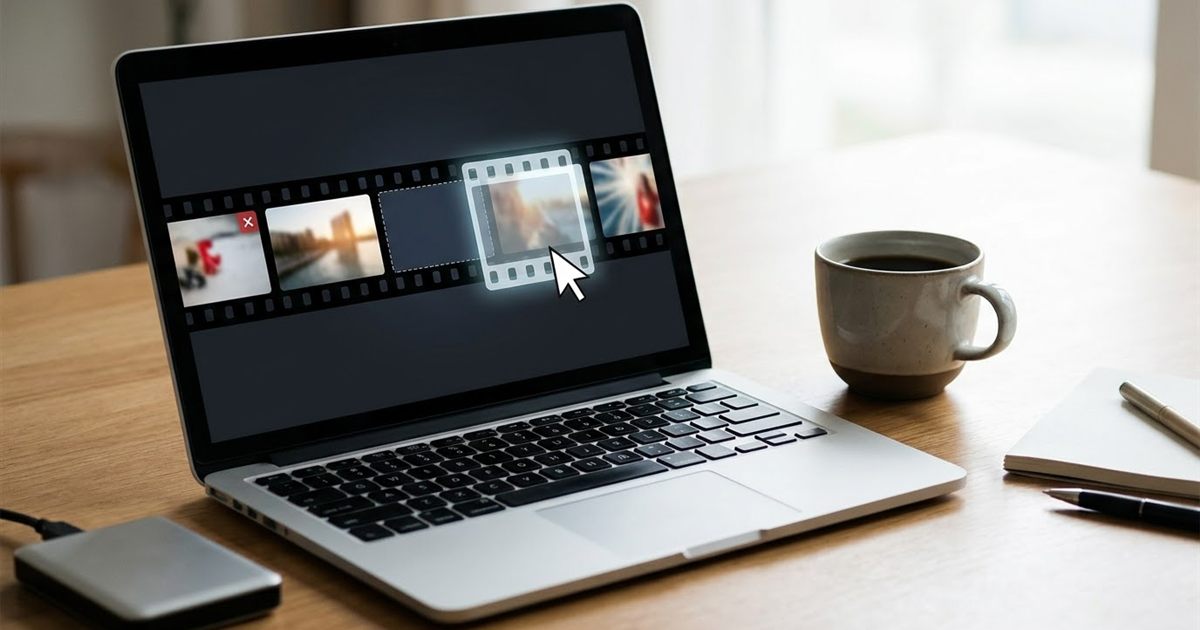
You made a GIF and one frame ruins it: a blink at the wrong moment, a stray cursor, a flash of the wrong screen or a jump at the loop point. Or maybe the frames are simply in the wrong order. A GIF is a stack of still images played in sequence, which means you can fix it like a deck of cards: pull the bad card out, move another into place, or repeat one. The only trick is knowing how to take the stack apart and put it back together. This guide shows how to delete, reorder and repeat frames in any GIF with free tools that run in your browser, with no watermark and no signup.
Have a GIF with one bad frame? Open it in the splitter
Split Your GIF Into Frames, FreeHow an Animated GIF Is Built
An animated GIF stores a list of frames and how long each one stays on screen. When you open it, the viewer plays them one after another and then starts again. There is no single picture to edit, which is why a normal image editor cannot change a GIF directly.
To change what happens in the animation, you work on the frames. The plan is simple: split the GIF into separate images, decide which ones to keep and in which order, then build a new GIF from that set.
Step 1: Split the GIF Into Frames
- Open the Split GIF tool and drop in your GIF.
- Click Extract Frames. The tool runs in your browser with WebAssembly, so your file stays on your device.
- Look at the grid of frames. Each one is numbered in order, so you can see exactly where the bad frame sits.
- Click Download All (ZIP) to get every frame as a numbered PNG, or click a single frame to download just that one.
The frames come out as lossless PNG files named in sequence, which keeps the order clear when you look at them in a folder.
Step 2: Decide What to Change
Open the folder and play through the frames with an image viewer, using the arrow keys. Note the numbers of the frames you want to change.
- Delete a frame: remove the file for the bad frame, such as a blink or a stray cursor.
- Reorder frames: change the order in which you will add the files in the next step.
- Repeat a frame: use the same image more than once to hold it on screen longer.
- Trim the start or end: leave out the first or last files to shorten the animation.
- Edit a frame: open the PNG in any image editor to fix a detail, then use the edited version.
If a frame is only slightly off, editing it is often better than deleting it, because a missing frame creates a visible jump.
Step 3: Rebuild the GIF in the Right Order
- Open the GIF Maker. It needs at least two images.
- Add your frames. The thumbnails are numbered in the order you add them, and that number is the playback order.
- Check the numbers. Some file pickers sort names in a way that puts frame 10 before frame 2, so look at the thumbnails and remove and re-add any frame that is in the wrong place.
- To repeat a frame, add the same image again at the position where you want it to hold.
- Set the frames per second, the width and the loop setting, which can be infinite, once, twice or three times.
- Create the GIF, preview it and download it.
Because the GIF Maker uses one frame rate for the whole animation, frames that used to stay longer or shorter than others now play at the same pace. If the original animation had slow and fast parts, repeat the frames that should last longer.
Choosing the Frame Rate After Rebuilding
A good starting point is 10 FPS. Lower values make a slideshow feel and a smaller file, higher values make the motion smoother and the file bigger. If you do not know the original speed, try 10 and adjust. After building, you can fine tune with the GIF speed tool, and you can read GIF frame rate and how many FPS to use for more detail.
Common Fixes and Which Frames to Change
- A jump at the loop point: the last frame does not match the first. Delete the last frame, or copy the first frame to the end. See how to loop a GIF seamlessly.
- A flash or glitch frame: delete just that frame and, if the motion looks choppy, repeat the previous frame once.
- A pause that is too short: repeat the key frame two or three times.
- A reversed section: reorder the frames, or play the whole thing backwards with the GIF reverse tool.
- An unwanted start: drop the first frames to start on the action.
Tips to Keep Quality High
- Work from the original GIF whenever possible. Every GIF to GIF edit loses a little color detail.
- Keep the same image size for every frame. Mixing sizes causes cropping or empty space.
- Do not edit frames in a program that changes their dimensions or color profile.
- After rebuilding, run the file through the GIF optimizer if it became large.
- Keep the ZIP of frames. It is an editable version of your GIF that you can use again.
That last tip is the basis of an editable GIF workflow: the frames are your master files and the GIF is just the export. For a bigger picture, see how to keep a GIF editable.
Frequently Asked Questions
Can I delete a single frame from a GIF?
Yes. Split the GIF into frames, leave out the file for the frame you do not want, and rebuild the animation from the remaining frames with the GIF Maker.
How do I change the order of frames in a GIF?
Split the GIF, then add the frames to the GIF Maker in the order you want. The numbers on the thumbnails show the playback order, and you can remove and re-add a frame to move it.
Will I lose quality when I rebuild a GIF?
A small amount, because GIFs are limited to 256 colors per frame and rebuilding creates a new palette. Starting from the original and avoiding repeated edits keeps the result as sharp as possible.
Are my files uploaded to a server?
No. Both the splitter and the GIF Maker run in your browser, so your frames stay on your device.
Ready to fix the frames of your GIF?
Split Your GIF Into Frames, Free