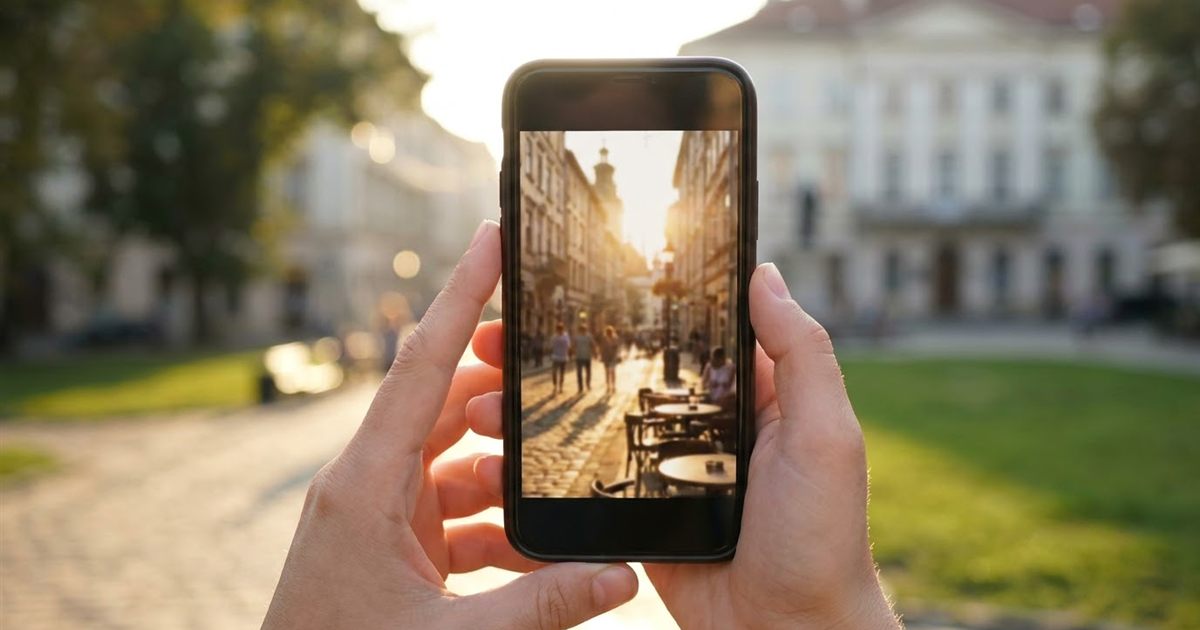
Most videos recorded on a phone are vertical, and most GIF guides assume a wide, landscape clip. The first time you convert a vertical clip, a few things can go wrong: the file comes out huge, the picture is cropped oddly or the GIF looks tiny when posted. Nothing about vertical video is hard, but the settings that work for a wide clip do not transfer directly. This guide shows how to convert a 9:16 phone video into a GIF, how to choose width and duration, how to avoid enormous files and when it makes sense to crop before converting.
Got a vertical clip on your phone? Turn it into a GIF in your browser
Convert Your Vertical Video to GIFWhy Vertical Videos Make Heavy GIFs
A GIF stores every frame as a full image. A vertical frame at the same width is much taller than a landscape frame, so it contains more pixels. At 480 pixels wide, a 9:16 video becomes roughly 853 pixels tall, which is more than three times the pixels per frame of a 16:9 clip at the same width (about 270 pixels tall).
That is why vertical GIFs grow quickly. The fix is not complicated: you control width, frame rate and duration, and small changes to each one have a large effect on size.
Choose a Smaller Width for Tall Clips
The EzyIMG Video to GIF tool offers widths from 160 to 800 pixels, and the height follows automatically so the picture is never stretched. For vertical video, start smaller than you would for landscape.
- 240 to 320 pixels: good for stickers, chat and previews, and very light.
- 360 to 480 pixels: a balance for social posts and web pages.
- 560 pixels and up: only when detail matters, and expect a larger file.
Trim to the Best Few Seconds
Vertical clips often include setup at the start and a wobble at the end. Use the start and duration controls to select only the strongest moment. The duration can run from 1 to 30 seconds, but for a vertical GIF, 3 to 6 seconds is usually plenty. A short loop is easier to watch and far smaller.
- Load the video and play the preview to find the key moment.
- Set the start just before the action.
- Set the duration so the clip ends on a natural point.
- Choose 10 frames per second for a smooth but compact result.
For a deeper look at frame rate trade-offs, read GIF frame rate: how many FPS to use.
Crop First If You Only Need Part of the Frame
Sometimes the interesting part of a vertical clip is only the middle of the picture. Cropping before conversion reduces the pixels per frame and makes the subject larger on screen. You can use the video crop tool first and then convert, or crop the finished GIF using the steps in how to crop a GIF.
Where Vertical GIFs Work Best
- Messaging and stickers: a tall, small GIF fits phone screens naturally.
- Stories and mobile pages: the shape matches how people hold their phones.
- Tutorials on mobile apps: screen recordings of a phone are vertical, so the GIF shows the interface at its real proportions.
If you plan to post to a specific platform, check its size rules in GIF sizes for WhatsApp and Instagram and the guide on making GIFs on iPhone and Android.
Frame Rate and Duration: A Small Example
Seeing the numbers helps. A 5 second clip at 10 frames per second contains 50 frames. At 15 frames per second the same clip contains 75, which is half again as many images to store. Every extra frame in a tall picture costs more than in a wide one, so the savings from a lower frame rate are larger for vertical clips.
- Quick reaction or sticker: 2 to 3 seconds at 10 FPS is usually plenty.
- Short tutorial step: 4 to 6 seconds at 10 to 12 FPS keeps text and taps readable.
- Smooth motion, such as sports: try 15 FPS but reduce the width to balance the size.
Always judge the result by watching it at the size where it will be used. A GIF that looks soft on a large monitor can look perfectly sharp on a phone screen.
Common Mistakes With Vertical GIFs
- Exporting at a wide size: a high width on a tall clip produces a very heavy file for little visible gain.
- Keeping every second: trimming boring seconds is the biggest single saving.
- Ignoring the loop point: a clip that ends on a different pose than it starts will jump when it repeats.
- Forgetting the destination: a tall GIF may be cropped in a feed. Keep the subject centered.
A Simple Workflow You Can Repeat
Once you have done it a couple of times, converting vertical clips becomes routine. Keep the process short: record, open the converter, set the start and a short duration, pick a width between 240 and 480 pixels, convert and watch the loop. If the file is still heavier than you want, lower the width one step before touching anything else, because width has the biggest effect on size. That order of changes keeps the picture looking clean while the file stays light enough for messaging and mobile pages.
Check the Result Before You Share
Open the finished GIF and watch the full loop. Make sure faces and text are not cut off, the file size feels reasonable and the loop does not jump. If it does, move the start or end by a fraction of a second. For loops that feel seamless, see how to make a GIF loop seamlessly.
Frequently Asked Questions
Will my vertical video be stretched?
No. The width you choose sets the output size and the height follows automatically, so the proportions are preserved.
What is the best width for a vertical GIF?
Around 240 to 480 pixels for most uses. Tall frames contain many pixels, so smaller widths keep the file light.
How long can the GIF be?
The duration can be set from 1 to 30 seconds, but 3 to 6 seconds is best for small, quick loops.
Is my video uploaded?
No. The conversion runs in your browser, so your clip stays on your device.
Can I crop the video first?
Yes. Crop it with the video crop tool, then convert, or crop the GIF afterwards with a GIF crop tool.
Ready to turn your vertical video into a GIF?
Convert Your Vertical Video to GIF