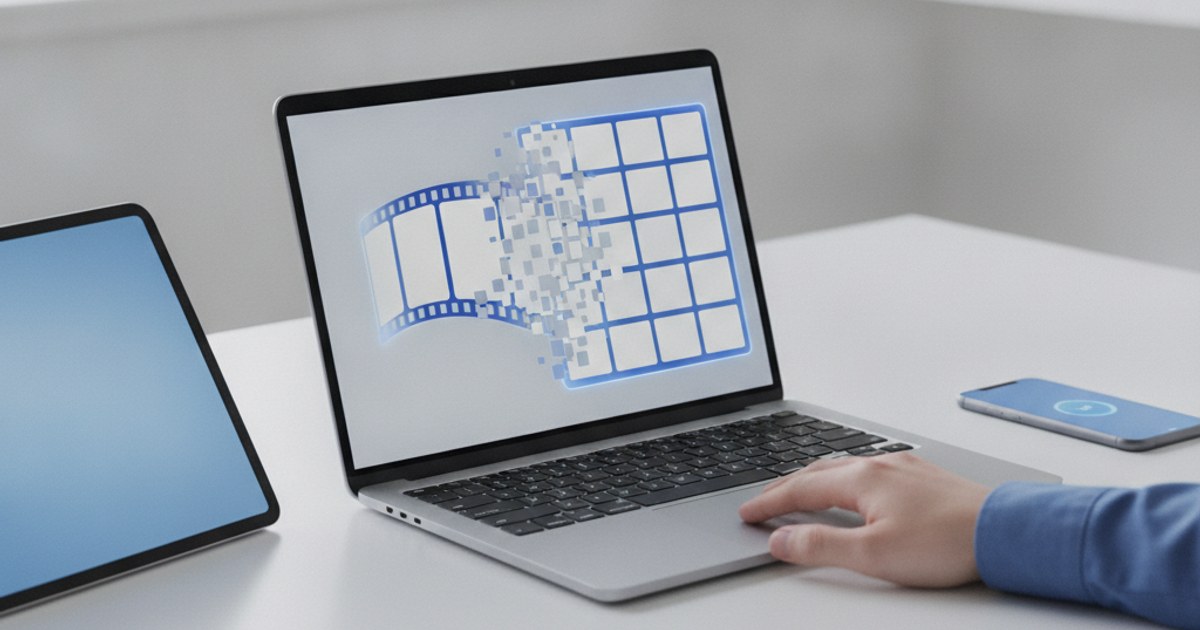
You need one specific moment out of an animated GIF, not the whole loop, whether that's a clean thumbnail, a reference image, or a single frame to fix and rebuild the animation around. Splitting a GIF into individual frames online for free happens at ezyimg.com/split. Upload the animation, click split, and download every frame either one at a time or as a single ZIP file, with no software installed and no watermark on the images.
Need to pull frames out of a GIF?
Open Split GIF Into Frames — Free, No SignupWhy Extract Frames From a GIF
Pulling frames out of a GIF turns a single moving file into a set of static images. A few situations call for exactly that:
- Grabbing a thumbnail: An auto-generated preview frame rarely shows the animation at its best moment. Splitting lets you pick the exact frame with the clearest composition and use it as a thumbnail or cover image.
- Analyzing an animation frame by frame: Reviewing every frame in sequence makes it easy to spot where timing feels off, where a transition happens too fast, or exactly which frame introduces a specific detail.
- Recreating part of a GIF: Designers sometimes need one frame as a reference for a new graphic, or want to swap a single frame out and rebuild the animation with a correction applied.
Frame extraction also comes up in quality control. A GIF that looks fine at full speed can hide a stray artifact, a flash of the wrong color, or a duplicated frame that slows the pacing down. Stepping through the frames one at a time surfaces problems that are easy to miss when the animation is playing at normal speed.
Step by Step Using EzyIMG's Split Tool
EzyIMG's Split tool decodes the GIF locally in your browser and lays out every frame for download.
- Open the tool: Go to ezyimg.com/split.
- Upload your GIF: Drag and drop the file or click to browse.
- Click Split: Every frame in the animation gets decoded and displayed as a thumbnail grid.
- Download the frames: Save the entire set at once as a ZIP archive, or click any individual thumbnail to download just that one frame.
Picking the Right Frame for a Thumbnail
A GIF's automatically-generated preview is usually just its first frame, which is rarely the most representative moment in the animation. A product-demo GIF might open on an empty screen before the actual feature appears a second later; a reaction GIF might start mid-blink. Splitting the file lets you scan every frame and pick the one that best represents the whole clip, then use that specific PNG as a thumbnail, a social media preview image, or a cover photo, something you simply cannot do with the GIF file itself.
What Format the Frames Come In
Every extracted frame downloads as a PNG file. PNG uses lossless compression, so the pixel values in each exported frame match the source frame exactly, with nothing smoothed over or recompressed away. If the original GIF included transparency, that transparency carries over intact into the PNG output. A JPG export, by contrast, would flatten any transparent pixels into a solid background color, which is why PNG is the format used here.
Related Workflow: Extract, Edit, Rebuild
A common workflow starts with splitting a GIF apart, editing one or two of the resulting images (removing a watermark, fixing a color, swapping in new artwork), then feeding the full set of frames, edited and untouched alike, back into ezyimg.com/gif-maker to rebuild a corrected animation. This approach fixes a single problem frame without recreating the entire GIF from the original source.
The same workflow works for style changes too. Splitting a GIF, running a batch of color adjustments across the exported frames in an outside editor, then rebuilding with ezyimg.com/gif-maker gives more control than any single filter applied to the whole animation at once, since each frame can be adjusted on its own before the GIF comes back together.
A Real Example: Fixing One Bad Frame
Say a screen-recording GIF has one frame where a notification popup flashes across the corner, and you want it gone without re-recording the whole clip. Split the GIF, find the one frame with the popup in the thumbnail grid, download that single PNG, paint out the popup in any image editor, then upload the full set of frames, your fixed one included, into ezyimg.com/gif-maker in the original order with the same frame delay. The rebuilt GIF plays exactly like the original, minus the one glitch, and you never had to touch the source recording.
Frequently Asked Questions
How many frames will a GIF produce when split?
A GIF's frame count is fixed at the moment the file is encoded, and splitting simply reveals that number. Short clips often contain a dozen or fewer frames, while longer or higher frame-rate GIFs can hold several hundred.
Do split frames lose quality compared to the original GIF?
PNG is a lossless format, so extracted frames carry the exact pixel values already stored in the source GIF. No additional compression or resampling is applied during the export, so each frame looks identical to how it appeared inside the animation.
Can I download just one frame instead of the whole set?
Individual frame downloads sit right alongside the bulk ZIP option in the results grid. Clicking any single thumbnail saves just that one PNG, so there is no need to download the entire set if only one frame is useful.
Will extracted frames keep transparency from the original GIF?
Transparency in the source GIF is preserved in the PNG output, pixel for pixel. Each transparent area keeps its alpha channel intact rather than being converted to a solid background color, which is what would happen if the frames were exported as JPG instead.
Related tools
- Split GIF Into Frames: Extract every frame of a GIF as a PNG
- GIF Maker: Rebuild a GIF from a set of images
- Reverse GIF: Flip the frame order of any GIF