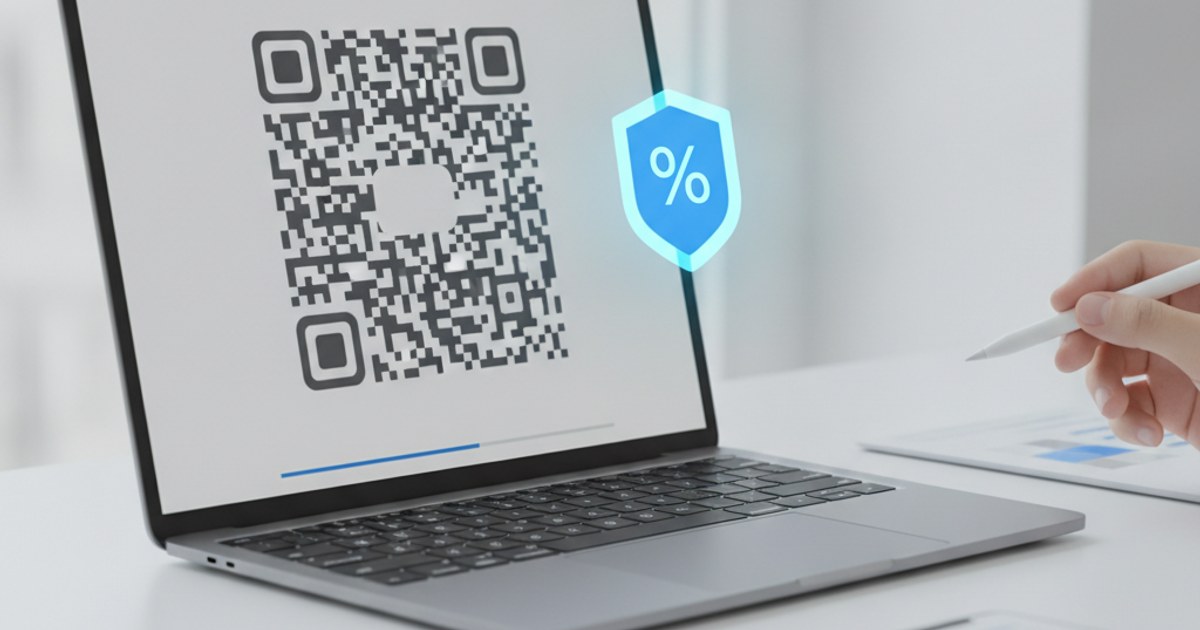
A plain black-and-white QR code works, but a logo in the center makes it instantly recognizable as yours on a menu, a poster, or packaging. The risk is that dropping an image into the middle of a QR code can make it unscannable if you don't account for how QR codes actually tolerate obstruction. Here's how to add one the right way.
Ready to add your logo?
Open QR Code Generator — Free, No SignupWhy a Logo Doesn't Automatically Break a QR Code
QR codes are built with error correction: extra redundant data baked into the pattern specifically so the code can still be read even if part of it is dirty, scratched, or covered. There are four standard levels, each tolerating a different percentage of the code being obstructed before the scan fails. A logo covering the center counts as obstruction, so the key isn't avoiding a logo, it's choosing an error correction level high enough to cover the space the logo will take up.
Error Correction Levels, Explained Simply
QR error correction runs from Low, which tolerates roughly 7% of the code being damaged or covered, up to High, which tolerates roughly 30%. A plain code with no logo can safely use a lower level, since nothing is covering it. The moment you add a logo, especially one larger than a small corner watermark, you need the highest level available, which is exactly why a good QR generator automatically switches to it the moment you upload a logo image.
Logo Size: How Big Is Too Big
Even at the highest error correction level, a logo covering too much of the center will still break the scan, because error correction has a ceiling. Keeping a logo to roughly 15% to 25% of the total QR code area is a safe practical range; pushing much past 30% starts putting you right at the edge of what even maximum error correction can recover from, especially if the surrounding pattern is also printed small or at low contrast.
Step-by-Step: Adding a Logo Safely
- Generate your base QR code: Enter your content in the QR Code Generator first, before adding a logo.
- Upload your logo: Use a simple, high-contrast logo. Busy, detailed logos are harder for a scanner to visually ignore even with a clean white backdrop behind them.
- Let error correction auto-adjust:The tool raises correction to the highest level automatically once a logo is added, so you don't need to set this manually.
- Keep the logo size modest: Stay within roughly 15% to 25% of the total code area rather than maximizing it for visual impact.
- Test-scan before printing: Scan the finished code with two or three different phones if possible, since camera quality varies, before committing it to print.
See it work with your own QR code
Open QR Code Generator — Free, No SignupChoosing Module and Eye Styles That Still Scan Reliably
Beyond a logo, styling choices like rounded modules (the small squares that make up the pattern) or rounded corner “eyes” (the three larger square markers in the corners) can make a code feel more on-brand, but they interact with scanning reliability differently than a logo does. The corner eyes in particular are what most scanners use first to orient and lock onto the code, so keeping them high-contrast and clearly defined matters more than any other single visual choice you'll make.
Rounded or dot-style modules generally scan just as reliably as square ones as long as the rounding isn't so aggressive that adjacent modules blur together at small sizes, that's a real risk specifically at small print sizes, less of a concern on a screen where resolution is higher relative to the code's physical size. If you're combining a stylized module shape with a logo, test at the smallest size you actually plan to use it, not just at a large preview size, since problems specifically show up once both effects compound at small scale.
When in doubt, prioritize the corner eyes staying crisp and high-contrast over every other stylistic choice, a plain module pattern with sharp, high-contrast eyes will out-scan a heavily styled code with soft, low-contrast corners nearly every time.
Frequently Asked Questions
Will adding a logo always require the highest error correction level?
For any logo larger than a tiny watermark, yes. It gives the code the most tolerance for the space the logo covers, and there's no real downside to using it even for a small logo.
Does a transparent background logo work better than a solid one?
A logo with a solid white or light background behind it tends to scan more reliably than a fully transparent one, since a clean backdrop gives the scanner a clear boundary between the logo and the surrounding code pattern.
Can I make the logo bigger if I use maximum error correction?
Slightly, but maximum error correction is not unlimited headroom. Staying within roughly 15% to 25% of the code area is still the safer range even at the highest level.
Why did my QR code with a logo work on my phone but not someone else's?
Camera quality and scanning app behavior vary across phones. A code sitting right at the edge of what error correction can recover might scan fine on a newer phone and fail on an older one, which is exactly why testing with more than one device before printing matters.
Related tools
- QR Code Generator: Add a logo with automatic error correction
- Custom QR Code Generator: Colors, module styles and logo placement