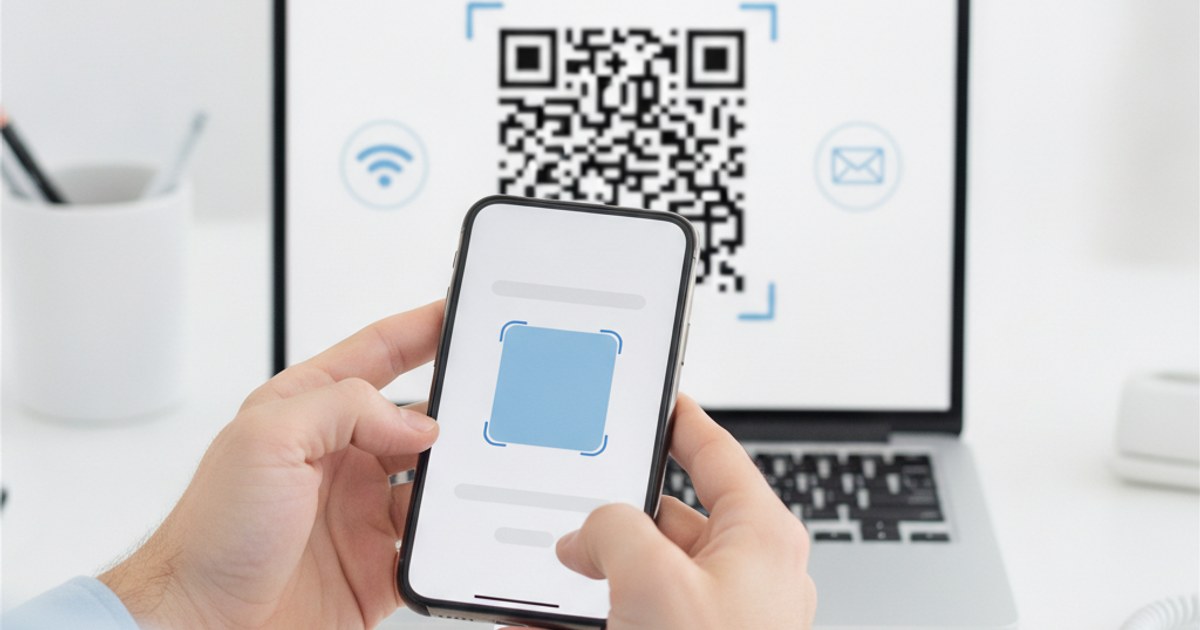
A QR code generator turns a URL, a block of text, a WiFi password, an email address, or a phone number into a scannable square pattern that opens or fills in that information the moment someone points a camera at it. It sounds simple, and it is, but a few choices you make while generating one (what content type, what size, what error correction level) decide whether it scans instantly or not at all. Here's how to create one properly, for free.
Ready to create your QR code?
Open QR Code Generator — Free, No SignupWhat You Can Actually Put Into a QR Code
The most common use is a URL, linking straight to a website, a menu, a portfolio, or a signup form. Beyond that, a QR code can hold plain text, a pre-filled email address (opening the recipient's mail app with the address ready), a phone number (opening the dialer), or WiFi credentials that let a guest's phone join your network without typing a password at all. Each content type gets encoded slightly differently under the hood, but a good generator handles the formatting for you once you pick the right type.
Step-by-Step: Creating a QR Code
- Choose your content type: Go to ezyimg.com/qr-generator and select URL, text, email, phone, or WiFi.
- Enter your content: Type or paste the URL, message, or credentials. The code updates live as you type, so you can see it change in real time.
- Set a size:Pick a pixel size appropriate for where it's going. A business card needs less resolution than a large poster meant to be scanned from a distance.
- Pick colors if you want them:Foreground and background colors can match a brand or a printed design, as long as there's enough contrast between them for a camera to read reliably.
- Choose an error correction level: Higher levels make the code more resistant to smudges, damage, or partial obstruction, at the cost of a slightly denser pattern.
- Download and test it: Save the image, then scan it yourself with your own phone camera before printing or publishing it anywhere.
Why Testing Your Own QR Code Actually Matters
It's easy to generate a code, save it, and move on without ever scanning it yourself. The problem is that a typo in a URL, a color combination with too little contrast, or a code printed too small to resolve clearly all produce a QR code that looks fine on screen but fails the moment someone actually tries to use it. A ten-second scan test with your own phone, in the lighting condition it will realistically be scanned under, catches all three before it becomes a printed sign nobody can use.
Common Mistakes That Break a Scan
Low contrast between foreground and background color is the single most common cause of a code that scans inconsistently. Sizing it too small for the distance it will be scanned from is the second: a code meant to be read from across a room needs to be noticeably larger than one held at arm's length. And a URL with a typo simply sends people to the wrong place, or nowhere, no matter how perfectly the code itself renders.
Ready to make your own QR code?
Open QR Code Generator — Free, No SignupChoosing the Right Size for Print vs Digital
A QR code meant for a phone screen or a webpage can be small, a few hundred pixels is plenty since the viewer is close to the screen and can zoom in if needed. Print is a different situation entirely: the code needs to be large enough to scan reliably from the distance someone will actually be standing when they scan it, not the distance you were standing when you designed it.
A rough rule of thumb: a code meant to be scanned from about arm's length, a menu, a business card, a product label, works fine around 2 to 3 centimeters per side at print resolution. A code meant to be scanned from further away, a poster on a wall, a banner at an event, needs to scale up proportionally with distance, often 10 centimeters or more per side. Undersizing a code for its actual viewing distance is one of the most common reasons a perfectly generated QR code fails to scan once it's printed and mounted.
When exporting for print, generate at a larger pixel size than you think you need, downscaling a large clean image looks better than upscaling a small one, which introduces blur exactly where a scanner needs sharp edges to read the pattern correctly.
Frequently Asked Questions
Is EzyIMG's QR code generator really free with no limits?
Yes. There's no account, no watermark, and no limit on how many QR codes you generate.
Do QR codes expire?
A standard QR code like the ones this tool generates never expires on its own; it simply encodes fixed content directly into the pattern. It only stops working if the destination it points to (a URL, for example) is taken down or changed.
Can I put a logo in the middle of my QR code?
Yes, uploading a logo places it in the center and automatically raises the error correction level so the code still scans correctly around it.
What image format should I download my QR code in?
PNG is the safest default for both digital use and printing, since it stays crisp at any size without introducing compression artifacts that could interfere with scanning.
Related tools
- QR Code Generator: Create a QR code for URLs, WiFi, email and more
- Custom QR Code Generator: Full color and style customization