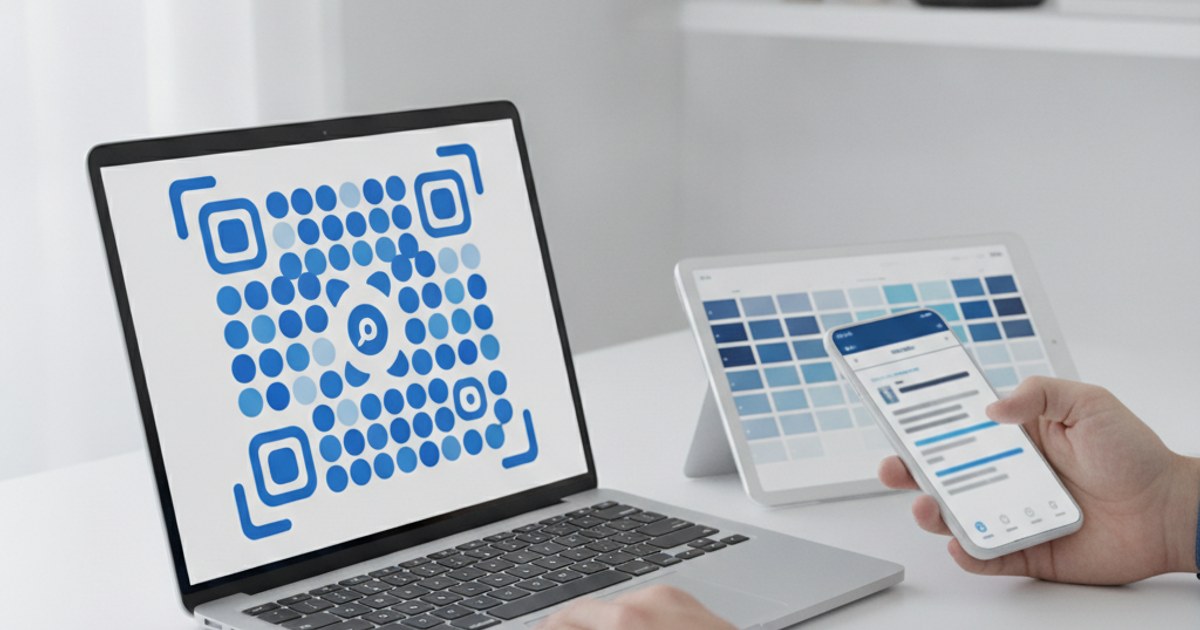
A plain black-and-white square works fine, but a custom QR code builder lets a code on a menu, flyer, or product package actually match the rest of your design instead of looking like an afterthought stapled onto it. The catch is that every customization choice, color, shape, logo, trades a little bit of scan reliability for style, and knowing where that line actually sits is what separates a code that looks good and scans, from one that just looks good.
Ready to style your QR code?
Open Custom QR Code Generator — FreeWhat You Can Safely Customize
Foreground and background color. The single biggest factor in whether a colored QR code scans is contrast. Dark foreground on a light background (or the reverse) reads reliably; two similar mid-tones, like navy on gray, do not, regardless of how good they look on screen.
Corner and dot style. Rounding the square modules or softening the corner markers gives a QR code a friendlier, more modern look without meaningfully affecting scan reliability, since scanners are built to recognize the overall pattern, not exact pixel-sharp squares.
A center logo. Adding a small logo in the middle is safe as long as the error correction level is raised to compensate for the area it covers, which a proper custom QR builder does automatically.
What to Avoid Even Though It's Technically Possible
Gradient fills across the whole code, low-contrast color pairs, and background images placed directly behind the modules (rather than around the outside of the code) all reduce the contrast a scanner relies on to distinguish a filled module from an empty one. A code can look striking in a design mockup and still fail to scan reliably once it's printed at real size, under real lighting, with a real phone camera, which is a very different test than viewing it zoomed in on a screen.
Step-by-Step: Building a Branded QR Code
- Start with your content: Go to ezyimg.com/qr-custom and enter your URL or other content first.
- Pick colors with strong contrast:Choose a dark foreground and light background, or the reverse, checking that they're clearly distinguishable, not just different.
- Adjust corner and dot style if you want: Rounded styles read as more modern with no real reliability cost.
- Add a logo if needed: Keep it centered and reasonably small relative to the whole code, and let the tool raise error correction automatically.
- Test it at real size: Print or display it at the actual size it will be used, then scan it with your own phone before publishing anywhere.
Build a code that matches your brand
Open Custom QR Code Generator — FreeA Simple Contrast Test You Can Run Yourself
Squint at your color choice, or view it in grayscale, before finalizing it. If the foreground and background still look clearly distinguishable once color is reduced, contrast is likely strong enough for reliable scanning. If they blur together into similar shades of gray, a scanner will struggle with the same lack of distinction a camera sensor sees under less-than-ideal lighting.
Frequently Asked Questions
Will a custom-colored QR code scan slower than a black-and-white one?
Not if contrast stays strong. Scan speed depends on how quickly a camera can distinguish modules from background, which is a function of contrast, not the specific colors used.
Can I use my brand's exact colors?
Yes, as long as the pair you choose has enough contrast between them. If your brand colors are both mid-tones with low contrast, consider using one brand color against white or black instead of both brand colors together.
Do rounded corners or dots break the code?
No, standard QR readers are built to recognize the overall module pattern, not exact square edges, so rounded styling reads correctly on virtually every modern scanner.
Is the custom QR generator free like the standard one?
Yes, EzyIMG's Custom QR Code Generator is free with no watermark and no account required, the same as the standard generator.
Related tools
- Custom QR Code Generator: Full color and style customization
- QR Code Generator: Standard black-and-white codes