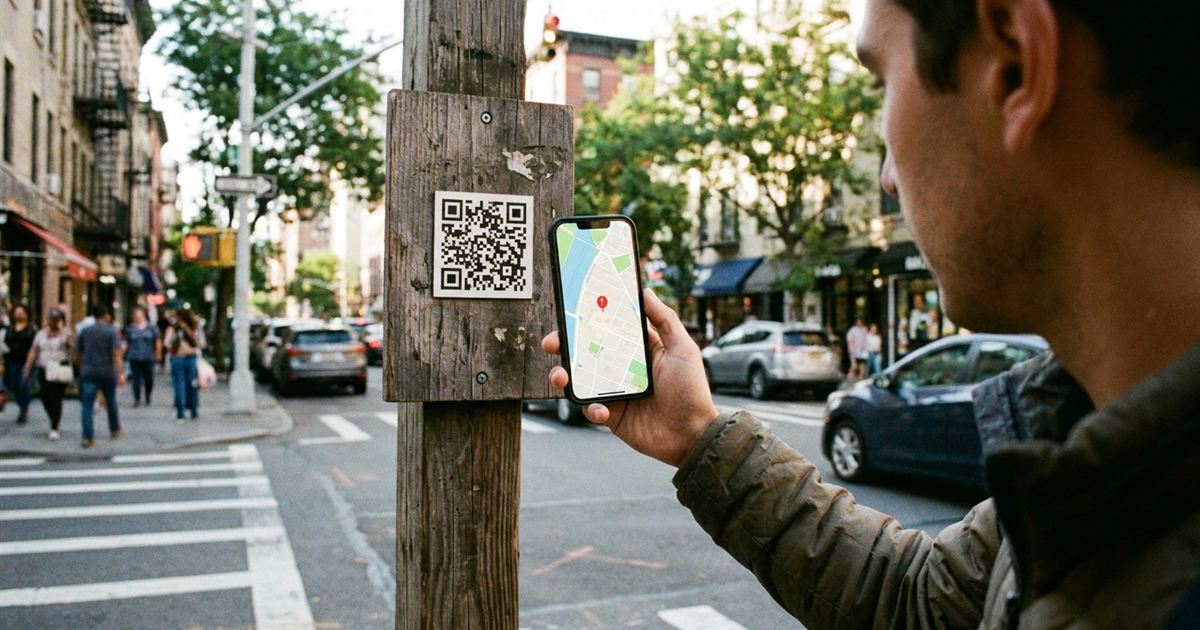
Directions are one of the best uses for a QR code. A code on a sign, flyer or invitation can send people straight to a pin on a map, with no typing and no street name to misspell. There are two common ways to build one, a geo link and a maps web link, and they do not behave the same on every phone. This guide explains both, and shows how to create the code with the EzyIMG Custom QR Code Generator.
Send people straight to your location
Open the Custom QR Code Generator, FreeWhat a Location QR Code Contains
A QR code that points to a place stores text. That text is either a coordinate in a special format, or a normal web link to a map service with the coordinates inside it. When someone scans it, their phone interprets the text and offers to open a map. There is no tracking or special account needed to create it.
Option 1: A Geo Link
A geo link starts with geo: followed by latitude and longitude separated by a comma, for example geo:48.8566,2.3522. The Custom QR Code Generator has a Geo preset that fills in an example in exactly this format, so you only have to swap in your own numbers.
The advantage is simplicity. It does not depend on any particular map company, and on many Android phones it offers to open whichever map app is installed. The drawback is consistency. Behavior varies by phone and scanner app, and some devices, including some iPhones, may not handle geo links the way you expect. Always test before you print.
Option 2: A Maps Web Link
A maps web link is a normal address that opens in a browser or in the map app. A common format for Google Maps is https://www.google.com/maps?q= followed by latitude, a comma and longitude. Apple Maps uses a similar format with https://maps.apple.com/?ll= and the coordinates.
The advantage is reliability. Because it is a regular web link, every phone knows how to open it, and it usually launches the map app or a map page without extra steps. For a code that anyone might scan, this is usually the safer choice. To use one, choose the URL preset in the generator and paste the link.
Which One Should You Use?
- Public signs, flyers and invitations scanned by anyone: use a maps web link.
- A code only for people you know use Android phones: a geo link can work.
- Not sure: use the maps web link, or print two codes and label them clearly.
Whichever you choose, scan the final code on both an iPhone and an Android phone before it goes to print.
How to Find Your Coordinates
- Open a map app on your phone or computer.
- Find the exact spot, such as the entrance, parking or meeting point, not just the building.
- Press and hold on the spot on a phone, or right-click on a computer, to drop a pin.
- Copy the latitude and longitude that appear, usually two numbers with decimals.
- Check the order. Latitude comes first, then longitude, and negative numbers are normal in many parts of the world.
A swapped order or a missing minus sign can put your pin in the ocean, so zoom in on the pin before you finish.
Create the Code in the Generator
- Open the Custom QR Code Generator.
- Click the Geo preset for a geo link, or the URL preset if you are using a maps web link.
- Replace the sample with your own coordinates or link.
- Pick colors with strong contrast and a size that suits where it will be printed.
- Add a short label such as Find us here if you like. The label appears in the PNG download.
- Download the PNG, or the SVG for large print.
Test It the Way a Visitor Would
Scan the printed code from the distance people will really use, and check that the pin lands exactly where the visitor needs to go, such as the entrance, not the middle of the parking lot. If it fails to scan, see why a QR code will not scan. For sizes, see what size a printed QR code should be.
Where a Location QR Code Is Useful
- Open house signs and listings. See QR codes for real estate.
- Event invitations and venue signs. See QR codes for wedding invitations.
- Business cards and shop windows pointing to your store.
- Trailheads, drop-off points and meeting spots.
- Delivery instructions and pickup locations.
Remember that a code is static. The coordinates are written into the pattern, so if the place changes, you will need a new code. Read static vs dynamic QR codes to understand the difference.
Frequently Asked Questions
How do I make a QR code that opens a map?
Use the Custom QR Code Generator. Click the Geo preset and enter your latitude and longitude, or use the URL preset with a Google Maps or Apple Maps link that contains your coordinates.
What is the difference between a geo link and a maps link?
A geo link stores only coordinates and depends on the phone to choose a map app. A maps web link is a normal web address that every phone can open, which usually makes it more reliable.
Why does my location QR code open the wrong place?
Usually the latitude and longitude are swapped or a minus sign is missing. Check that latitude is first and zoom in on the pin before printing.
Will a geo QR code work on iPhone?
Not always the same way. Behavior varies, so test it on an iPhone, or use a maps web link, which is dependable on every phone.
Can I change the location after printing?
No. The location is written into the code, so a change requires generating and printing a new one.
Know your spot? Find the coordinates, choose a geo or maps link and generate your code.
Ready to share your location?
Open the Custom QR Code Generator, Free