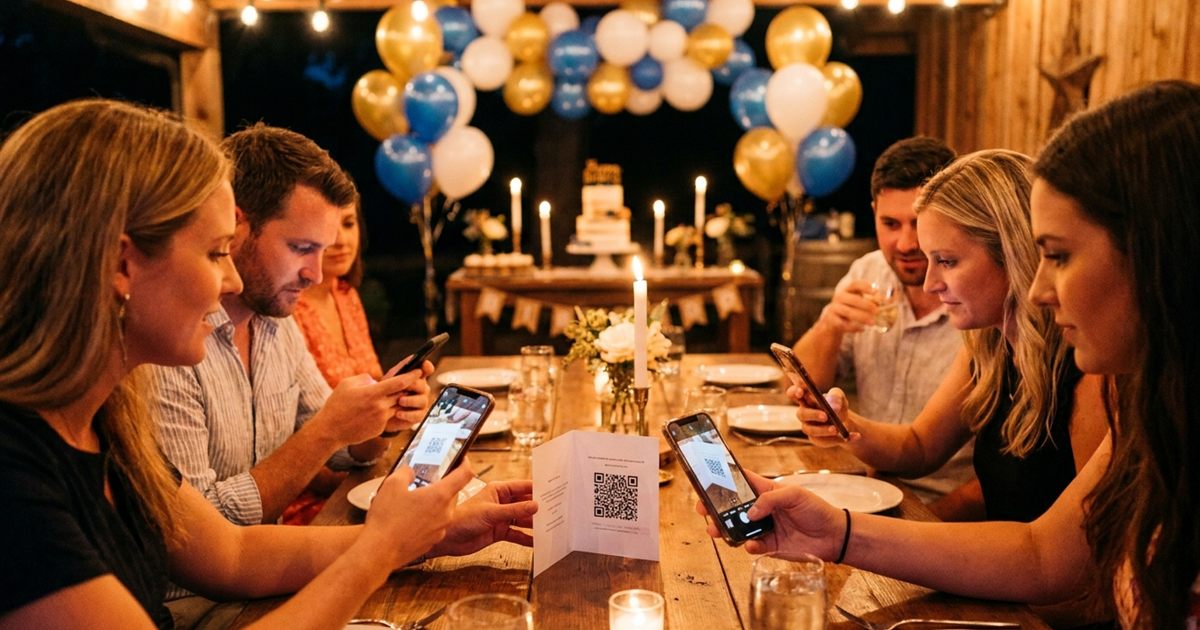
After a wedding, birthday or family reunion, everyone has photos and nobody has them all. A shared album fixes that, but getting the link to every guest is the hard part. A QR code makes it simple: put it on a table card, a screen or a thank you note, and anyone can open the album with a scan. The free Custom QR Code Generator turns your album link into a code you can download as PNG or SVG. This guide shows how to prepare the album, make the code and avoid privacy mistakes.
Make a QR code for your photo album
Open the Custom QR Code Generator, FreeWhy a QR Code Works for Photo Sharing
Typing a long album link on a phone is annoying, and sending it through a group chat means some guests never see it. A QR code removes both problems. It sits in the room, on the table or on a card, and guests open the album while the memory is fresh. People who are not in the group chat can still join. It also works well in print, for example on a thank you card sent after the event.
Set Up the Album First
The QR code is only as good as the link behind it, so prepare the album before you make the code.
- Create a shared album in the app you use, such as Google Photos, iCloud or a cloud drive.
- Turn on link sharing so anyone with the link can view the album.
- Decide whether guests can only view or also add photos. Allow contributions if you want everyone to upload.
- Check the album on a different device without being signed in, to confirm the link opens.
- Copy the share link.
Create the QR Code Step by Step
- Open the Custom QR Code Generator and choose the URL preset.
- Paste the album link where the sample address appears.
- Pick colors that match the event, but keep the code dark on a light background for reliable scanning.
- Add a short label such as Scan to see the photos using the label option.
- Download the PNG for screens and small prints, or the SVG for large prints such as banners.
Photo album links can be long. A very long link produces a dense code that is harder to scan at small sizes. If the code looks crowded, use the shortest version of the share link your app offers, and see how much data fits in a QR code for the reasons.
Where to Place the Code
- Table cards at weddings, birthdays and parties; see QR codes for wedding invitations and RSVPs.
- A slide at the end of a presentation or a screen at the venue; see how to show a QR code on a slide or TV.
- Thank you cards sent after an event.
- Photo books and printed albums, linking to extra pictures.
- Class reunions, school events and team celebrations.
- Family gatherings, so relatives can add their own pictures.
Privacy and Safety Tips
A QR code is only a link in a different shape. Whoever can see the code can open the album. Think about who the pictures are meant for before you display the code in a public place.
- Avoid adding private photos of children to a publicly displayed album.
- Use a link that is only shared with invited people when privacy matters.
- Turn off link sharing after the event if you no longer need it.
- Let guests know who can see the album and who can add to it.
- Do not include private details such as addresses in album titles or captions.
Make the Code Easy to Scan
- Print it large enough: about 3 to 4 centimeters is a comfortable minimum for table cards.
- Keep strong contrast between code and background; see QR code color contrast.
- Leave a blank margin around it.
- Avoid glossy surfaces under bright lights, which can create glare.
- Add a short instruction and your event name next to it.
A Simple Plan for a Party or Wedding
Before the event, create the album and enable contributions. Print the QR code on a small card with a friendly line, and place several cards around the room rather than only one. During the event, remind guests once, for example when the cake is cut. After the event, send the same code in a thank you message so people who missed the reminder can still find the album. A week later, check the album, remove any duplicates and decide whether to keep the link active.
Test Before You Print
Scan the code with an iPhone and an Android phone. Make sure the album opens without signing in and that the contribute option works if you enabled it. If something fails, why a QR code will not scan lists the usual causes. To understand why a printed code keeps pointing to the same place, read do QR codes expire.
Frequently Asked Questions
Can I make a QR code for a Google Photos, iCloud or Drive album?
Yes. Copy the share link from the app you use, paste it into the QR generator and download the code. Check the sharing settings first so guests can open the link.
Can guests add their own photos through the QR code?
That depends on your album settings. Many photo services let you allow contributions through the share link, so enable that option before you create the code.
Is it safe to put a photo album link on a public QR code?
Anyone who scans or photographs the code can open the link. For private family albums, share only with people you trust and consider turning off the link after the event.
What happens to the QR code if I change the album link?
A static code holds the exact link you typed. If you replace the link, the old printed code will point to the old album.
Ready to share your album with a scan?
Open the Custom QR Code Generator, Free