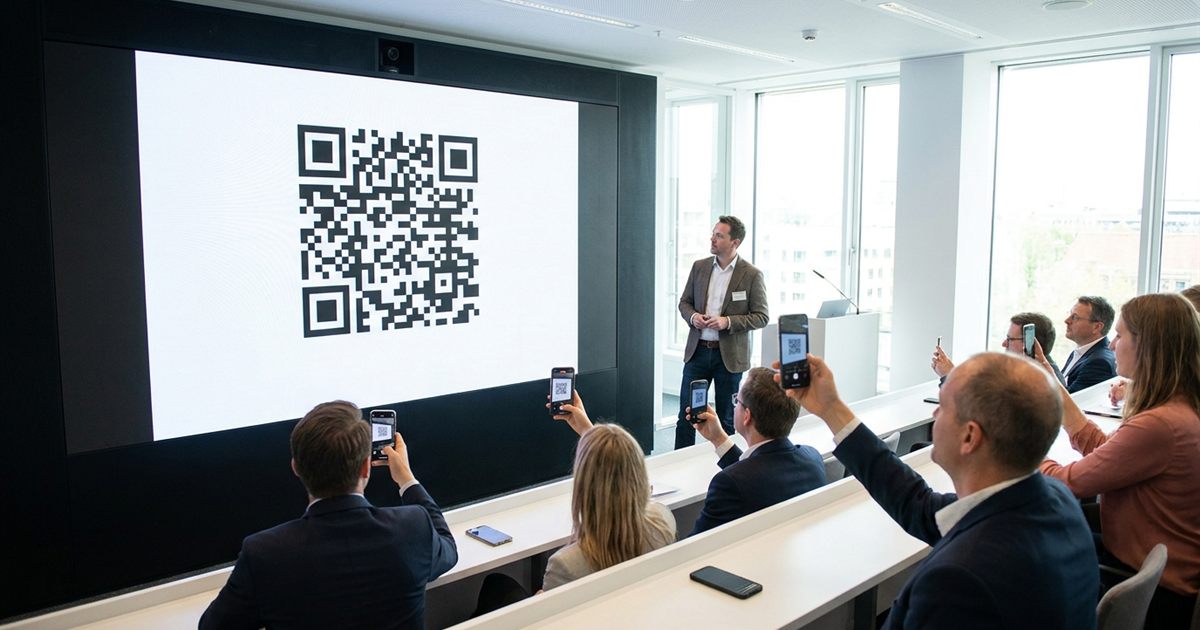
Printed QR codes are forgiving, because the viewer can hold the paper close. A QR code on a slide or a TV is a different problem: the audience is far away, the screen is glowing and the code is only visible for a moment. Make it too small or low in contrast and nobody in the back row will scan it. The free Custom QR Code Generator lets you pick the colors, margin and format so your code works on screen as well as on paper.
Make a QR code that works on screen
Open the Custom QR Code Generator, FreeWhy Screens Are Harder Than Paper
On a screen, a QR code competes with brightness, glare and distance. A projector in a bright room washes out colors. A TV across a shop is tiny to someone standing at the door. And a slide that changes after ten seconds gives people no time to try again. You need a bigger code, stronger contrast and more time on screen than you would use for print.
Size: Make It Bigger Than You Think
A reliable rule is that the code should be big enough to fill a meaningful part of the slide, not tucked into a corner. As a starting point, aim for the code to take up roughly a quarter to a third of the slide height, and bigger for large rooms. The farther the farthest viewer, the larger the code. A short link helps too, because fewer characters mean bigger, simpler squares. See how much data fits in a QR code for how content length changes density.
Contrast and Color
- Use dark modules on a light background. Light-on-dark codes fail on some phones; see why QR codes fail in dark mode.
- Put the code on a solid white or very light panel, even if your slide has a dark theme.
- Avoid gradients, photos or patterns behind the code.
- Skip pale colors. Strong contrast matters more than brand color; read QR code color contrast.
Keep the Quiet Margin
A QR code needs an empty border around it so the phone can find its edges. Do not crowd it with text, logos or the slide edge. The generator lets you set the margin, and a bit of extra space is cheap insurance on a busy slide.
Which File Format for Slides and Screens
For presentation software and digital signs, download the PNG. It includes your colors, style, logo and label, and it drops into slides, video editors and signage software without trouble. Make sure the image is large enough that it does not look blurry when it is stretched across a big screen.
The SVG download is a plain, scalable version of the code. It is excellent for print, but it does not include the extra styling, logo or label you set in the builder, so use the PNG when you need those. More on formats in QR code file formats explained.
Make and Place the Code
- Open the Custom QR Code Generator and paste your link in the URL preset.
- Choose dark modules on a white background and keep the margin.
- Add a short label, such as Scan for the slides, if you want a prompt under the code.
- Download the PNG and insert it into your slide or signage design.
- Place it where it will not be covered by a camera, a speaker or your own body.
- Leave the slide up long enough, and mention the code out loud.
Give People Time and a Reason
Do not flash the code and move on. Leave it on screen for at least twenty or thirty seconds, tell people what they will get and repeat it at the end of the talk. On a TV or digital sign that loops, show the code for a long stretch of each cycle instead of a quick flash.
Always Have a Backup
Print the link in short text under the code, or on the next slide, for anyone who cannot scan. A short address, such as your site name followed by a short path, works well. If you share slides afterward, make sure the code is still there in the exported file.
Test in the Real Room
Check the code from the back of the room, on the actual projector or TV, with the lights as they will be during the event. If it does not scan, make it bigger, raise the contrast or shorten the link. For a troubleshooting list, see why a QR code will not scan.
Frequently Asked Questions
How big should a QR code be on a slide?
Bigger than you expect. Aim for roughly a quarter to a third of the slide height, and larger for big rooms or far-away viewers.
Can I use a dark slide background?
Yes, but place the code on a solid white or light panel. Keep the modules dark and the margin clear.
PNG or SVG for presentation software?
PNG is the safer choice because it keeps your colors, logo and label. SVG is a plain scalable code that is best for print.
How long should the code stay on screen?
At least twenty to thirty seconds, and repeat it at the end of the talk. On looping signs, show it for a long stretch of each cycle.
Why does my QR code not scan from a projector?
Usually the code is too small, too low in contrast or too washed out by room light. Enlarge it, use dark on white and shorten the link.
Make it large, keep the contrast high and test it from the back row.
Ready to make your on-screen QR code?
Open the Custom QR Code Generator, Free