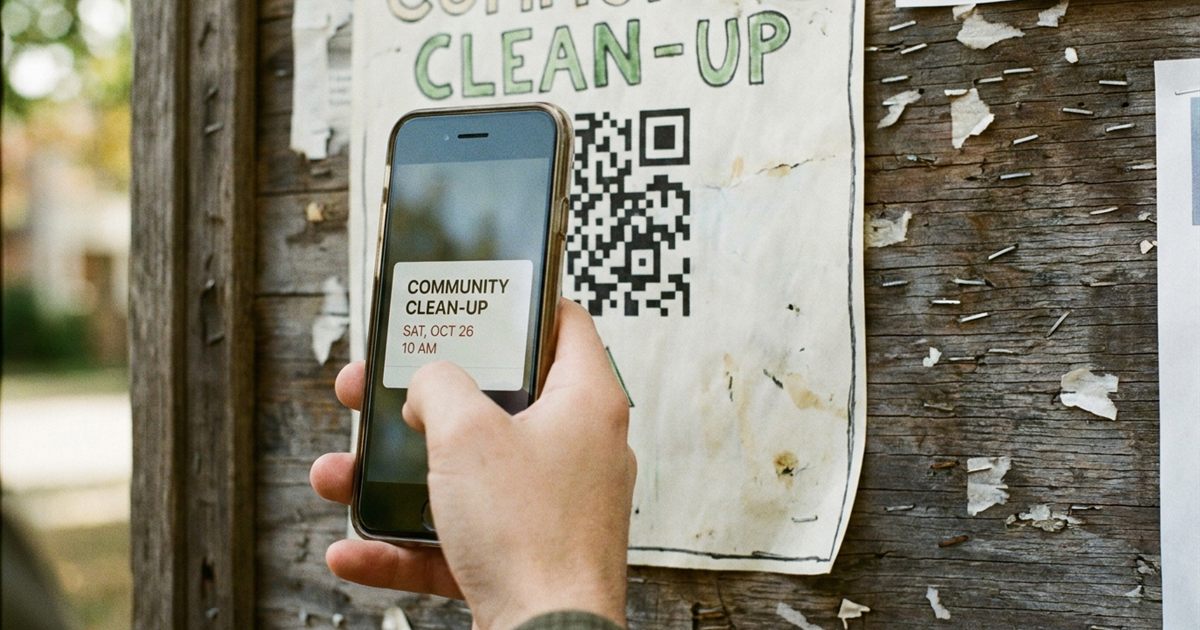
People forget dates. A QR code on a poster, ticket or invitation can turn a date into an action: one scan, and the event is on their phone. There are two ways to do it. You can link to an event page with all the details, or you can encode the event itself so a scanner offers to add it to the calendar. The free Custom QR Code Generator handles both, because it turns any text or link into a code you can download as PNG or SVG. This guide explains the options and how to test the result before you print.
Make a QR code for your event
Open the Custom QR Code Generator, FreeTwo Ways to Use a QR Code for an Event
The first way is to link to a page. The QR code contains a web address, and scanning it opens a page with the event name, date, place, map and a button to add it to a calendar. The second way is to encode the event itself. The QR code holds the event details in a calendar text format, and a scanner app that supports it can offer to save the event directly.
- Link to a page: works on every phone and can be updated later. Best for most uses.
- Encode the event: works without internet and saves in one step, but support varies and the data cannot be changed after printing.
Option One: Link to an Event Page
Create a simple page or use an event link from the tool you already use for invitations. Include the date, time, address and any instructions. Most calendar apps can generate a link or file that adds the event with one tap.
- Copy the link to your event page.
- Open the Custom QR Code Generator and select the URL preset.
- Paste your link in place of the sample address.
- Choose a dark code on a light background for reliable scanning.
- Download the PNG for screens and quick prints or the SVG for large print.
Because the code contains only a short link, it stays simple and scans easily. For more on keeping a code readable, see how much data fits in a QR code.
Option Two: Encode the Event Itself
Calendar events can be written in a plain text standard. A QR code can hold that text, and some scanner apps will recognize it and offer to create the event. The text looks like this: a line that begins the event, a title, a start and an end time, a location and a line that closes the event.
The generator accepts any text, so you can paste the event data into the same field where you would paste a link. Keep the text short. More characters mean a denser code that is harder to scan at small sizes. Remember that scanner support varies, so test the result on an iPhone and an Android phone before you print a large batch.
- Use a short title and only the details people need.
- Double check the date and time formats, since a typo may stop the event from being read.
- Raise the error correction level if the code will be printed small or may get scuffed; see QR code error correction levels.
Design Tips for an Event QR Code
- Add a clear call to action next to the code, such as Scan to save the date.
- Use the label option in the generator to place a short line of text with the code.
- Keep strong contrast. Light colors on a light background will not scan; see QR code color contrast.
- Leave a blank margin around the code so phones can find its edges.
- Print the date and time in text as well, in case someone cannot scan.
Where Event QR Codes Work Well
- Posters and flyers for classes, concerts and community events.
- Wedding invitations and save the date cards; see QR codes for wedding invitations and RSVPs.
- Conference badges and check in desks; see QR codes for event check in.
- Appointment cards for clinics, salons and workshops.
- Class schedules and webinar announcements.
Common Mistakes to Avoid
- Putting too much text into the code, which makes it dense and hard to scan.
- Forgetting the time zone, so the event appears at the wrong hour.
- Printing only the code and no date, which leaves people with nothing if they cannot scan.
- Skipping the test on both iPhone and Android before printing.
Test Before You Print
Scan the final code with at least two different phones and a couple of scanner apps. Confirm that the right event appears with the correct date, time and place. Check the code from the distance people will actually stand at. If something fails, why a QR code will not scan lists the usual causes.
If the date might change, link to a page rather than encoding the event. A printed code that holds a link to a page you control can stay useful even when details move. To understand the difference, read static vs dynamic QR codes.
Frequently Asked Questions
Can a QR code add an event to my calendar?
It can store event data in a standard text format that many scanner apps recognize and offer to add. Support differs between phones and apps, so always test with the devices your audience uses.
What is the safest way to share an event with a QR code?
Link to a web page with the event details and an add to calendar button. A link works on every phone, and you can update the page without changing the code.
Can I update the event after printing the QR code?
Not if the details are stored in the code itself. If the code holds a link to a page you control, you can change the page content after printing.
What should I put near the QR code?
Write the event name, date and time in plain text next to the code, so people still have the key information if they do not scan it.
Ready to make your event QR code?
Open the Custom QR Code Generator, Free