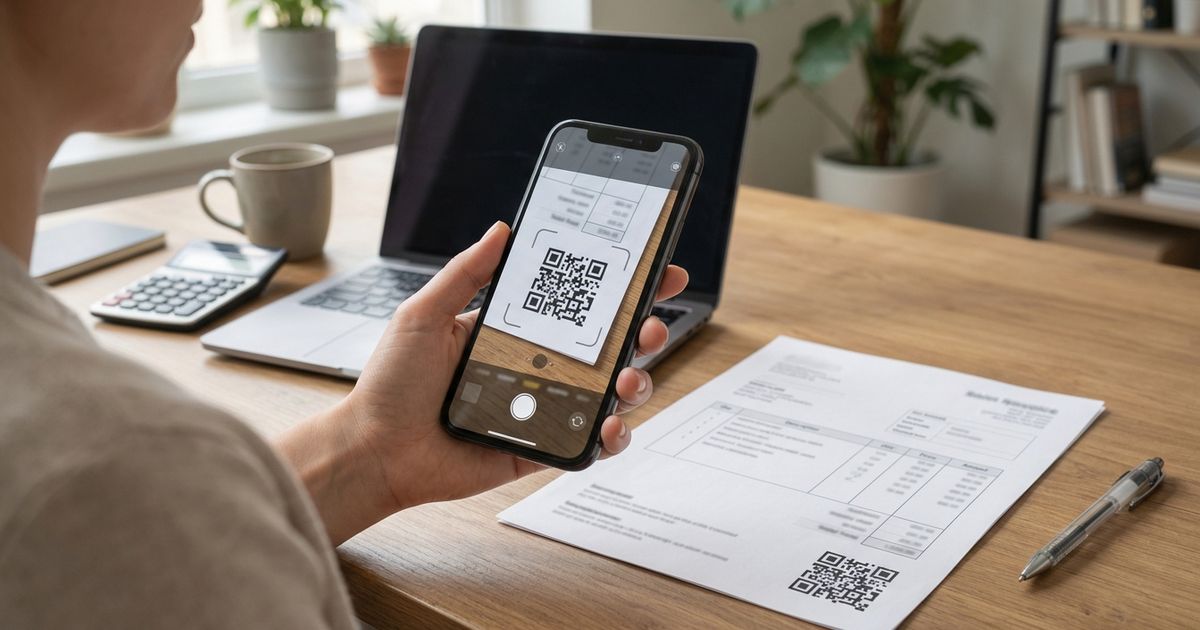
An invoice has one job: to get you paid. Yet many invoices make the customer do extra work. They have to read a long web address, type it carefully on a phone, search for an account number or copy a reference. Every extra step is a chance to postpone paying. A QR code removes most of that friction. The customer points a phone at the paper or the PDF, and the payment page, the receipt details or a review form opens right away. This guide explains what to put behind a QR code on an invoice or receipt, how to create it, and how to make sure it prints and scans reliably.
Paste your payment or review link and generate a QR code in seconds
Create an Invoice QR CodeWhat A QR Code On An Invoice Can Do
A QR code stores a piece of text, most often a web address. On an invoice, that address can lead to different useful places:
- An online payment page. The most common use. The customer scans, lands on your payment link and pays without typing anything.
- A digital copy of the invoice. A link to a PDF or an online version so the customer can save or forward it.
- A review or feedback page. On a receipt, a QR code that opens your review link can bring in more feedback while the experience is fresh.
- Order tracking or support. A link to a page with delivery status or contact options.
- A warranty or product registration page. Useful for receipts that come with physical goods.
Pick one main purpose for each document. A single, clear action works better than a code that tries to do everything.
Choose The Right Destination
The QR code is only as good as the page behind it, so check these points before you generate it:
- The link opens on a phone. Most customers will scan with a phone, so the page must be mobile friendly.
- No login required. If the customer has to sign in or create an account first, many will give up.
- The link is stable. If you change the payment provider or move your page, a printed code will stop working. Use an address you control and can redirect.
- It identifies the invoice. If possible, use a link that includes the invoice reference, so the customer does not have to enter it. Avoid putting sensitive personal data inside the link itself.
If you are unsure about payment links in general, read about QR codes for payments and tip jars. Always use the payment link provided by your payment service rather than building one yourself.
Step By Step: Create The QR Code
- Copy the link you want to encode, such as your payment page or review page.
- Open the generator. Go to the QR code generator and paste the link into the content field.
- Choose strong contrast. Dark code on a white background scans best. See which colors actually scan.
- Download the image in a format suited to your document. For print, a high resolution image or a vector file is best, and the guide to QR code file formats can help you choose.
- Place it on your invoice template. Put it where the customer will see it, usually near the total and the payment instructions.
If you send invoices from a template in a word processor, spreadsheet or invoicing tool, add the QR image once to the template so every new invoice includes it. For per-invoice links, generate a new code for each one, or use a link that stays the same and identifies the customer another way.
Size And Placement On The Page
A code that is too small will fail, especially on paper that gets folded or photocopied.
- Minimum size. As a rule of thumb, keep printed codes at about 2 by 2 centimeters or larger, and make them bigger if the link is long. The page on QR code size for printing gives more detail.
- Quiet zone. Leave a clear white border around the code. Text or lines touching the code can stop it from scanning. See the quiet zone explained.
- Placement. Put it near the total, not at the very edge where printers may cut it off.
- Label it. A short line such as "Scan to pay" tells the customer what will happen. The article on adding a label to a QR code explains how.
Keep It Safe For Your Customers
People are rightly careful about scanning codes on documents, because scam invoices exist. You can build trust with a few habits:
- Show the web address in text next to the code, so customers can check where it leads.
- Use your own recognizable domain or a payment provider the customer knows.
- Mention that you will never ask for passwords or card details by message.
- Do not stick unknown codes over existing ones on receipts or printed material.
For more on this topic, read how to tell if a QR code is safe to scan.
Test Before You Send Or Print
Before you send the first invoice with the code, test it:
- Scan it with at least two different phones.
- Scan it from the screen and from a printed copy, at the real size.
- Confirm that the page opens quickly and shows the right amount or invoice.
- Check it on mobile data, not only on Wi-Fi.
The article on why a QR code will not scan and how to test it lists the common causes of failure.
Receipts: A Slightly Different Case
Receipts are usually small, printed on thermal paper or sent by email. Here the QR code often serves a different goal, such as collecting a review, registering a warranty or offering a digital copy.
- On thermal paper, keep the code large enough and high contrast, because the print is lighter.
- Add a short call to action like "Scan to rate your visit".
- Make sure the link opens a page designed for quick use on a phone.
If you collect reviews, you may find the guide on QR codes for Google Business reviews helpful.
Frequently Asked Questions
Can I put a QR code on a PDF invoice?
Yes. Add the QR image to your invoice template and export the PDF. Customers can scan it from the screen of another device or print the invoice and scan it from paper.
How big should the QR code be on an invoice?
About 2 by 2 centimeters is a practical minimum for print. Use a larger size if the link is long, and always leave a white border around it.
Should I use a different QR code for each invoice?
If the link contains the invoice reference, yes. If you use one general payment page and the customer enters the reference, a single code in your template is enough.
Is it safe to put a payment link in a QR code?
It is safe when you use the official payment link from your provider and show the address in text. Never include private data such as card numbers or passwords inside the code.
What if I change my payment page later?
A printed code points to the original address and will stop working if that page disappears. Use an address you control and can redirect, and reprint documents if the destination changes.
Ready to make paying easier? Generate your invoice QR code
Create a QR Code