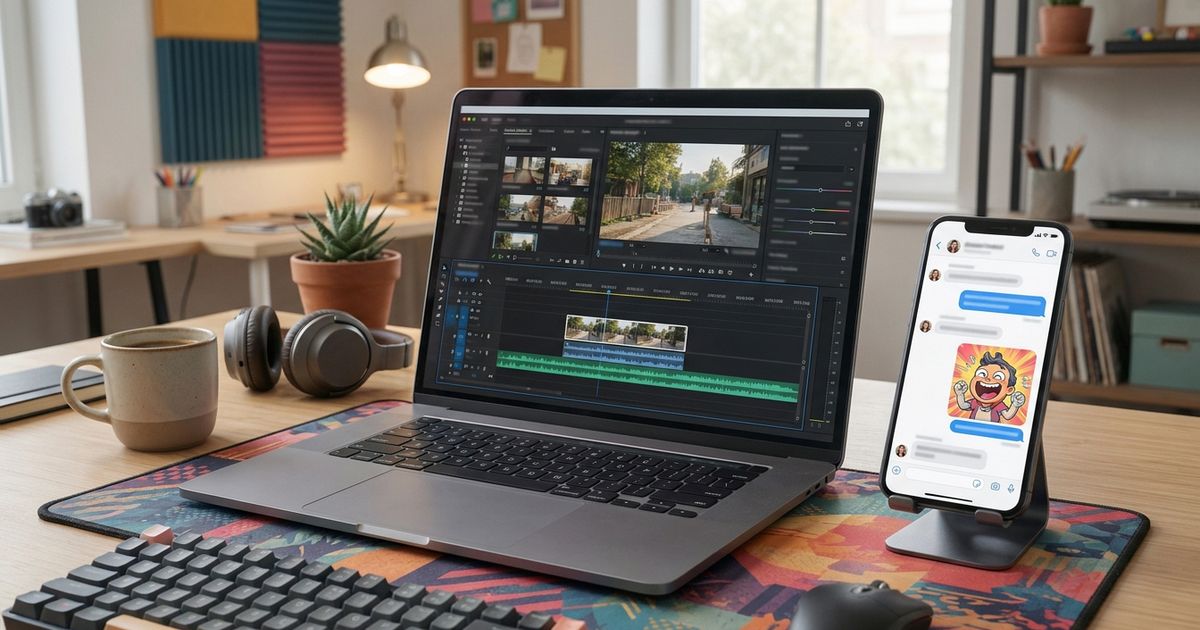
You have probably sent a reaction GIF today: a raised eyebrow, a slow clap, a shocked face, a dramatic exit. They say in two seconds what a paragraph cannot. The catch is that the perfect one is rarely in the library of the app you are using, and the version you find is often grainy or has someone else's watermark across it. The good news is that making your own is simple. If you have a short video clip, you can turn it into a clean, looping reaction GIF in your browser, with the exact moment you want and a caption that fits your joke. This guide shows you how, step by step.
Upload a clip and turn it into a looping reaction GIF
Make a Reaction GIFWhat Makes A Good Reaction GIF
A reaction GIF is a tiny story with one emotion. The ones that get reused again and again share a few qualities:
- One clear emotion. Surprise, laughter, confusion, approval. If the viewer has to think about what it means, it does not work.
- Very short. Usually between one and four seconds. Anything longer feels like a video, not a reaction.
- A readable face or gesture. The subject should fill enough of the frame that the expression is clear even at a small size.
- A loop that feels natural. The end should flow back into the start, or the action should be quick enough that the jump is not distracting.
- Optional text. A short caption can sharpen the joke, but many of the best ones have none.
Start by watching your own videos and looking for a half-second of something expressive: a friend laughing, a pet tilting its head, a coach celebrating, your own surprised face during a video call. Those unplanned moments make the best material.
Use Footage You Have The Right To Use
Before you pick a clip, think about where it comes from. Your own videos, clips of friends who agree to be shared, footage you recorded for a project and content you have permission to use are all safe choices. Clips from movies, television or other people's videos may be protected, and sharing them can cause problems depending on how and where you use them. For a closer look at that question, read whether it is legal to make a GIF from a movie or show.
If a clip shows other people, ask yourself whether they would be comfortable seeing themselves turned into a GIF that anyone can forward. When in doubt, ask them.
Step By Step: From Clip To Reaction GIF
You can do the whole process in your browser, and the video stays on your device while you work.
- Open the video to GIF tool. Go to the Video to GIF converter and upload your clip.
- Find the exact moment. Use the start time and duration controls to select the part you want. Aim for one to four seconds that begin just before the reaction and end just after it.
- Set the size. For chats and social posts, a width of 320 to 480 pixels is usually enough. Smaller sizes load faster and still look sharp on a phone.
- Choose the frame rate. Around 12 to 15 frames per second keeps motion smooth without making the file too big. If you want to understand the trade-off, read how many frames per second to use in a GIF.
- Preview the loop. Watch it repeat a few times. If the start and end feel jarring, shift the start or end by a fraction of a second.
- Convert and download. Save the GIF to your device, ready to send or upload.
If you also want to cut a GIF you already made, the GIF trimmer lets you shorten it without starting over.
Adding A Caption That Works
Text can turn a plain reaction into a joke, but it needs to be readable. Keep these rules in mind:
- Keep it short. Three to six words is plenty. The face does most of the work.
- High contrast. White text with a dark outline, or the opposite, stays readable over moving images.
- Place it where it does not cover the face. Bottom center is the usual place for a reason.
- Do not overload it. One caption, one line, one idea.
You can add words with the Add Text to GIF tool, and the full walkthrough is in how to add text to a GIF online for free. Decide on the text after you see the final timing, because a caption that appears at the wrong moment can ruin the effect.
Make The Loop Feel Smooth
A reaction GIF plays over and over, so the loop is part of the design. A few tricks make it feel natural:
- Choose a start and end pose that are similar. If the person starts with a neutral face and ends with a laugh, the jump back to neutral may feel sharp.
- Pick a clip with a repetitive action, such as nodding, clapping or waving, which loops well by nature.
- Trim a few frames from the start or the end until the cut feels invisible.
- Consider speeding it up slightly for comedic effect, or slowing it down for a dramatic one. The GIF speed tool is useful here.
For a deeper explanation, see how to loop a GIF seamlessly without a jump cut.
Keep The File Size Under Control
A reaction GIF should load instantly. A heavy file stutters in chats and may be rejected by some apps. To keep it light:
- Use a smaller width, such as 320 pixels for messaging.
- Lower the frame rate to 10 or 12 if the motion is simple.
- Keep the duration under three seconds whenever you can.
- Avoid clips with busy backgrounds and constant camera movement, which add a lot of data.
If your file is still too large, the guide on how to reduce GIF file size online for free walks through the options. Remember that different apps have different limits, so check where you plan to post.
A Note On Flashing And Accessibility
Some reaction GIFs include flashing lights, rapid strobing or very fast cuts. These can be uncomfortable or harmful for people with photosensitivity. If your clip contains flashing, consider choosing another moment or slowing it down. Our article on GIF accessibility and flashing content explains what to watch for.
Where To Use Your Reaction GIFs
Once you have a few, you can use them in many places:
- Private chats and group conversations, where a custom GIF becomes an inside joke.
- Social media replies and comments, if the platform supports GIF uploads.
- Presentations and team messages, to add personality to an update.
- A personal library, so you always have the right response ready.
Keep your favorite GIFs in a labeled folder on your phone or computer, with names like "laugh" or "slow clap", so you can find them in seconds.
Frequently Asked Questions
How long should a reaction GIF be?
Between one and four seconds is the sweet spot. It is long enough to show an emotion and short enough to loop naturally and stay small in file size.
Can I make a reaction GIF from a clip on my phone?
Yes. Upload the video from your phone to the video to GIF tool in your mobile browser, pick the moment, and download the GIF. Short clips work best on mobile.
Does the video get uploaded to a server?
EzyIMG processes files in your browser, so your clip stays on your device while it is converted.
What size should a reaction GIF be?
For messaging and social replies, a width of 320 to 480 pixels is usually enough. Smaller dimensions keep the file light and still look clear on a phone screen.
Can I add text to my reaction GIF?
Yes. After creating the GIF, use the Add Text tool to place a short caption in the position and color you choose.
Have a clip ready? Turn it into a GIF in a few clicks
Open the GIF Maker