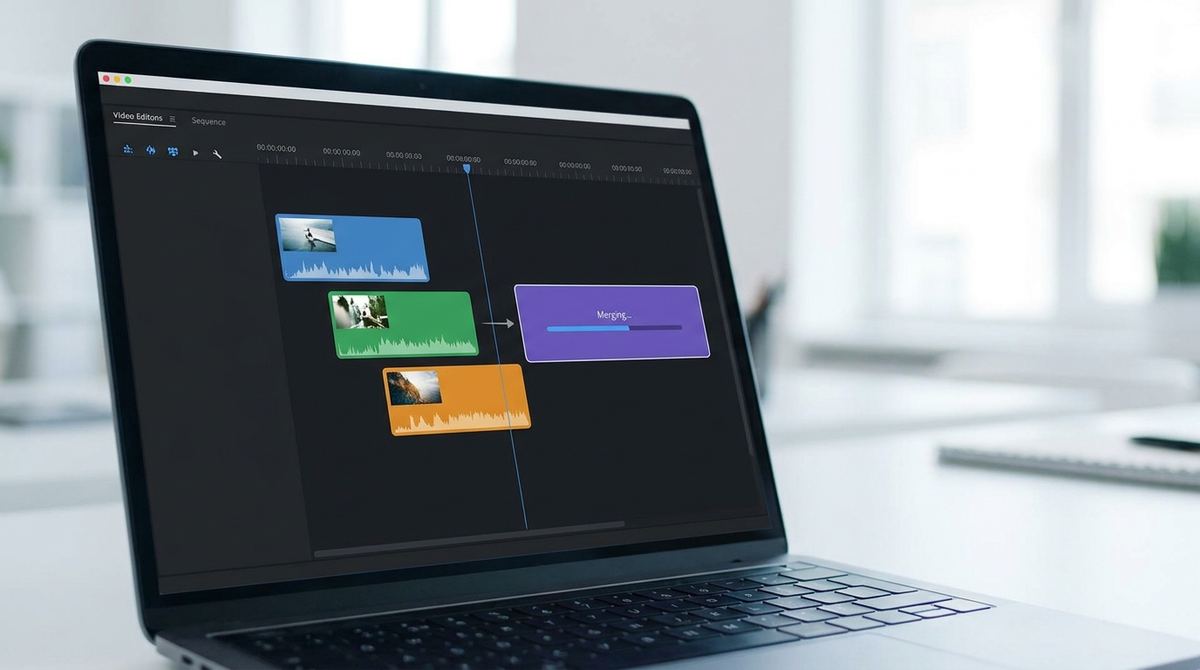
A before-and-after comparison, a three-step tutorial, or a highlight reel from a game usually doesn't live in one video file, it's scattered across two or three separate clips. Most GIF makers only take one video at a time, which leaves you converting each clip separately and then trying to glue three GIFs together some other way. Here's how to actually combine multiple video clips into a single GIF from the start.
Combine your clips into one GIF
Open Video Merge Tool — Free, No SignupWhy a Single GIF Maker Usually Can't Do This Alone
A GIF maker built around one file input reads a single video's frames start to finish and has no concept of a second file waiting after it. Trying to work around that by exporting each clip separately and stitching the resulting GIFs together usually means opening a general image or video editor anyway, at which point you've added a whole extra tool to a job that should take one step.
The Right Order: Merge the Video First, Then Convert
The reliable path is to combine your source clips into one continuous video file first, then run that single merged file through a GIF maker exactly like you would with any other video. This keeps the conversion step simple and means you only need to make one set of decisions about frame rate, size, and loop settings, instead of matching three separate exports to each other after the fact.
- Gather your clips in the order you want them to play: Rename the files with a number prefix if your merge tool relies on file order.
- Merge them into one video: Use a video merge tool to combine all clips into a single continuous file.
- Trim any awkward transitions: A hard cut between unrelated clips can look jarring in a short GIF, so trim a frame or two off each join if needed.
- Convert the merged video to GIF: Run the single combined file through your GIF maker as normal.
- Check total length and file size: Combined clips add up fast, so confirm the result still fits wherever you plan to use it.
Turn your merged video into a GIF
Open Video to GIF — Free, No WatermarkKeeping Each Segment Readable in a Short GIF
Three clips combined into one GIF still needs each part to register before the next one starts. If your source clips are long, trim each one down to just its clearest moment before merging, rather than combining full-length clips and hoping the GIF format handles the pacing for you. A GIF that moves through three ideas in four seconds usually reads as confusing, not efficient.
Matching Resolution and Aspect Ratio Across Clips First
Clips recorded on different devices often come in at different resolutions or aspect ratios, and merging them without matching those first can produce an oddly cropped or letterboxed result. Resize or crop each clip to the same dimensions before merging, using whichever clip's aspect ratio is the tightest fit, so the combined GIF looks intentional rather than stitched together from mismatched sources.
A Simple Transition Beats No Transition
You don't need a fade or wipe effect to make a multi-clip GIF feel put together. Even trimming both sides of a cut so the motion doesn't freeze awkwardly at the join, or starting the next clip on a similar frame to the one before it, removes most of the jarring feeling of a hard cut. Save actual transition effects for cases where the two clips are visually very different and a hard cut would be genuinely disorienting.
Frequently Asked Questions
Can I combine clips that have different frame rates?
Yes, a merge tool typically normalizes the frame rate of the combined output, though motion from a lower frame rate clip may look slightly less smooth next to a higher frame rate one.
How many clips can I realistically combine into one GIF?
Two or three short segments usually works best for readability and file size. Beyond that, the GIF tends to get long and heavy enough that a short video file becomes the better format.
Should I add text labels between clips to separate them?
It can help for tutorial-style GIFs where each clip is a distinct step, but for a fluid highlight reel it's often unnecessary and can make the GIF feel more cluttered.
Will combining clips make the file size much larger?
Yes, roughly proportional to the added length, so it's worth trimming each clip down to its essential moment before merging rather than combining full clips and optimizing after.
Related tools
- Video Merge: Combine multiple clips into one file first
- Video to GIF: Convert the merged clip into an animated GIF