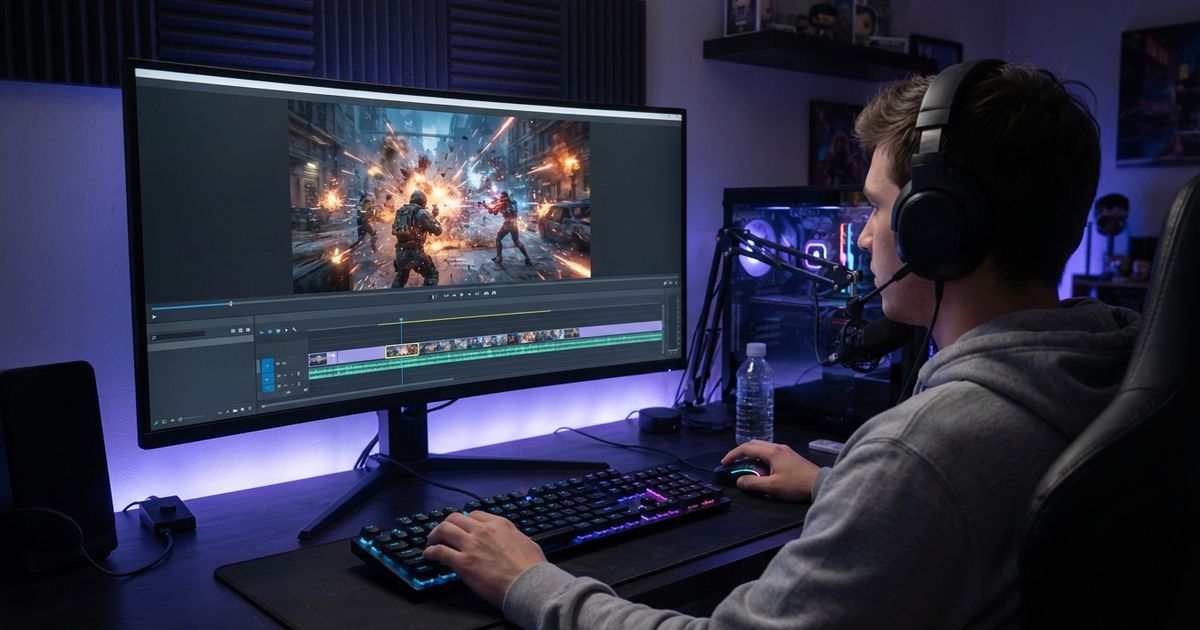
You land a perfect headshot, pull off a last-second clutch or find a glitch so funny your friends need to see it. You recorded it, but sending a ninety-second video file to a chat or a forum is slow, and some places do not even accept video. A GIF is the opposite: small, silent, instant, and it plays by itself the moment someone sees it. Turning a gameplay clip into a GIF takes only a few minutes, and the result is perfect for showing the best two seconds of a long recording. This guide explains how to pick the moment, set the right options and keep the file small enough to post anywhere.
Upload your gameplay clip and turn the best moment into a GIF
Turn My Clip Into a GIFWhy GIFs Work So Well For Gameplay
Gaming moments are often fast and visual. A long video forces people to wait for the interesting part, while a GIF shows only the interesting part, on a loop. That matters in places such as:
- Chat servers and group chats, where a short looping clip gets more reactions than a link.
- Forums and community boards, where a GIF can illustrate a bug, a tip or a build.
- Social posts and replies, where autoplay captures attention in the feed.
- Guides and tutorials, where a two-second loop explains a movement better than a paragraph.
GIFs are silent and limited in color, so they suit simple demonstrations and highlights. If you need sound or very high quality, a short video is a better choice. To compare both formats, read GIF vs MP4: which is better for a website.
Start With A Good Recording
The quality of the GIF depends on the quality of the clip. A few habits help before you even open a converter:
- Record at a reasonable resolution. You will shrink it later, but starting with a clear source avoids blurry results.
- Keep the clip short. If your recording tool saves the last thirty seconds, use that and trim afterward.
- Hide anything private, such as chat windows, account names or personal notifications, before you record.
- Prefer steady moments. Fast camera spins and screen shakes are hard to compress and can look messy as a GIF.
If you record your screen with a separate tool, the guide on turning a screen recording into a GIF covers the extra details.
Step By Step: Gameplay Clip To GIF
Everything below runs in your browser, so your video stays on your device while you work.
- Open the converter. Go to Video to GIF and upload the recording.
- Mark the moment. Use the start time and duration controls to pick the exact action. For a highlight, begin about half a second before the key event so viewers see the setup, and end just after the result.
- Choose the size. A width of 480 pixels is a good default for chats and forums. For a small emoji-style clip, go lower. For a guide where details matter, go higher, but remember the file will grow.
- Pick the frame rate. Games often have fast motion, so 15 to 20 frames per second keeps it smooth. Drop to 12 if the file is too big. See how many frames per second to use for the trade-offs.
- Preview it. Watch the loop several times. If the start feels abrupt, shift the start slightly.
- Convert and save. Download the GIF and check it on your phone before posting.
You can also tweak the result afterward. The GIF trimmer shortens an existing GIF, and the speed tool can slow down a key moment or speed up a boring part.
Make The Highlight Easy To Understand
A great clip still needs to be clear in two seconds. Think about what a stranger will see:
- Frame the action. If the important thing happens in a corner of the screen, use a crop so viewers can see it without squinting.
- Slow down the key second. A slightly slower pace helps people notice what happened.
- Add a short caption. Words like "1 HP clutch" or "wall glitch" explain the context. The Add Text tool places captions over the GIF.
- Avoid long intros. Cut the walking and waiting. Start where the action starts.
Keep The File Size Under The Limit
Many platforms limit GIF size, and chat apps load smaller files faster. Discord, Slack and similar tools have specific caps, which you can read about in GIF maker for Slack and Discord emoji and size limits. To stay under the limit:
- Lower the width first. It is the biggest factor.
- Shorten the duration. Two seconds usually says enough.
- Reduce the frame rate if the action is not extremely fast.
- Avoid scenes with explosions, particles and constant flashing, which inflate the file.
If you need more help, see how to reduce GIF file size online for free.
Be Careful With Flashing Effects
Many games use bright flashes, strobe effects and rapid screen shakes. In a looping GIF, these can be uncomfortable or unsafe for people with photosensitive conditions. If your clip has intense flashing, choose a different moment or slow it down, and consider adding a warning in your post. Read GIF accessibility and flashing content warnings for practical guidance.
Respect The Rules And The Content
Your own gameplay is generally yours to share, but there are a few things to consider. Some games and publishers have guidelines about sharing footage, and some clips include music, voices or other players. Because a GIF is silent, music is not an issue, but you should still avoid showing private information about other players and follow the rules of each community you post in. If your clip shows another person's content, ask before posting.
Ideas For Gameplay GIFs People Actually Use
- Clutch moments and trick shots, the classic highlight.
- Funny glitches and physics bugs, which are shareable by nature.
- Tutorial loops, such as a movement technique or a build step.
- Reaction clips, where a character's emote says what you feel.
- Before and after, such as a base upgrade or a character change.
Frequently Asked Questions
How long should a gameplay GIF be?
Two to five seconds works for most highlights. Shorter clips loop better and keep the file small enough for chats and forums.
What frame rate is best for gameplay?
Around 15 to 20 frames per second is a good range for fast action. If the file is too large, lower it toward 12 and check that the motion still looks acceptable.
Can I make a GIF from a video recorded on my console or PC?
Yes, as long as you can save the recording as a video file and upload it from your device. The converter works with common video formats.
Will the GIF have sound?
No. GIFs do not support audio. If sound matters, share a short video instead.
Is my recording uploaded to your servers?
No. The conversion runs in your browser, so the clip stays on your device.
Got a highlight worth sharing? Make the GIF now
Open the GIF Maker