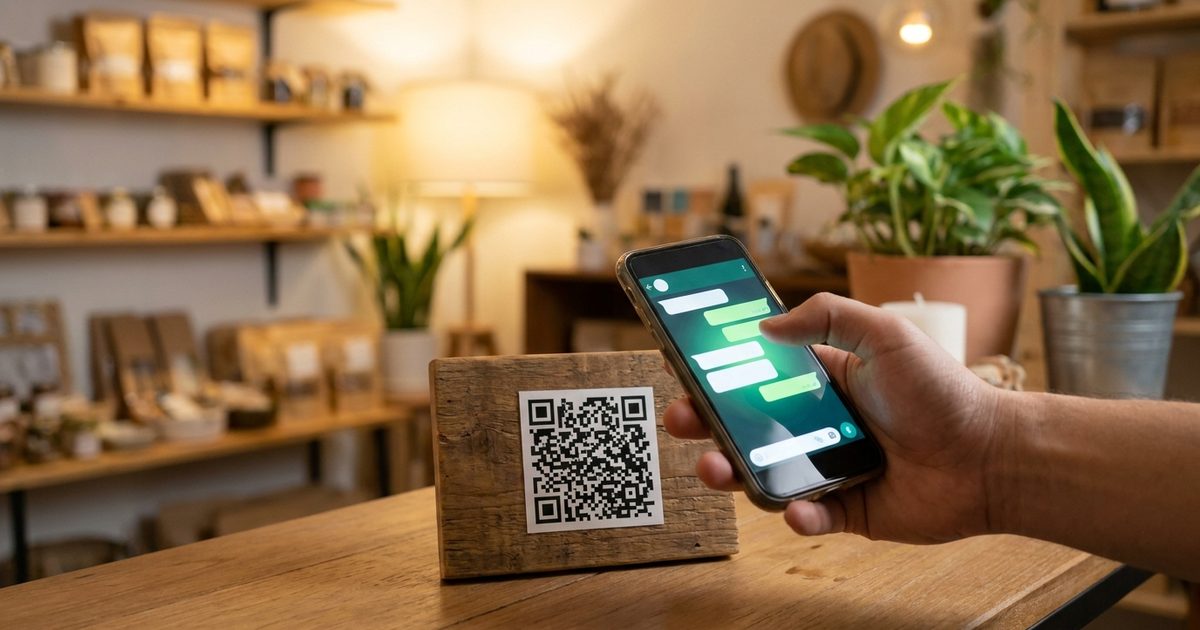
Customers who want to message you rarely want to save a number first. A QR code that opens a chat directly removes that friction: they point the camera, tap the prompt and a conversation with your number is ready to go. The EzyIMG Custom QR Code Generator has a WhatsApp preset for exactly this, and getting the link format right takes about two minutes.
Generate your WhatsApp QR code
Open Custom QR Code Generator, Free, No SignupHow a WhatsApp QR Code Works
A WhatsApp QR code is a normal QR code that contains a chat link. When someone scans it, their phone reads the link and offers to open WhatsApp with a conversation to your number. There is no special WhatsApp code format to buy or register. The value is a web address that starts with wa.me, followed by your phone number.
That also means the code is static. The number is written into the pattern itself, so if your number changes you will need to generate and reprint the code.
Format the Link Correctly
The basic link looks like this: https://wa.me/ followed by your number. The number must be written in full international format, and the format is stricter than most people expect.
- Start with the country code, for example 1 for the United States or 52 for Mexico.
- Do not include a plus sign, leading zeros, spaces, dashes or brackets. Digits only.
- Include the area or mobile prefix that follows the country code, exactly as it would be dialed internationally.
- Use the number that is actually registered with WhatsApp or WhatsApp Business, not a landline.
Add a Prefilled Message
You can preload the first message by adding ?text= to the end of the link, followed by the message with spaces written as %20. For example, adding ?text=Hi%20I%20saw%20your%20menu%20and%20want%20to%20order opens the chat with that sentence already typed, so the customer only has to press send.
A prefilled message is also a simple way to know where a chat came from. A code on your window can say one thing, a code on a flyer another, and you can tell them apart the moment the message arrives.
Create the Code in Four Steps
- Open the Custom QR Code Generator and click the WhatsApp preset above the text box. It fills in a sample wa.me link.
- Replace the sample number with yours in international format, and add your ?text= message if you want one.
- Choose colors, a module style and a size. Keep strong contrast between the code and its background.
- Download the PNG for screens and most printing, or the SVG when the code will be printed large.
Test Before You Print
Scan the finished code with at least two phones, ideally one iPhone and one Android, and confirm the chat opens with the right number and message. Then test it at the size and distance it will actually be scanned from. The checklist in why a QR code will not scan covers the usual causes of a failed scan.
Where a WhatsApp QR Code Earns Its Place
- Shop windows and counters, so people can ask about stock or hours without calling.
- Restaurant tables and takeout bags for reorders and questions.
- Business cards, flyers and posters, where typing a number is a hurdle.
- Service vehicles and site signs for quick quote requests.
- Product packaging that invites customers to ask for help or reorder.
- Event booths and market stalls to collect inquiries fast.
Size, Placement and Contrast
For close-range scanning on a counter or a card, keep the code at least around two centimeters square, and go larger for windows or posters viewed from farther away. The print size guide gives sizes by use case. Use dark modules on a light background, leave the blank margin around the code intact, and avoid placing it on a curved or glossy surface that reflects light.
Privacy Note
Anyone who scans the code can see and message the number inside it. Use a business number you are comfortable sharing publicly rather than a personal one, and consider WhatsApp Business features such as automatic greetings to handle volume once people start scanning.
Frequently Asked Questions
What link does a WhatsApp QR code contain?
It contains a wa.me link followed by your phone number in international format, for example https://wa.me/ and the digits of your number. You can add ?text= and a URL-encoded message to prefill the first message.
Should I include the plus sign in the number?
No. Write only digits, starting with the country code, with no plus sign, leading zeros, spaces or dashes.
Can I change the number after printing the code?
No. The number is encoded directly in the pattern, so a change means generating and printing a new code. Test the final version before printing in bulk.
Does the person scanning need WhatsApp installed?
They need WhatsApp to chat, but the link also works through the web version, and phones without the app are usually offered a way to continue in a browser or install it.
Can I add my logo to the code?
Yes. The Custom QR Code Generator supports a center logo, and it works best with a higher error correction level. Always scan-test the branded version before printing.
Have your number and message ready? Open the Custom QR Code Generator and click the WhatsApp preset.
Have your number and message ready?
Open Custom QR Code Generator, Free, No Signup