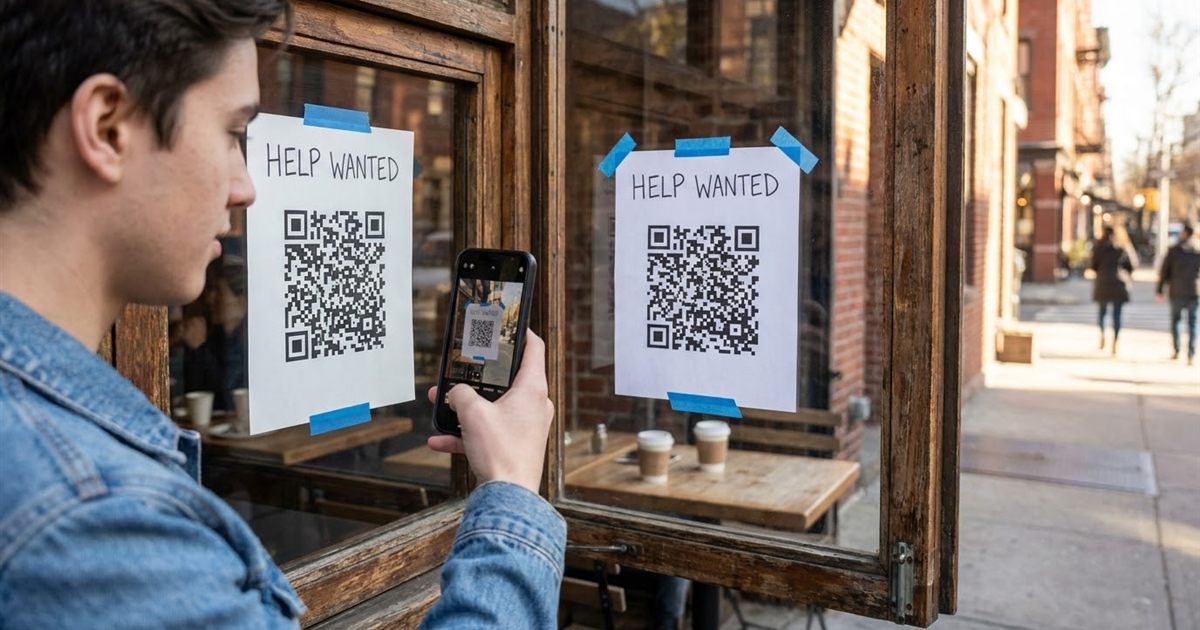
A help wanted sign in a window is seen by people who are already walking by, which is exactly who you want to reach. The problem is what happens next. Most people will not copy a long web address or remember a phone number. A QR code solves that. One scan sends them straight to your application form, your job page or a message to the manager. The free Custom QR Code Generator makes the code in a minute. This guide explains what the code should open, how to size and place it, and how to measure whether it brings applicants.
Make a QR code for your help wanted sign
Open the Custom QR Code Generator, FreeWhy QR Codes Work for Hiring
Hiring signs have a short window of attention. A passerby will give you a few seconds. If applying takes more than a scan, most will walk on. A QR code turns interest into action while the person is still standing there, and the application lands in your inbox or your form tool without any typing from you.
It also keeps your sign useful after it is printed. Instead of putting every detail on the poster, you point to a page that has the pay, the schedule, the duties and the way to apply.
Decide What the Code Should Open
- An application form. Best for most small businesses, with a short form that works well on a phone.
- A job page on your website with the details and an apply button.
- A pre-filled text message to the manager, for quick interest. See QR codes for email and phone links.
- A link to a posting on a job site, if that is where you collect applications.
The form is usually the best choice because it collects the same information from everyone. Keep it short: name, phone, email, the days they can work and a line about their experience. A long form will cost you applicants.
Link to a Page You Can Update
A QR code made with the Custom QR Code Generator holds the exact link you type. If the job is filled, you cannot change what the printed code points to. The practical solution is to link to a page you control. When the position closes, edit that page to say so, or point it to the next opening, and the printed sign keeps working. For a deeper look at this choice, read static vs dynamic QR codes.
Use a short, clean link. Shorter links produce simpler codes that scan faster, which matters when the person stands a few steps away from the glass.
Create the Code Step by Step
- Create your application form or job page and copy its link.
- Open the Custom QR Code Generator and choose the URL preset.
- Paste your link in place of the sample address.
- Choose dark modules on a light background for strong contrast.
- Add a label such as Scan to apply in 2 minutes. A clear promise raises scans.
- Download the PNG for a flyer or the SVG for large printing.
You can also try the simpler QR Code Generator if you do not need colors or a label.
Size and Placement
People scan a sign from a distance, so the code must be large. A common rule of thumb is that a QR code can be scanned from about ten times its width. A code that is 10 centimeters wide, around 4 inches, works from about one meter or three feet. For a window sign that people read from the sidewalk, make it bigger. See QR code size for printing for the details.
- Place the code at eye level, not near the floor or the top of the window.
- Keep a clear margin around the code and do not put text or pictures over it.
- Avoid glare. Test in daylight and at night if the sign is lit.
- If the sign is behind glass, scan it from outside to be sure it works.
Make the Sign Say Why
The code needs a reason. Put a short headline above it, such as We are hiring: scan to apply, and one or two key facts, such as part time, flexible shifts or weekends. People scan when they know what they will get. Adding scan me text to a QR code shows how to add the label.
Keep colors readable. Brand colors are fine if the contrast stays high. QR code color contrast explains what scans and what does not.
Track Where Applicants Come From
If you post the same job in several places, make a different code for each: the window, the flyer, a community board and a social post. Add a small tag to the end of the link, such as source=window, and your form or website will show which place produced applications. How to track QR code scans has more ideas. After a week or two you will know where to spend your effort.
Make Sure the Form Works on a Phone
Applicants will use a phone, probably standing outside. Open your form on your own phone before printing anything.
- It should load quickly on mobile data.
- Buttons and fields should be large enough to tap.
- It should ask only what you need to start a conversation.
- It should confirm that the application was received.
A resume upload is optional for most entry-level roles. Making it optional can raise the number of applications. For the applicant side of the story, see QR codes on a resume.
Before You Print
Scan the final sign with at least two different phones from the distance a passerby would use. If something fails, why a QR code will not scan lists the usual causes. Also confirm that the link opens the right page, that your form reaches you and that the posting is accurate. Then print, post and watch the replies come in.
Frequently Asked Questions
What should a help wanted QR code link to?
A short mobile friendly application form or a job page with an apply button works best. Keep the form short so more people finish it.
What happens to the code when the job is filled?
A printed code keeps pointing to the same link. Link to a page you control and update it when the role closes or changes, so the sign does not send people to a dead end.
How big should the QR code be on a window sign?
A common rule is that a code scans from about ten times its width. A 10 centimeter code works from around one meter, and a larger code is better for sidewalk viewing.
How can I tell which sign brings applicants?
Make a separate code for each placement and add a small source tag to each link, then check your form or website statistics.
Ready to make your job posting QR code?
Open the Custom QR Code Generator, Free