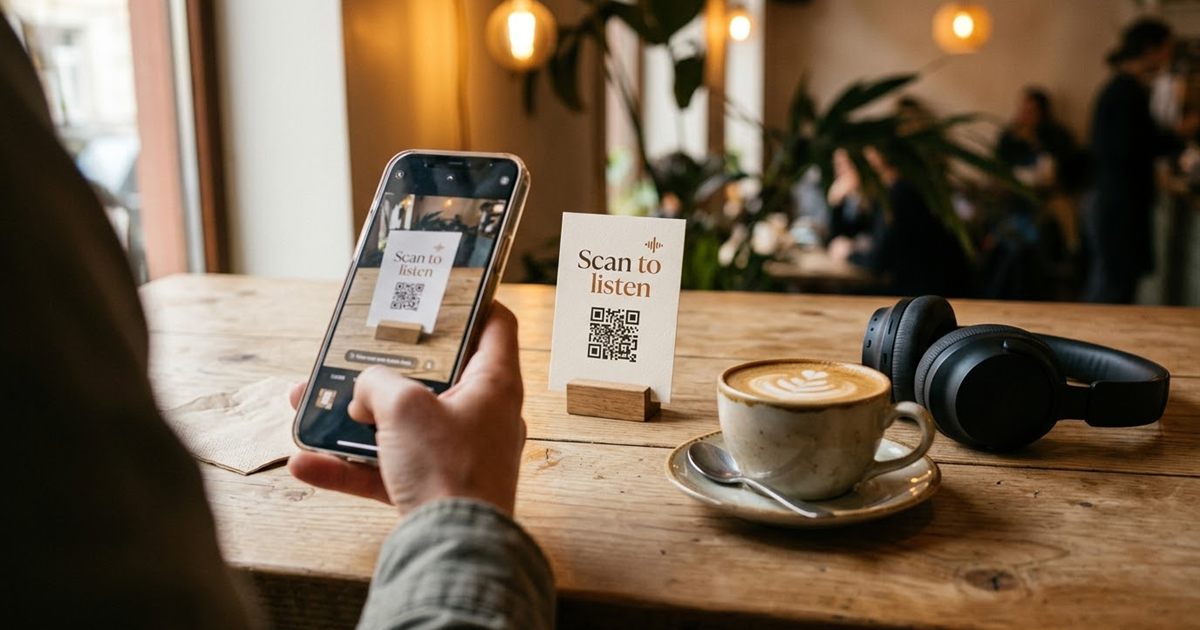
Music is easy to love and awkward to share. You can say the name of a playlist out loud, but nobody will remember it. You can send a link, but that does not help on a poster, a table card or a t-shirt. A QR code fixes that: one scan with the phone camera and the playlist, album or podcast opens in the music app. You can make one for free with the Custom QR Code Generator and style it to match your event or brand. This guide covers how to create it, how to design it so it still scans and where it works best.
Turn your playlist link into a QR code
Design Your QR Code, FreeWhat You Can Link To
A QR code is just a way to carry a web address, so it works with any music link that opens in a browser or an app. That includes Spotify, and also other services that give you a share link.
- A playlist for a party, a wedding, a shop or a workout class.
- An album or a single, for a band or an independent artist.
- A podcast show or a single episode.
- A video playlist, such as a channel playlist for a live performance.
- A page on your own site that lists all the places where your music is available.
If the platform offers its own special code format, you can still use a standard QR code. A standard code can be read by any phone camera and it is not tied to a single service.
How to Make a Playlist QR Code
- In your music app, open the playlist, album or podcast and use the share option to copy the link.
- Open the Custom QR Code Generator and paste the link into the text box.
- Choose the colors. A dark code on a light background scans best.
- Optionally add a label such as Scan to listen under the code.
- Download the code as PNG, or as SVG if you will print it large.
- Scan it with your phone to make sure it opens the right thing.
The tool runs in your browser, so you can try several versions before you decide. If you want a simpler option, the standard QR Code Generator also works.
Make It Look Like Your Brand
A music code can be more than a black and white square. Style helps it look like part of the design, as long as it stays readable.
- Use your main color for the modules, and a light background for contrast.
- Try the dot or rounded module style for a softer look and round eyes for the corners.
- Add a small logo or an icon in the center. Use the highest error correction level when you do, so the code can still be read. See how to add a logo to a QR code without breaking the scan.
- Add a short label to tell people what to expect.
For more design ideas, read custom QR codes with colors, logos and branding.
Check the Contrast Before You Print
The most common reason a stylish code fails is low contrast. A light code on a medium background, or a pale color on white, can look good and still be unreadable for a camera.
- Keep the dark and light parts clearly different.
- Avoid putting the code on a busy photo or a gradient.
- Do not invert the colors unless you have tested it. Some scanners struggle with light codes on dark backgrounds. See inverted QR codes and dark mode.
The guide on QR code color contrast explains which color pairs are safe.
Where Music QR Codes Work Best
- Wedding and party tables, so guests can add songs or follow the playlist. See QR codes for wedding invitations and RSVPs.
- Cafes, shops and gyms, to share the playlist that is playing right now.
- Posters and flyers for gigs, with a link to the artist page or the latest release.
- Merchandise, such as stickers, shirts and vinyl sleeves.
- Podcast posters, business cards and event badges.
- Videos and streams, with a code on screen that links to the full playlist. See QR codes for YouTube videos and channels.
What People See When They Scan
When someone scans the code, their phone shows a banner with the link. Tapping it opens the page. If they have the music app installed, the link usually opens there. If they do not, it normally opens in the browser. Some services limit what you can hear without an account, so tell people what to expect if it matters, for example with a label that says Listen on your phone.
The behavior depends on the service and on the phone, so always test the code on both an iPhone and an Android phone if you can.
Size and File Format
For small items such as stickers or business cards, a code of about two to three centimeters works if the link is short. Long links create a denser pattern that needs more space. For posters, make the code large and export it as SVG so it stays sharp at any size. QR code file formats: PNG, SVG and PDF explains when to use each one.
Keep the Link Up To Date
A printed code is permanent, but a playlist can be renamed, changed or deleted. If the link changes, the printed code will no longer work. For things you print in large numbers, consider linking to a page you control that points to the current playlist. For a one time event, linking to the playlist directly is enough.
Frequently Asked Questions
Can I make a QR code for a Spotify playlist?
Yes. Copy the share link of the playlist, paste it into a QR code generator and download the code. Scanning it opens the playlist link on the phone.
Does the code work for other music services?
Yes. A standard QR code carries any web address, so it works with any share link, including albums, podcasts and video playlists.
Can I add my logo or colors to the code?
Yes. The Custom QR Code Generator lets you change colors, dot and eye styles, add a logo and a label. Use high error correction when you add a logo and keep strong contrast.
What happens if I delete or rename the playlist?
The printed code keeps pointing to the old link, so it may stop working. Link to a page you control if you need to change the destination later.
Ready to share your music with a scan?
Design Your QR Code, Free