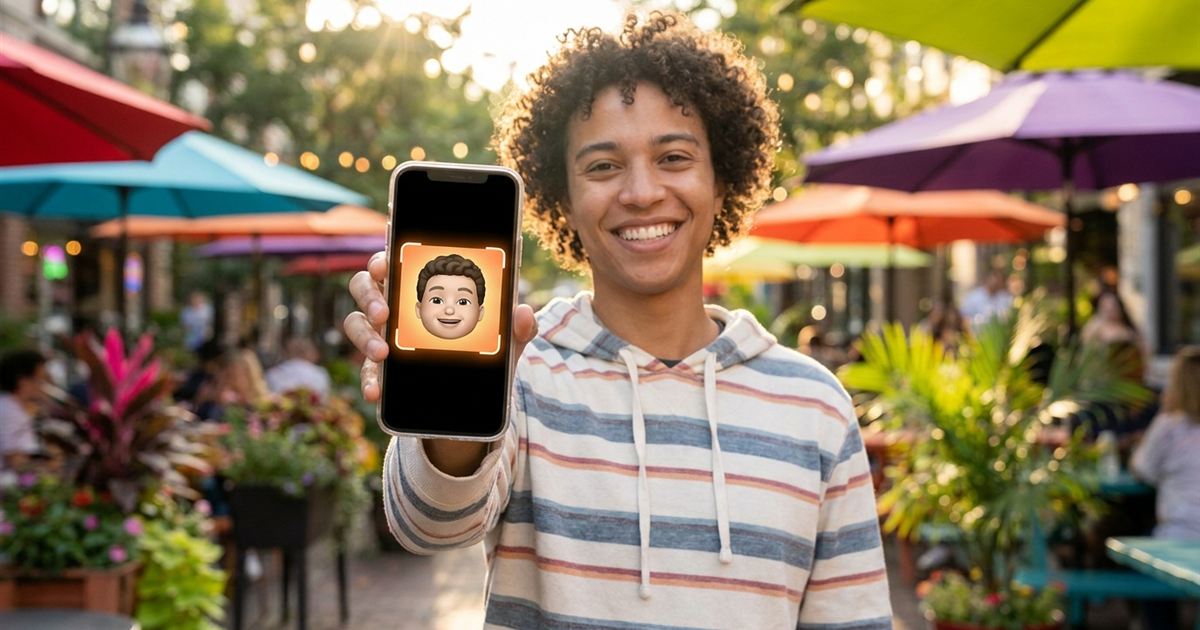
An animated profile picture stands out in a list of static ones, and it is easier to make than most people expect. You need a short loop, a square crop and a small file. With the EzyIMG GIF Maker to build the animation, the Crop GIF tool to make it square and the GIF resizer to shrink it, you can finish the whole job in a few minutes with no software and no watermark.
Start your animated avatar
Open the Free GIF MakerPlan a Loop That Works at Tiny Size
A profile picture is shown very small, often in a circle, so subtle motion disappears. Plan something simple and clear: a wave, a wink, a hat tip, a color change or a few expressions in a row. Three to eight frames is usually enough. More frames only make the file heavier without making the avatar look better at that size.
Keep your face or main subject centered. Many apps crop avatars into a circle, which cuts off the corners, so anything important in the corners may be lost. Treat roughly the center 70 percent of the picture as the safe area.
Step 1: Build the Animation in the GIF Maker
- Take or pick your pictures. Square or close to square is best, with the subject in the same position in every frame.
- Open the GIF Maker and add the images in the order you want them to play. The thumbnail numbers show the order.
- Set the frame rate. For expressions or a slow change, 2 to 5 FPS reads well. For a quick wave, try 8 to 10 FPS.
- Set the width. Because avatars are small, a width of 400 to 500 pixels is plenty, and the default of 480 works.
- Leave the loop on forever, which is what an avatar needs, then create the GIF.
Step 2: Crop It to a Perfect Square
Most profile slots are square before they are rounded. If your GIF is not square, the Crop GIF tool lets you drag a selection over the preview and includes a 1:1 aspect ratio preset, so the selection stays perfectly square while you place it. Drag it over your face, keep some space around the head and crop.
The crop happens in your browser, so the GIF is not uploaded anywhere. More detail is in how to crop a GIF online.
Step 3: Resize It Small
Avatars rarely need to be large. The resizer has preset widths of 320, 480, 640, 800 and 1080 pixels, and you can type any custom value, such as 256 or 128. Keep the aspect ratio locked so the square stays square. A smaller GIF uploads faster, loads faster in lists and is more likely to fit the size limit of the platform you are using.
Pixel count drives GIF size directly, so lowering the width is the single most effective way to slim the file. If it is still heavy, how to reduce GIF file size covers more ways to cut it down.
Check the Rules of Your Platform
Every app has its own rules for avatars. Some allow animated profile pictures for everyone, some limit them to certain account types, and some convert them to a still image. Check the limits for maximum file size, dimensions and whether animation is supported before you spend time polishing. The GIF size guide helps you pick dimensions for different places.
Make It Comfortable to Look At
- Avoid fast flashing or strong contrast changes. They are uncomfortable and can be a problem for some people. See the GIF accessibility guide.
- Keep the loop short and smooth. Make the last frame blend into the first so the restart is not jarring.
- Use good lighting and a plain background so the face stays clear at a small size.
- Test the final file by viewing it at the actual small size on your phone before uploading.
Ideas That Look Good as Avatars
- A friendly wave or a wink.
- A logo that changes color or draws itself in.
- Three expressions that cycle: neutral, smile, laugh.
- A pet blinking or tilting its head.
- A character or sprite with a simple idle animation.
- A before and after of a look, such as hair color, for a creative profile.
Frequently Asked Questions
What size should an animated GIF avatar be?
Square is best. A width of 256 to 500 pixels is usually plenty, since avatars are displayed small. Check the limits of the platform you are using.
How do I make a GIF square?
Use the Crop GIF tool and choose the 1:1 aspect ratio preset, then drag the selection over the part you want to keep and crop.
How many frames should a profile picture GIF have?
Three to eight frames is enough for most avatars. More frames make the file heavier without improving how it looks at a small size.
Why does my animated avatar look still on some apps?
Some platforms only allow animated profile pictures on certain accounts or convert them to a still image. Check the rules of the platform you are using.
Will my GIF be uploaded to your server?
No. Building, cropping and resizing all happen in your browser, so the files stay on your device.
Have a few photos ready? Build the loop in the GIF Maker, crop it square and resize it small.
Ready to make your animated avatar?
Open the Free GIF Maker