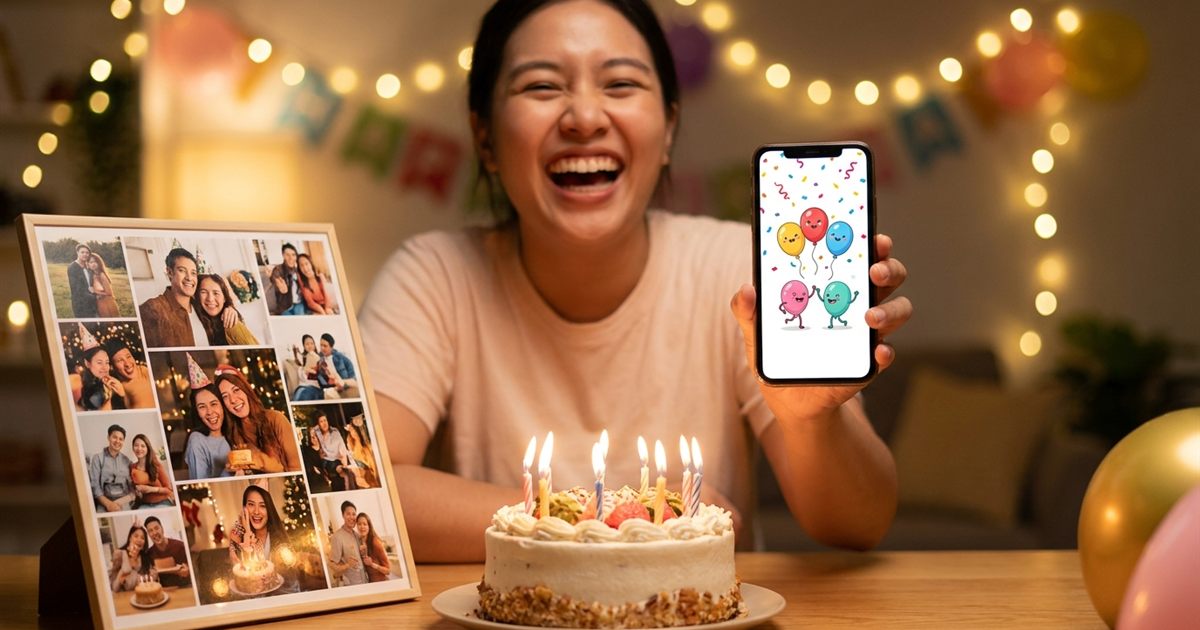
A short animated greeting feels more personal than a plain text message and lighter than a video. With an animated GIF maker you can turn a few photos or designed slides into a looping birthday card, a holiday wish or a thank you note that plays right inside a chat or an email. The free GIF Maker does it in your browser, with no watermark and no account.
Make an animated greeting in minutes
Open the GIF Maker, FreeWhy Send a GIF Instead of a Static Card
A static image says the words. A GIF adds a little motion: a message that appears line by line, a photo sequence that tells a story, a cake with candles that flicker on and off. That small amount of movement makes the greeting feel like a gift rather than a notification.
GIFs are also easy to share. They play inside messaging apps, most email programs and social posts without a player or a download. If you want to share the result in chat apps, see GIF maker for WhatsApp and Instagram.
Ideas for Animated Greetings
- A birthday countdown: slides that read 3, 2, 1 and then Happy Birthday.
- A photo journey: four or five pictures of the person through the years.
- A message that builds: one word per frame until the sentence is complete.
- A thank you note: a photo from the day followed by a short line of text.
- A holiday wish: festive colors with a simple repeating pattern.
- An invitation teaser: date, place and time on separate frames.
Prepare Your Frames
You can build the card from photos, from slides you design in a free graphic tool, or from a mix of both. Whatever you pick, keep every frame the same shape. Square frames work in nearly every chat app, and a landscape shape suits email. Frames of different shapes can give uneven results, so crop them to the same shape beforehand for the cleanest GIF.
Use large, simple text with strong contrast. Small details get lost once the GIF is compressed into 256 colors, and many people will view it on a phone.
Create the Card Step by Step
- Open the GIF Maker and add your images in the order you want them to play. PNG, JPG, WebP, HEIC and other common formats work.
- Choose the speed. Use 1 or 2 FPS for a slow message that people can read, and 5 to 10 FPS for a livelier photo montage.
- Set the width. 480 pixels is a good size for chat apps. Go wider only if you plan to place it on a website or in a printed-style email.
- Pick the loop. Infinite suits a party greeting. Choose Once or Twice if you want the message to end on the final frame.
- Create the GIF, preview it and download it. Then send it by chat, email or social post.
Choosing the Right Speed for a Message
Speed decides whether a greeting feels cheerful or frantic. A good rule is that a reader needs about one second for every three or four words. Because the frame rate applies to all frames, keep each frame to a short line so one pace fits everything.
If one frame needs extra time, such as the last line, add a copy of that image so it appears twice. For more on timing, read how many FPS to use in a GIF.
Make It Personal
The details are what people remember. Use a photo that only the two of you would recognize, write the greeting the way you actually talk and end on a frame that invites a reply. If you want a more playful, meme-style note, how to make a meme GIF has ideas for pairing text with images.
Keep the File Light for Sharing
Chat apps and email clients have size limits, and large GIFs load slowly. Keep the frame count small, use a modest width and avoid very detailed photos if you need the file to stay compact. If the finished GIF is too heavy, compress it with the GIF Optimizer before you send it.
Respect Photos and Privacy
Only include photos of people who would be happy to see them shared, and check the background of each image for anything private, such as addresses or documents. A greeting should make someone smile, not expose something they did not expect.
Frequently Asked Questions
Can I make a birthday GIF from my own photos?
Yes. Add your photos in the order you want, choose a speed and width, and create the GIF. The result is a looping animation you can send in chat or email.
How many frames should a greeting GIF have?
Three to eight frames is plenty. That keeps the message clear and the file small enough to send.
Does the GIF Maker add a watermark?
No. The GIF Maker creates the animation in your browser and the download has no watermark.
Can I make the message stop after one play?
Yes. Set the loop to Once, Twice or 3 times. Some apps replay GIFs on their own, but most respect the setting.
What size is best for sending a GIF in a chat?
Around 480 pixels wide works well for most chat apps and keeps the file light.
Pick your photos, choose the pace and send something that moves.
Ready to make your animated card?
Open the GIF Maker, Free