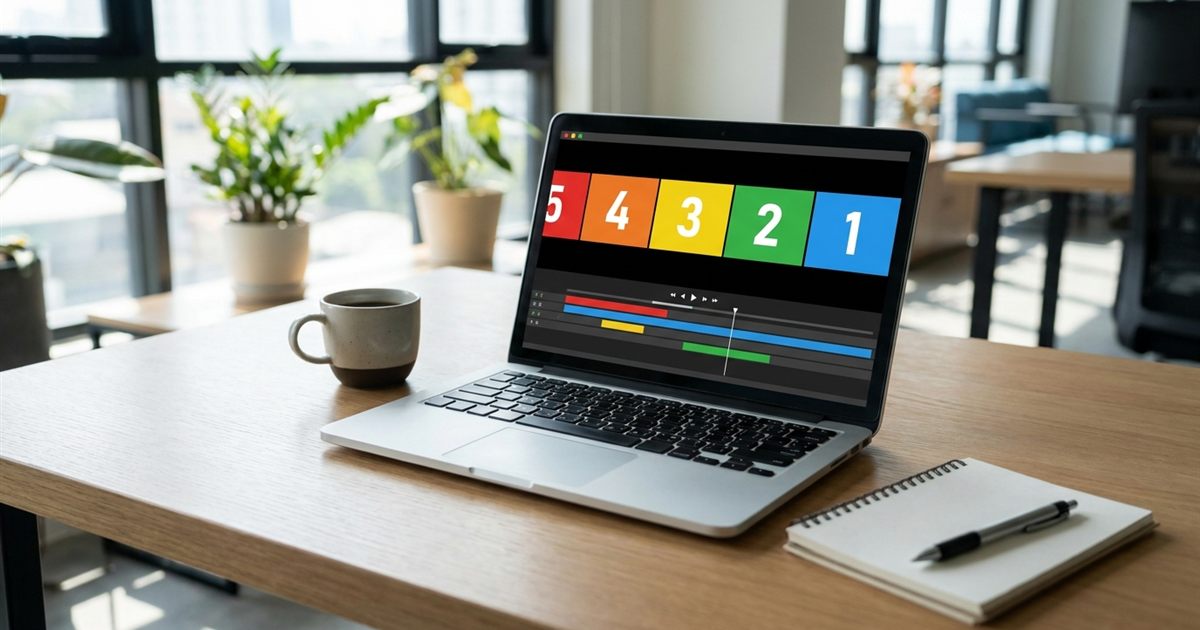
A countdown GIF builds anticipation in a few seconds: five, four, three, two, one, go. It works for a launch announcement, a sale teaser, a birthday surprise or the start of a live event. You do not need video software to make one. If you can export a handful of numbered images, the free GIF Maker stitches them together into a looping animation in your browser, with no watermark and no signup. This guide shows how to design the frames, set the timing and avoid the common problems with countdown GIFs.
Turn numbered images into a countdown GIF
Open the GIF Maker, FreeWhat a Countdown GIF Is (and What It Is Not)
A countdown GIF is a short animation that shows a sequence of numbers or messages, one after another. Because a GIF is a fixed file, the sequence always plays the same way. It does not read the clock, so it cannot show the real time left until your event. Think of it as a teaser animation, not a live timer.
That is still very useful. A short five second countdown makes a great opener for a social post, a banner at the top of a page or a reveal at the end of a slideshow. If you need a timer that shows the actual days and hours left, you will need a service that renders a new image on every request. For everything else, a simple GIF does the job.
Plan Your Frames First
Decide what each frame should say before you design anything. A classic countdown has one number per frame, followed by a final frame with the message you want people to remember.
- Frames 1 to 5: the numbers 5, 4, 3, 2 and 1, large and centered.
- Final frame: a short message such as GO, LIVE NOW or SALE STARTS TODAY.
- Optional first frame: a title such as Launching in, so people know what is counting down.
- Keep the same background and font on every frame so the numbers feel like one animation.
You can build the frames in any design tool, a slide deck or even a photo editor. Export each one as a PNG or JPG at exactly the same size. Name the files so they sort in order, for example 1.png for the first frame and so on.
Build the Countdown Step by Step
- Open the GIF Maker and drop in your frames. The tool needs at least two images.
- Check the thumbnails. They are numbered in the order you added them, and that numbering is the playback order. Remove and re-add any frame that is out of place.
- Set the frames per second. The FPS setting controls how long each image stays on screen. At 1 FPS every frame shows for one second, which is exactly the rhythm of a countdown.
- Choose the width. For a social post or an email, 480 to 600 pixels is plenty and keeps the file small.
- Pick the loop. For a countdown that should play once, choose Once. For a banner that keeps repeating, leave it on Infinite.
- Create the GIF, preview it and download it.
If you want a number to stay longer, such as the final message, add that image more than once. Each copy counts as another frame, so the message stays on screen for as many seconds as you repeat it.
Timing Tips That Make It Feel Right
- One second per number feels natural. Faster than that and people cannot read the digits.
- Hold the final message for two or three seconds. It is the part you want people to remember.
- If you want half second steps, use 2 FPS. Remember that every frame will then last half a second.
- Do not use rapid flashing between frames. Fast flashes can bother some viewers, as explained in GIF accessibility and flashing content.
For more on choosing a frame rate for different kinds of animation, see how many frames per second to use for a GIF.
Where to Use a Countdown GIF
- Social posts and stories that announce a launch or a livestream.
- A banner on a landing page for a sale or an event.
- The end of a presentation slide that introduces the next section. See GIFs in slideshows and presentations.
- A newsletter header, with the caution below about email apps.
- A birthday or party invitation that builds the surprise.
One caution for email: some desktop email programs show only the first frame of a GIF and do not play the animation. If your countdown goes in an email, make the first frame carry the key message, for example Launching tomorrow, so the email still works even when the animation does not play. For more on email use, read GIF maker for email signatures and newsletters.
Loop Once or Loop Forever?
A countdown makes the most sense when it plays once and then stops on the final message. In the GIF Maker, the Once option tells GIF viewers to stop after one full cycle. Most browsers and image viewers respect that setting, although some platforms re-encode GIFs and may loop them anyway. If you cannot control the platform, design the sequence so it still makes sense when it repeats, for example by ending with a message that also works as a title.
For a deeper look at looping options, see how to loop a GIF once or make it boomerang and how to make a GIF loop seamlessly.
Keep the File Small
Countdown frames are mostly flat colors and big digits, so they compress well. Still, a few habits keep the GIF light.
- Use a solid background instead of a photo or gradient.
- Keep the width modest. Bigger is not better for a short teaser.
- Use a handful of frames. Six or seven are enough for a countdown from five.
- If the result is still heavy, shrink it with how to reduce GIF file size.
Large flat areas of color also avoid the banding problem that photographs can show in a GIF, which is explained in why a GIF looks blurry or pixelated.
A Simple Example
Imagine a small shop that is about to open a flash sale. The owner designs seven square images in a slide deck: a title frame, the numbers five to one and a final frame that says SALE LIVE NOW. She exports them as PNG files, adds them to the GIF Maker in order, sets 1 FPS and a width of 600 pixels, adds the final frame two more times so it stays on screen longer, and chooses to play it once. The GIF is a few dozen kilobytes, loads instantly in a social post and gives the sale a small moment of drama.
Frequently Asked Questions
Can a GIF show a real countdown timer?
No. A GIF is a fixed file and always plays the same sequence. It can look like a countdown, but it cannot read the clock. For live time left you need a service that generates a new image each time it is requested.
How do I make each number stay for one second?
Set the frames per second to 1 in the GIF Maker. With one frame per second, each image stays on screen for a second before the next one appears.
How do I make a countdown GIF stop at the end?
Choose the Once loop option so the animation plays a single time. Some platforms may override the loop setting, so design the last frame to work even if the GIF repeats.
What size should a countdown GIF be?
For social posts and emails, 480 to 600 pixels wide is usually enough. A smaller width keeps the file light and loads faster.
Ready to build your countdown GIF?
Open the GIF Maker, Free