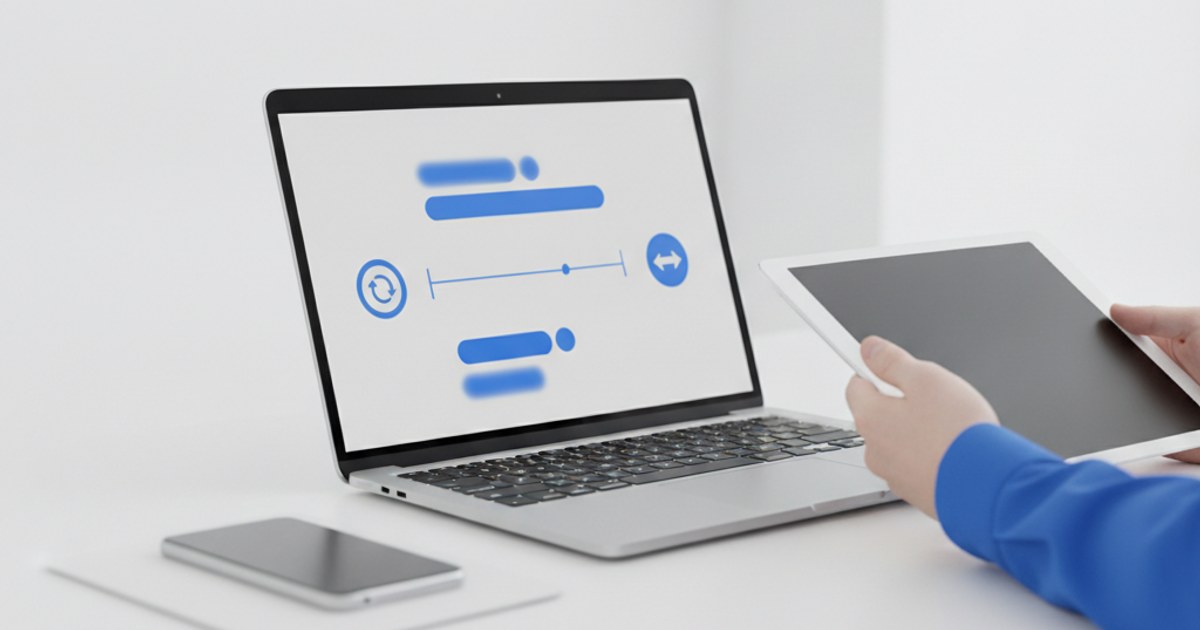
Most GIFs default to looping forever, which is fine for a lot of use cases but wrong for others: a subtle brand animation that should play once and stop, or a clip that would look better bouncing back and forth instead of jumping straight from the last frame to the first. Both of these are simple settings once you know where to find them in a gif maker, not advanced editing.
Ready to set your GIF's loop behavior?
Open GIF Maker — Free, No SignupHow GIF Looping Actually Works Under the Hood
Every animated GIF carries a small piece of metadata called the loop count, stored right in the file alongside the frames themselves. A loop count of zero means infinite, play forever, which is the default almost every gif generator uses unless you change it. Setting that same value to one, two, or three instead tells GIF-compatible viewers to stop after that many full plays, and most browsers and image viewers respect it, since it's part of the standard rather than a workaround.
When a GIF That Plays Once Actually Works Better
Endless looping is expected for reaction GIFs and memes, but it can feel distracting or even unprofessional in the wrong context, a subtle logo reveal in a presentation, a one-time transition animation inside a product walkthrough, or a UI micro-interaction demo. In those cases, capping the loop at one play lets the animation deliver its message and then settle on a final frame, instead of drawing attention to itself indefinitely while someone is trying to read the rest of the page.
Try both loop settings on your own clip
Open GIF Maker — Free, No SignupBoomerang: Playing a Clip Forward, Then Backward
A boomerang effect plays your clip forward to the end, then immediately backward to the start, then loops that whole forward-and-back sequence, creating a satisfying ping-pong motion popularized by short-form video apps. It works especially well for clips that end in a visually different place than they start, a jump, a splash, a hair flip, since the reversed half gives the eye somewhere to return to instead of a hard jump-cut back to frame one.
Making a Boomerang GIF Step by Step
- Start with your existing GIF or video:Have the clip you want to boomerang ready, whether it's a video clip or a GIF you already built.
- Open the Reverse tool: Go to ezyimg.com/reverse and upload your file.
- Enable Boomerang mode: Check the Boomerang mode option instead of a plain reverse. This plays your clip forward then backward instead of only backward.
- Create and preview: Click Create Boomerang and preview the back-and-forth motion before downloading.
- Set your loop count separately if needed: If you want the boomerang to play a limited number of times instead of forever, run the result through GIF Maker and adjust the loop field.
A Note on File Size With Boomerang
Boomerang mode plays the same frames twice, once forward and once backward, which roughly doubles both the frame count and the resulting file size compared to a plain reverse of the same clip. That trade-off is usually worth it for the smoother motion, but if you're posting somewhere with a strict size limit, keep your source clip short before applying boomerang, rather than trying to compress the doubled result afterward.
Frequently Asked Questions
Does setting loop to "once" actually stop the GIF everywhere it's posted?
Most browsers and image viewers respect the loop count stored in the file. Some platforms that re-encode uploaded GIFs on their own servers can override it back to infinite, which is a platform decision rather than something the original file setting can control.
Is boomerang the same as just reversing a GIF?
No. A plain reverse plays the entire clip backward from end to start. Boomerang plays it forward first, then backward, combining both directions into one looping animation.
Can I make a boomerang from a video, or only from an existing GIF?
Either works. You can upload a short video clip or an existing GIF, and the tool builds the forward-then-backward sequence from whichever source you provide.
Why would I want a GIF to stop looping instead of playing forever?
Endless motion can distract from surrounding content in professional contexts, presentations, documentation, or product walkthroughs. Capping the loop lets the animation make its point once and then rest on a final frame.
Related GIF tools
- GIF Maker: Build a GIF and set its loop count
- Reverse GIF: Reverse a clip or create a boomerang effect