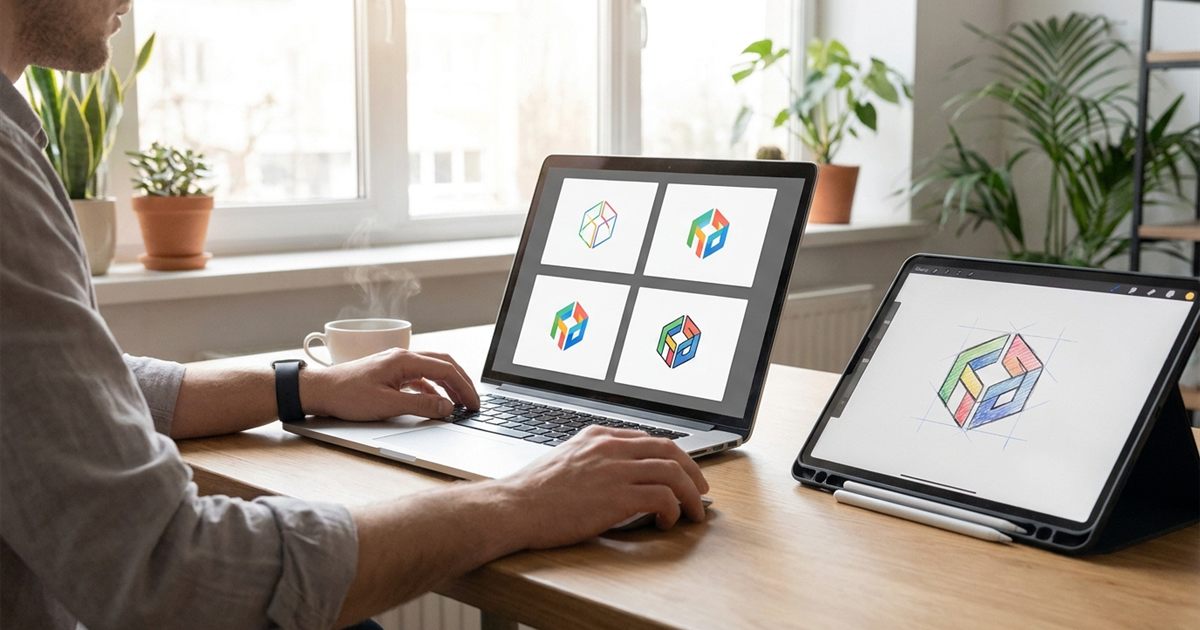
An animated logo catches the eye in places where a still image gets ignored: an email signature, a website header, a profile picture or a short intro on a product page. You do not need animation software to make one. If you can export a few versions of your logo, the free GIF Maker stitches them into a looping GIF in your browser, with no watermark and nothing to install. This guide shows how to plan the frames, set the timing and keep the file small enough to load fast.
Turn your logo frames into an animated GIF
Open the GIF Maker, FreeWhat Makes a Good Animated Logo
The best animated logos are short and calm. They do one clear thing, such as a shape sliding into place, a color shifting or a tagline appearing, and then they rest. Complex motion looks impressive on a big screen and turns into noise at the small sizes where most logos live. Decide on one simple idea first, then build the frames around it.
- A reveal: the logo builds up piece by piece and finishes complete.
- A pulse: the mark grows slightly and returns, like a heartbeat.
- A color cycle: the logo moves through two or three brand colors.
- A tagline swap: the logo stays still while a short line changes below it.
Prepare Your Logo Frames
A GIF is a stack of still images played in order, so your job is to create those images. Open your logo in any design tool and export a version for each step of the motion. Keep the canvas size identical for every frame so the logo does not jump around. A square canvas such as 600 by 600 pixels suits most uses.
- Export frame one with the logo in its starting state.
- Duplicate the file and change one thing: move a shape, shift a color or reveal a letter.
- Repeat until the final frame shows the finished logo.
- Name the files in order, for example logo-01, logo-02 and logo-03, so the sequence is easy to follow.
- Use PNG for sharp edges. The GIF Maker also accepts JPG, WebP, AVIF and other common formats.
If you only have a flat logo file and no design tool, you can still animate it by exporting a few copies at slightly different sizes for a gentle pulse.
Build the GIF Step by Step
- Open the GIF Maker and add your frames. You can mix formats in the same batch.
- Check the numbering on the thumbnails. That order is the playback order, so remove and re-add any frame that is out of place.
- Set the frame rate. For a logo, five to eight frames per second gives a smooth but relaxed motion. The default of 10 is a good starting point.
- Choose the width. Use about 400 pixels for email and profile pictures, or match the space on your page.
- Pick the loop count: Infinite, Once, Twice or 3 times.
- Create the GIF and download it. No account and no watermark.
The frame rate applies to every frame equally. To hold a frame longer, such as the finished logo at the end, add that image twice or three times in a row. This is the simplest way to create a pause without extra software.
Timing Tips That Make Logos Look Professional
- Hold the final frame. Repeat the finished logo two or three times so viewers can read it before the loop restarts.
- Keep it brief. Two to four seconds in total is enough for most logos.
- Avoid fast flashing. Rapid contrast changes are tiring and can be a problem for some viewers; see GIF accessibility and flashing content.
- Match your brand. Use your exact brand colors and fonts so the animation feels like part of the same identity.
Keep the File Size Small
A logo GIF is often placed in an email or a page header, where a heavy file slows things down. Start by using fewer frames and a smaller width. If the file is still larger than you want, run it through the free GIF Optimizer, which reduces the color palette and compresses the file in your browser. For more on why GIFs get heavy, read how to reduce GIF file size.
Flat colors compress far better than gradients and photographic textures. A logo with solid fills will produce a much smaller GIF than one with soft shadows.
Where to Use Your Animated Logo
- Email signatures and newsletters. See GIFs for email signatures and newsletters for size guidance.
- Website headers, footers and loading screens.
- Social media profile pictures that support animation. Check the platform rules first; animated GIF avatars covers this.
- Product pages and landing pages as a small brand moment.
- Video thumbnails and presentation title slides.
Test Before You Publish
Open the downloaded GIF in a browser and on a phone. Check that the first frame looks fine, because some apps show it as a still preview. Make sure the final frame reads clearly and that the loop does not jump awkwardly. If you need to adjust the speed afterward, you can edit an existing GIF without rebuilding it; see how to edit an existing GIF.
Frequently Asked Questions
How many frames does an animated logo GIF need?
Four to eight frames are enough for a simple effect such as a fade, a slide or a color change. More frames make the motion smoother but also make the file larger.
Can I make an animated logo GIF with a transparent background?
Keep the background simple and solid. If the GIF will sit on a colored page, give your frames the same background color so edges look clean.
What size should an animated logo GIF be?
For email and profile images, 200 to 400 pixels wide is plenty. A website header can go larger, but a smaller width keeps the file light.
Should my logo GIF loop forever?
A short logo reveal often works better when it plays once or a few times. A gentle idle loop suits a header or profile picture.
Ready to animate your logo?
Open the GIF Maker, Free