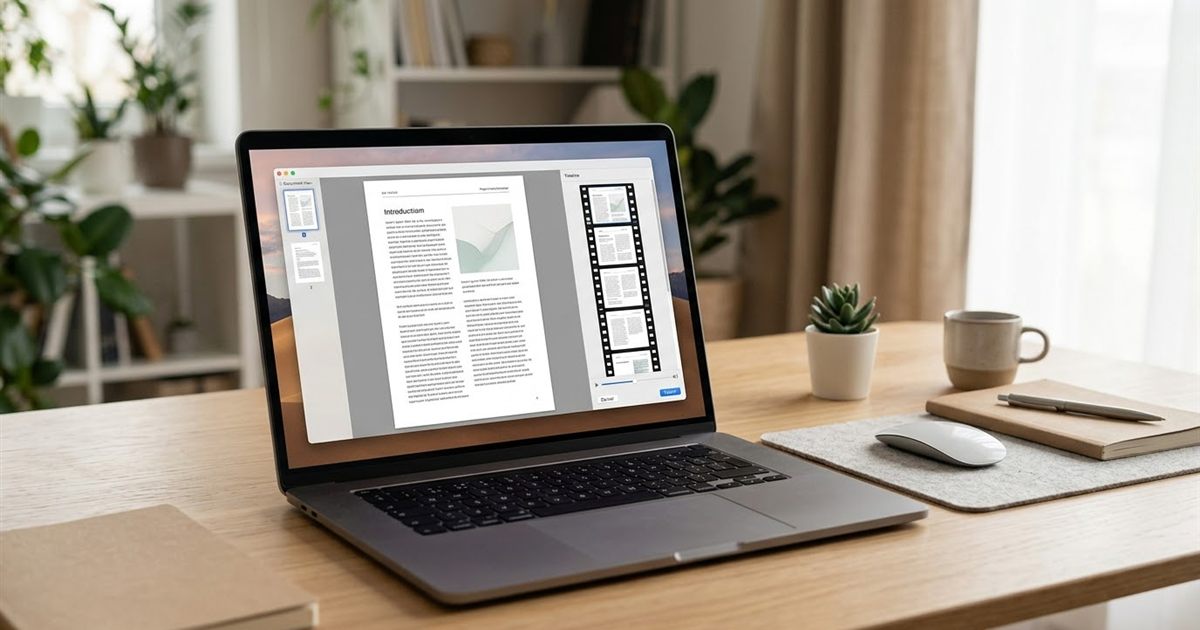
A PDF is built for reading, not for moving. But sometimes you want a few pages to play as a short looping animation: a product catalog that flips through its best pages, a slide deck preview for social media, a step by step instruction sheet or a menu that cycles through its sections. There is no single button for it, but the job takes two quick steps with free tools that run in your browser. First turn the pages into images with PDF to Images, then combine those images with the GIF Maker. This guide shows how, and how to avoid the problems that make PDF based GIFs blurry, slow or hard to read.
Have your PDF pages ready? Turn them into a GIF
Open the GIF Maker, FreeWhy Make a GIF From a PDF
A GIF has two advantages over a PDF in the places where people scroll fast. It plays on its own, with no click and no download, and it works almost anywhere you can post an image. A PDF needs someone to open it. If your goal is to get attention for a few seconds, a GIF preview of your document does the job and can point readers to the full file.
- Preview a catalog, lookbook or price list on social media, with a link to the full PDF.
- Turn a slide deck into a short teaser for a webinar or a course.
- Show a process, such as the pages of an instruction sheet, as a repeating loop.
- Add a looping preview of a menu, brochure or flyer to a website or newsletter.
- Share a few pages in a chat app that previews images but not documents.
The trade off is that a GIF is a small picture, not a document. Text must be large enough to read at a glance, and a GIF cannot hold dozens of pages without becoming heavy. Pick the three to eight pages that matter most.
Step 1: Export the PDF Pages as Images
- Open PDF to Images and add your PDF. Everything runs in your browser, so the file is not uploaded to a server.
- Choose the output format. PNG keeps text sharp, JPG gives smaller files and is fine for photo heavy pages.
- Set the resolution scale. The tool offers 0.5x to 3x, and 1.5x (about 108 DPI) is a good start. For a GIF that will end up 600 to 800 pixels wide, you do not need more than that.
- Convert the document, then download the pages one by one or as a single ZIP.
Only keep the pages you want in the animation. If your PDF has twenty pages and you want four, you can simply leave the others out of the next step. You do not need to cut the PDF first.
Step 2: Build the GIF
- Open the GIF Maker and drop in the page images. The tool needs at least two images and accepts PNG, JPG, WebP and several other formats.
- Check the order. The thumbnails are numbered in the order you added them, and that number is the playback order. Some file pickers sort names alphabetically, which can put page 10 before page 2, so look at the numbers and remove and re-add any page that is out of place.
- Set the frames per second. At 1 FPS every page stays on screen for one second. Pages with a lot of text need more time, so you may want to add a page twice to make it last two seconds.
- Pick the width. For a social post or a web preview, 600 to 800 pixels works well. Wider is rarely needed and makes the file heavy.
- Choose how it loops. Infinite works for a preview or a banner, Once works for a short reveal.
- Create the GIF, preview it and download it.
The whole process happens in your browser, with no signup and no watermark, so you can try several versions until the pace feels right.
Make the Text Readable
Document pages are designed for A4 or Letter paper, and shrinking a whole page to a few hundred pixels makes the small text unreadable. Plan for that before you convert.
- Choose pages with large headings, big numbers or clear images. These survive the reduction.
- If a page is mostly small text, do not use the whole page. Crop to the heading or the key paragraph first with the image crop tool, then use the crop as a frame.
- Keep the same page orientation for every frame. Mixing portrait and landscape pages makes the animation jump.
- Use PNG at 1.5x or 2x for text heavy pages. JPG compression can make thin letters look fuzzy.
If the final GIF looks soft, read why a GIF looks blurry or pixelated for the causes and the fixes.
Keep the File Size Under Control
Pages with white backgrounds and flat colors compress well, but pages with photos and gradients produce heavy GIFs. A GIF is limited to 256 colors per frame set, so photographs also tend to show banding.
- Use fewer pages. Four to eight frames is plenty for a teaser.
- Lower the width if the file is too heavy. Going from 800 to 600 pixels cuts the size noticeably.
- Avoid pages with full bleed photos if size matters. Pick pages with simple graphics instead.
- If the result is still too big, follow the steps in how to reduce GIF file size.
Check the limit of the place where you will post it. GIF maker size limits for X and LinkedIn and GIF Maker for WhatsApp and Instagram list the common ones.
Choosing the Right Timing
Timing makes the difference between a preview people read and one they scroll past. A good rule is to give each page long enough to read its main message once and no longer.
- A page with a big headline and an image works at one second.
- A page with a short paragraph needs two to three seconds. Repeat that page in the GIF Maker to hold it.
- End on the page that carries your call to action, and hold it a little longer than the rest.
- Do not flash pages quickly. Rapid changes can bother some viewers, as explained in GIF accessibility and flashing content.
For more on choosing speed, see how many frames per second to use.
Where It Works and Where It Does Not
A GIF preview works well on websites, social posts, chat apps and most presentations. In email, some desktop programs show only the first frame, so make the first page carry the key message. You can read more in GIF maker for email signatures and newsletters.
Remember that a GIF is not accessible by itself. Add alt text that describes what the pages say, and link to the full PDF for anyone who needs the complete text. GIF SEO, alt text and file names explains how to describe it well.
Frequently Asked Questions
Can I convert a PDF directly to a GIF?
Not in a single step. First export the pages as images with PDF to Images, then combine those images into an animation with the GIF Maker. Both tools run in your browser.
How many PDF pages should I put in a GIF?
Four to eight pages is a good range. More pages make the file heavy and the loop too long for people to watch.
Why is the text in my PDF GIF hard to read?
The page was reduced too much. Use pages with large text, crop to the important part before building the GIF and export text pages as PNG at 1.5x or 2x.
Is it free and does it add a watermark?
Yes, both steps are free, run in your browser and add no watermark. You do not need to sign up.
Ready to turn your PDF into an animated GIF?
Open the GIF Maker, Free