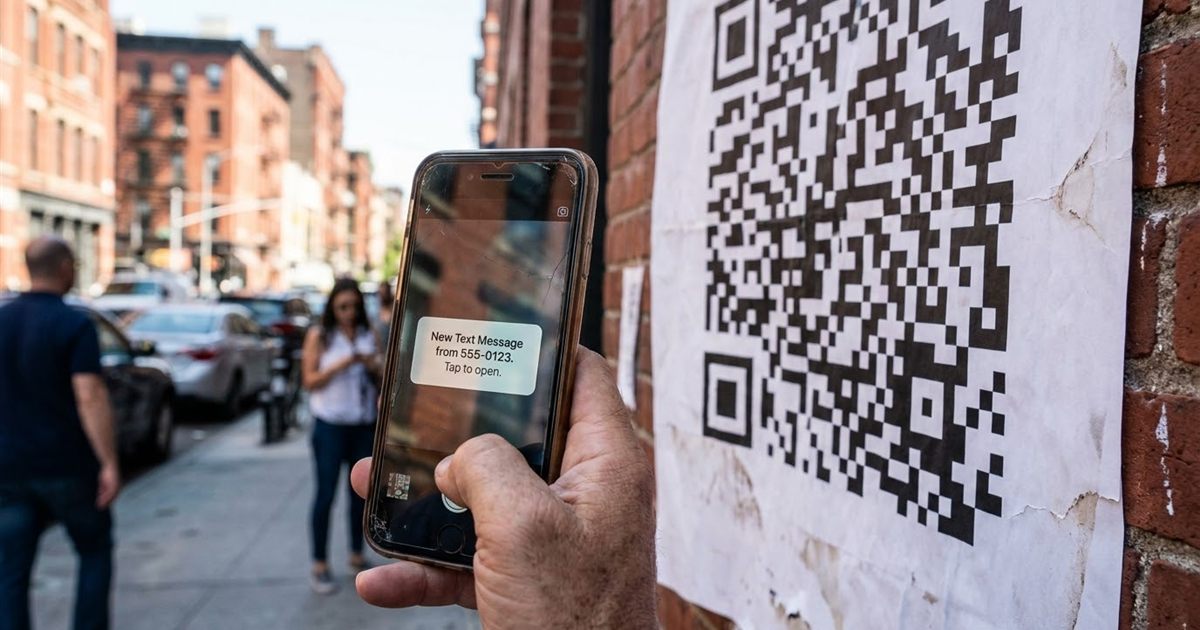
Asking people to text a number sounds simple until they have to type the number, remember the keyword and hope they did not make a typo. An SMS QR code removes those steps. One scan opens the messaging app with the phone number and a short message already filled in, so the person only has to press send. The free Custom QR Code Generator includes an SMS preset that builds this code for you. This guide explains how an SMS QR code works, what to write in it and how to test it before you print.
Make a QR code that starts a text message
Open the Custom QR Code Generator, FreeWhat an SMS QR Code Does
An SMS QR code stores a phone number and, optionally, a message. When someone scans it with the phone camera, the phone offers to open the text messaging app with a new message addressed to that number and with your text already in the body. The person reads it, edits it if they wish and presses send.
The code never sends a message by itself. The person must always confirm, which is good for trust and for privacy. It also means the code works best when the pre-filled message is short and clear.
Good Uses for a Text Message QR Code
- Contests and giveaways. Text a keyword to enter, with the keyword already typed.
- Waiting lists. Customers scan to join a list for a table, a class or a product drop.
- Quick support. A sticker on a device or a counter that opens a message to your help line.
- Appointment confirmation. A reminder card with a code that opens a message saying Confirm.
- Lost and found. A tag on a pet collar or a bag that opens a message to the owner.
- Feedback. Customers text a short rating or comment to a number you check.
For a link that opens a chat app instead, see WhatsApp QR codes. For calls and email, read QR codes for email and phone links.
Create the SMS QR Code Step by Step
- Open the Custom QR Code Generator and choose the SMS preset.
- Replace the sample number with yours. Include the country code with a plus sign, such as +1 for the United States, so it works for people in other places.
- Replace the sample message with your own. Keep it short, for example JOIN or Table for 2.
- Pick colors with strong contrast, with dark modules on a light background.
- Add a short label under the code, such as Scan to text us, so people know what will happen.
- Download the PNG for screens and flyers or the SVG for large print.
If you prefer a simpler tool without styling, the QR Code Generator also creates codes from text you type or paste.
Write a Message That Works
The pre-filled message is the heart of an SMS QR code. A few guidelines help.
- Keep it very short. One keyword or one sentence is enough.
- Make it self-explanatory, because the person sees it before sending.
- Avoid special characters and long links, which can cause trouble in some messaging apps.
- If you need a response, tell the person what will happen next, either on the sign or in an automatic reply from your number.
A useful trick for tracking: use a slightly different keyword for each placement, for example JOIN WINDOW on the shop window and JOIN FLYER on the flyer. When the messages arrive, you can see which sign brought them. For more ideas on measuring results, see how to track QR code scans.
Test on More Than One Phone
Phones and messaging apps do not all treat SMS codes in exactly the same way. Most current iPhone and Android cameras recognize the format and open a message, but the way the pre-filled text appears can vary. Always test your code before you print a thousand copies.
- Scan it with an iPhone and an Android phone if you can.
- Check that the number is correct, including the country code.
- Confirm that the message text appears and is not cut off.
- Try from the distance people will stand at. See why a QR code will not scan if something fails.
As a safety net, print the phone number in plain text under the code, so anyone whose phone does not read the code can still type it.
Costs, Consent and Privacy
Two practical points are easy to forget. First, the person sending the text may pay standard message charges according to their phone plan, so keep your message short and worth it. Second, if you collect phone numbers for marketing, follow the consent rules that apply where you operate. Say clearly what people are joining and how they can leave.
Never put private information in the code. Anyone who can see or photograph the code can read what is inside, including the number and message.
Design and Print Tips
- Give the code a reason to be scanned, such as Text JOIN to win a free coffee.
- Print it large enough for the viewing distance. See QR code size for printing.
- Leave a quiet margin around the code and avoid placing it on a busy picture.
- Use a label to say what happens after the scan. See adding scan me text to a QR code.
- Match brand colors only if contrast stays high, as explained in QR code color contrast.
Frequently Asked Questions
Does an SMS QR code send the message automatically?
No. Scanning opens the messaging app with the number and text filled in. The person still has to press send.
Should I include the country code in the phone number?
Yes. Start the number with a plus sign and the country code so the message goes to the right place from anywhere.
Can I use a different message for each poster or flyer?
Yes, and it is a good idea. Make one code per placement with a different keyword, and you can see which one brings the most replies.
Will every phone open the message the same way?
Most current phones recognize SMS codes, but the way the pre-filled text appears can differ. Test on both iPhone and Android and print the number as plain text too.
Ready to make your SMS QR code?
Open the Custom QR Code Generator, Free